GDPR-compliant organization

ISO 27001 certified organization

SOC II compliant organization

Create SCORM courses with AI and keep every language current

Smartcat’s AI SCORM generator turns PowerPoint decks, Word documents and PDFs into interactive SCORM courses with quizzes, translates them into 280+ languages and exports one SCORM package your LMS can run. Built for L&D teams that train in more than one language.

Book a demo

Book a demo

Our expert gives you a tailored demo

Start free trial

Start free trial

15-day free trial, no credit card required

More than 80 of the world’s largest companies have chosen Smartcat

A workplace safety course open in Smartcat’s course editor, with AI-suggested changes to accept or reject and the course outline on the left

What is Smartcat’s SCORM course builder?

Smartcat’s SCORM course builder is an AI SCORM authoring tool that turns PowerPoint decks, Word documents and PDFs into interactive SCORM courses with quizzes and knowledge checks. You refine each course in the built-in editor, translate it into 280+ languages, let your reviewers approve every version and export a package any SCORM-compliant LMS can run.

15K+

eLearning courses localized

Smartcat has localized more than 15,000 eLearning courses.

280+

languages

Every language is available on every plan, so one project can carry all your target languages.

80+

file formats

Translate 80+ file formats, from InDesign and PDF to SCORM courses and video.

SCORM Studio walkthrough (2:58): a published course, from upload to export in another language.

How to create a SCORM package with AI

To create a SCORM file with AI, upload a PowerPoint, Word or PDF file to Smartcat and let the Content Creator Coworker draft modules and quizzes. Edit the draft, translate it and have reviewers approve each language, then export the SCORM package for your LMS. No coding is needed.

Starting from a course idea instead of files? Try the AI course creator.

  1. Upload a PowerPoint, Word or PDF file

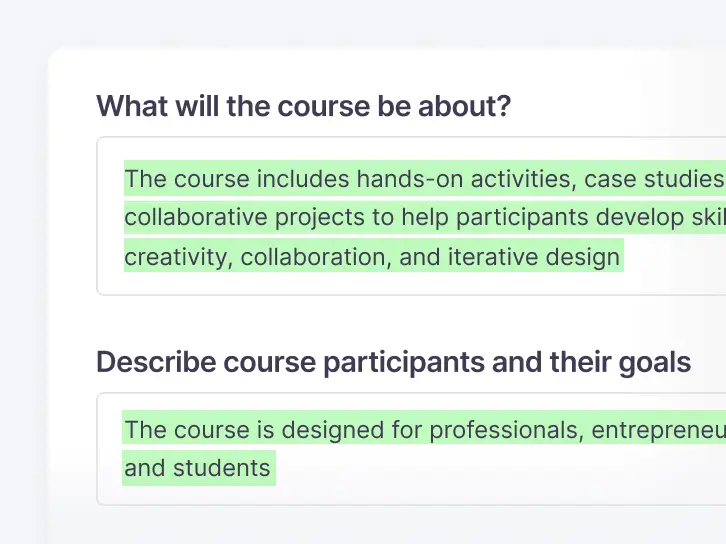
    Start from a deck, a document or a PDF you already have, such as a policy, an SOP, a product guide or a software tutorial. You can also describe the course and its learning objectives in a prompt.

    Course setup in Smartcat: describing what the course is about and who the participants are
  2. Generate modules and quizzes with AI

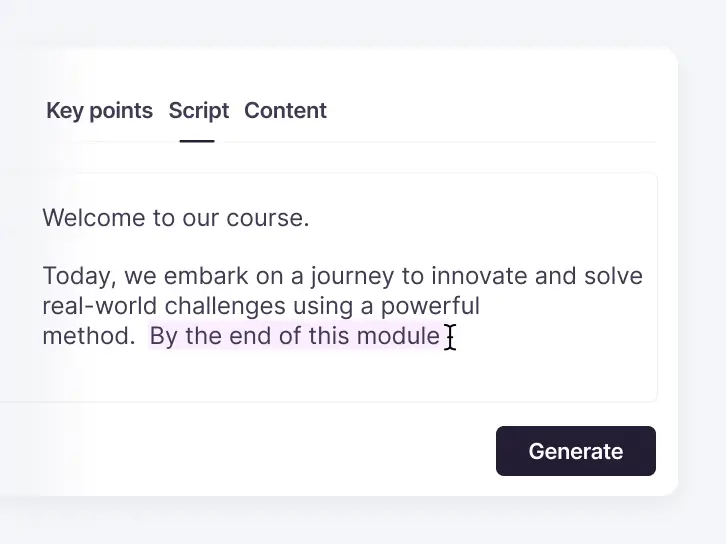
    The Content Creator Coworker drafts modules, lessons, quizzes and knowledge checks from your material, following your learning objectives and brand tone.

    Lesson editor in Smartcat with key points, script and content tabs and a Generate button
  3. Edit text, media and interactions

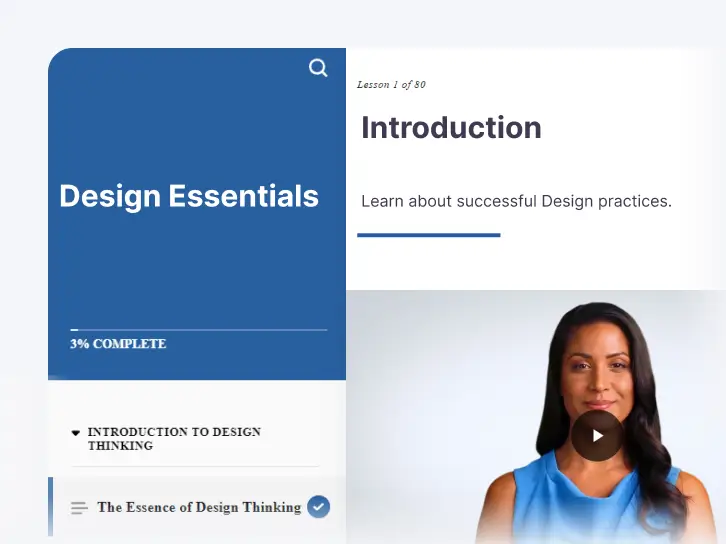
    In the course editor, rewrite text, swap images or video, and add accordions, timelines and sorting or matching questions. Then preview the course as learners will see it.

    Course preview in Smartcat: the first lesson with a video, as learners will see it
  4. Translate the course into every target language

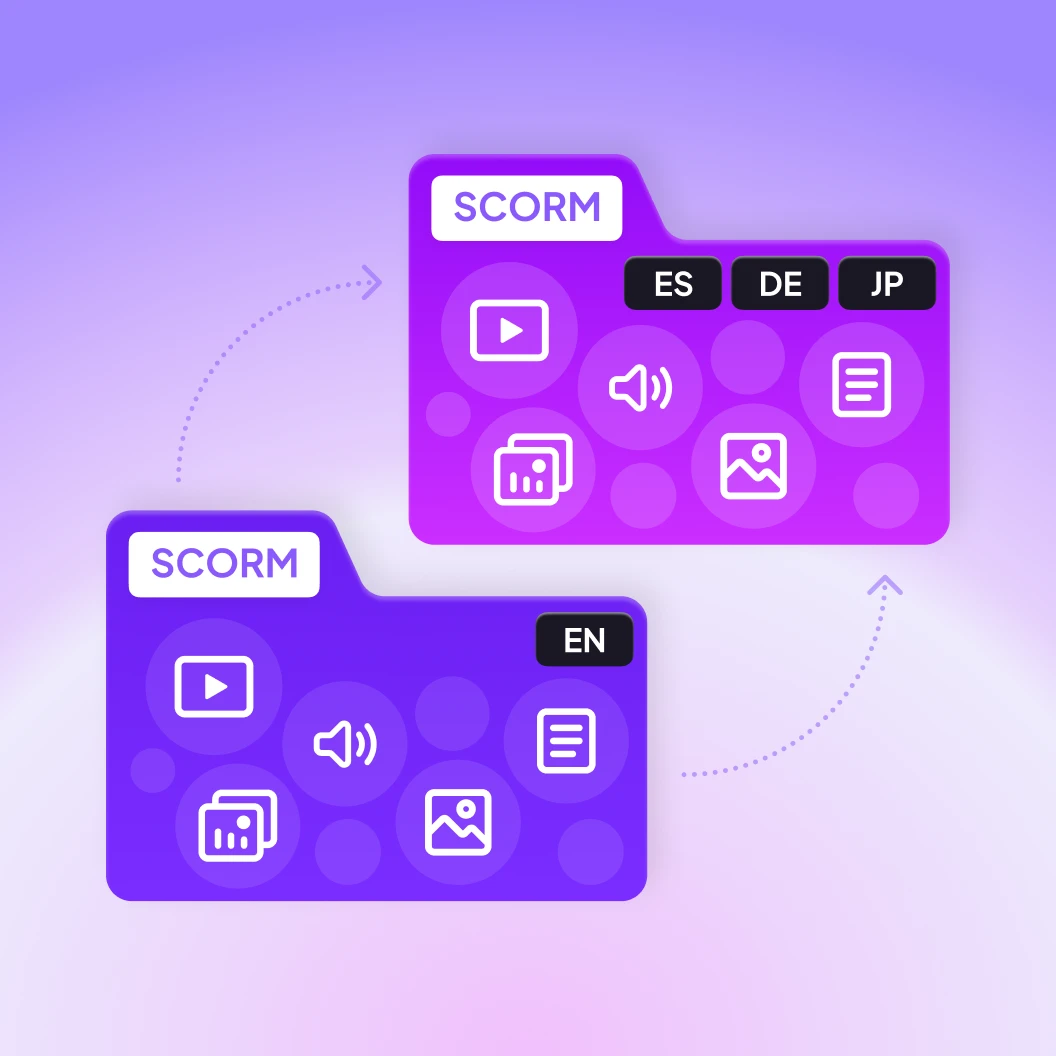
    The Content Translator Coworker translates the whole course in one project, using your glossary and translation memory.

    An English SCORM course becoming Spanish, German and Japanese versions in Smartcat
  5. Have reviewers approve each language

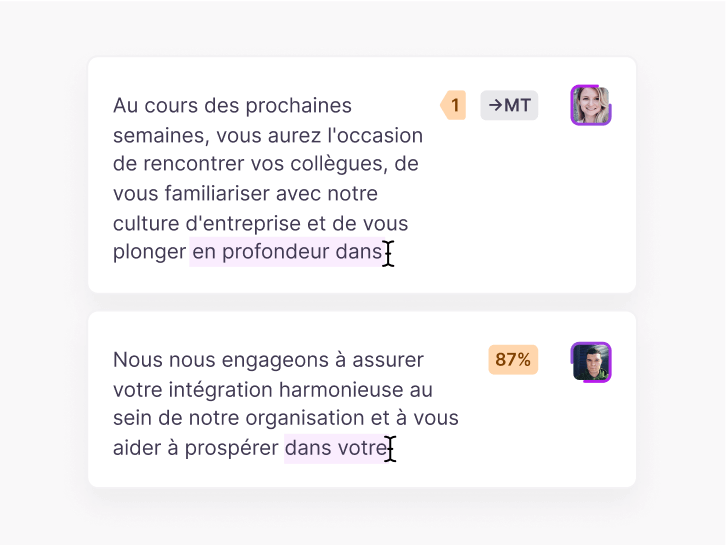
    Your trainers, or linguists from the Smartcat Marketplace, review every version in the browser before anything is exported.

    Reviewers editing translated course text in the Smartcat Editor
  6. Export the SCORM package and upload it to your LMS

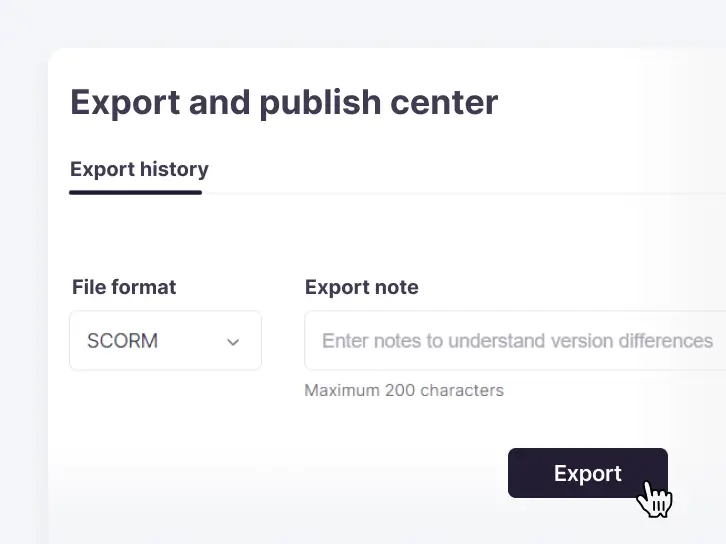
    Download a SCORM package with all languages in one file and upload it to your learning management system.

    Export and publish center in Smartcat with SCORM selected as the file format

SCORM authoring tool or AI SCORM generator: which do you need?

Choose an AI SCORM generator, such as Smartcat’s course builder, when you need to turn existing training material into SCORM courses and run them in several languages. Choose a desktop SCORM authoring tool when you need pixel-level control of every slide in one language.

A SCORM authoring tool is software for building eLearning courses and exporting them as SCORM packages that an LMS can launch and track. Every course starts as a blank project or a template. An AI SCORM generator starts from material you already have: it drafts modules and quizzes, and your team edits and approves them before export.

Desktop authoring toolCloud authoring toolAI SCORM generator (Smartcat)
Starting pointBlank project or templateTemplate in the browserYour PowerPoint, Word or PDF files, or a course description
Who buildsInstructional designer, slide by slideDesigner or subject-matter expertThe Content Creator Coworker drafts; your team edits
TranslationExport text, translate elsewhere, re-importVaries; some include translationBuilt in: every target language in one project, reviewed in the browser
UpdatingEdit, then re-export each languageEdit, then re-export each languageEdit once, re-translate only the changed sections
Best forCustom visual designCollaborative single-language coursesL&D teams that train in several languages

SCORM creation tools for L&D teams

Smartcat’s SCORM creator covers every step of creating SCORM content in one workspace: generate a course from your files, add quizzes and video lessons, translate it and keep it secure. Every course works with SCORM-compliant learning management systems, so you build it once and run it wherever your learners are.

Convert PowerPoint, Word or PDF to SCORM

Smartcat converts existing training material, such as a policy, an SOP or a product guide, into a SCORM course.

  1. UploadA PowerPoint deck, Word document or PDF
  2. DraftThe Content Creator Coworker drafts modules, lessons and knowledge checks
  3. EditIn the course editor
  4. ExportA SCORM package

No source file yet? Describe the course and its learning objectives in a prompt instead.

What is inside a SCORM package?

A SCORM package is a .zip file that an LMS can import. When you export an AI-generated course, Smartcat packages every module this way, so nobody edits the manifest by hand.

  • imsmanifest.xml
    Describes the course structure; the LMS reads it to launch the course
  • HTMLJavaScript
    The course content
  • Media files
    Images, audio and video the course uses

The course reports completion, score and progress back to the LMS.

See the course builder on your own training material

SCORM 1.2 vs SCORM 2004 vs xAPI vs cmi5: which format do you need?

Use SCORM 1.2 when you need the widest LMS support, SCORM 2004 when modules must run in a set order, xAPI when you track learning outside the LMS, and cmi5 when you want xAPI data with LMS launch rules. Smartcat builds SCORM courses; if you’re planning an xAPI or cmi5 rollout, check your setup with us in a demo.

StandardReleasedWhat it tracksSequencing between modulesRuns outside the LMSBest for
SCORM 1.2ADL2001Completion or pass/fail, one score and up to 4,096 characters of progress dataNo, the LMS sets the orderNoMaximum LMS compatibility and simple courses
SCORM 2004ADL, 4th edition 20092004Completion and success separately, a score and up to 64,000 characters of progress dataYes, rules between modulesNoMulti-module courses that need sequencing
xAPIADL, also called Tin Can2013Any learning activity, sent as statements to a learning record store (LRS)Not part of the standardYes, including mobile, offline and simulationsLearning that happens outside the LMS
cmi5xAPI profile for LMS launch2016xAPI statements plus LMS launch, completion and pass rulesCourse structure onlyContent can be hosted anywhere and is launched from the LMSLMSs that want xAPI data with SCORM-like structure

Sources: data limits and status fields from the SCORM run-time reference (Rustici Software); cmi5 release from the cmi5 project; xAPI from ADL’s xAPI specification.

After you build: translate and update every language

To translate a SCORM course you already have, upload the package to Smartcat, choose your languages, review each version and export one multilingual SCORM file. You don’t need the original authoring files.

Articulate® Rise® and Storyline® courses follow the steps below; for iSpring Suite, Easygenerator, Adobe Captivate, Absorb Create or CEGID courses, use SCORM Studio. For the whole workflow, see SCORM translation software or read the SCORM translation guide. Translating a whole course library? See eLearning translation.

1

Choose your target languages and upload the SCORM file

Upload the SCORM package and select every language you need. One project covers them all, with no extra uploads or separate projects.

2

Select the assets to translate

Smartcat detects the images, videos and attached files such as PDFs inside the course. Review the list and pick what to translate; nothing else is processed.

3

Review in the Smartcat Editor

Invite your own reviewers or subject-matter experts from the Smartcat Marketplace. They work with your glossaries, translation memory and comments to keep every language accurate and consistent.

4

Preview the translated course

Preview the course exactly as learners will see it and switch between languages to check each version.

5

Export one multilingual SCORM package

Export every language version in a single SCORM file, so your LMS team uploads one package instead of one per language.

6

Update the course and re-translate only what changed

Every course stays in your workspace. Open it in the course editor to change text, replace media or add knowledge checks and interactions, then re-translate just the new or changed sections into every language. There is no need to rebuild the course or start a new project.

Translate it as it is

The default for every course you upload

  • Translated in place

    Text, images and subtitles are replaced inside the original package.

  • Design stays as authored

    Interactions, media and the course player stay as they were built.

  • Ready to publish

    Export in the original format, as Dynamic SCORM or as one package with every language, with nothing to re-test in the authoring tool.

Online SCORM editor for existing courses

When you want to change the course itself

  • Rebuild it in the course editor

    Import a course from Rise, Storyline or Easygenerator into Smartcat’s course editor, then change text, images and layout as if you had built it here.

  • Other SCORM formats

    Other formats can be imported the same way. Send a sample package to confirm yours before you plan the work.

  • Run a language in the Smartcat player

    Move a translated language into Smartcat’s own course player.

Building the SCORM file is fast. Getting it into every LMS and language isn’t.

Building the course is no longer the slow part. What follows: exporting it, translating it, rebuilding it, routing reviews and uploading it to every LMS, every time the content changes. Smartcat keeps that work in one place.

One multilingual package

Export every language version in a single SCORM file, so your LMS team uploads once instead of once per language.

Update once, re-translate only what changed

Edit the source course and re-translate just the new or changed sections. Approved text is reused from your translation memory.

People approve every version

The Reviewer Coworker prepares each language for review, and your trainers or Smartcat Marketplace linguists approve it before export.

The AI coworkers that build and translate your SCORM courses

The Content Creator Coworker drafts the course. These coworkers translate, update and check it, and your team approves every version before export.

Connect Smartcat to the tools your training content lives in

Translate and review content where your teams already work, from Google Drive and Figma to your help center and CMS. See all integrations

Cummins rolled out multilingual training faster and for less

90%

lower cost for the multilingual rollout

“We rolled the program out 90% faster and at a 90% lower cost.”

Cummins used Smartcat to localize its global sales and service enablement program. Before, only 10–15% of its training content was available globally.

Watch the Cummins webinar
Nicole Morgan
Nicole MorganDirector, Global Sales and Service Enablement, Cummins Inc.

Find out how fast your next course could reach every language

What enterprise teams say on G2

Free Smartcat Academy course: keep SCORM courses current in every language

Learn how L&D teams use Smartcat’s AI coworkers to translate, update and keep SCORM courses current in every language, without rebuilding them for each market.

Frequently asked questions

What is a SCORM course builder?

A SCORM course builder, also called a SCORM authoring tool or SCORM creator, is software that creates eLearning courses and packages them in the SCORM format, so any SCORM-compliant learning management system can launch and track them. Smartcat’s course builder adds two steps most builders leave out: it translates each course into 280+ languages and routes every language to your reviewers before export.

What is an AI SCORM generator?

An AI SCORM generator, such as Smartcat’s course builder, drafts an eLearning course from material you already have and packages it as a SCORM file for your LMS. In Smartcat, the Content Creator Coworker turns PowerPoint, Word or PDF files into modules, quizzes and knowledge checks. Your team edits the draft, translates it into 280+ languages and approves each language before export.

What is the best SCORM authoring tool?

It depends on what your team builds. Smartcat, an AI SCORM generator, suits L&D teams that train in several languages; a desktop tool may suit a single-language team that needs pixel-level slide design.

Compare SCORM authoring software on which SCORM versions it exports, whether it converts existing PowerPoint, Word or PDF material, which quiz types it supports, whether translation and review are built in, and what an update costs. See our comparison of eLearning authoring tools.

Is there a free SCORM course builder or authoring tool?

Smartcat offers a free trial rather than a free plan: 15 days and 15,000 Smartwords, with no credit card required. That is enough to build or translate a real course from your own material, export the SCORM package and test it in your LMS before you buy. Free and open-source SCORM authoring tools also exist, but most need manual packaging, and few translate the course for you.

Can I create a SCORM package without technical skills?

Yes. Smartcat builds the SCORM package for you: you create the SCORM content in the course editor, with modules, text, media and quizzes, and the export step writes the manifest and course files. No coding is needed unless your LMS requires custom tracking beyond what SCORM records.

Can I convert a PowerPoint to SCORM?

Yes. Smartcat converts PowerPoint material into a SCORM course: upload the PPTX and the Content Creator Coworker uses the slide content to draft course modules, which you edit and then export as a SCORM package. Word documents and PDFs work the same way. If you only need the slides translated, Smartcat can also translate the PPTX in its original format.

Can I build a SCORM course from a prompt instead of a file?

Yes. In Smartcat you can describe the course, its audience and its learning objectives, and the Content Creator Coworker drafts modules and quizzes from that description. Adding a source file, such as a policy or a product guide, gives the draft more accurate detail. Either way, you edit the result before export.

Can AI convert SCORM files?

Yes, in two ways. Into another language: Smartcat translates the published package in place, without the source files, so the course keeps its design and still runs in your LMS. See SCORM translation software and SCORM Studio. Into an editable course: import a course from Rise, Storyline or Easygenerator into Smartcat’s course editor and change text, images and layout. Other SCORM formats can be imported the same way; send a sample package first to confirm yours.

Will tracking, scoring and quiz logic still work after translation?

Yes. The package structure stays as built, so tracking, scoring and quizzes work in every language. See SCORM translation software for how a translated package is checked before rollout.

Can I edit a SCORM course after it is translated?

Yes. Courses you build in Smartcat stay in your workspace, and the course editor works as your SCORM editor: change text, replace media or add knowledge checks, then re-translate only the new or changed sections into every language. Approved text is reused from translation memory, and 100%+ matches use no Smartwords on current plans. Export the updated package and replace the old one in your LMS.

What is the difference between a SCORM course builder and an LMS?

A SCORM course builder creates the course; an LMS delivers it. You build and package the course in a tool such as Smartcat, upload the SCORM file to your learning management system, and the LMS assigns it to learners and records completion and scores. Smartcat doesn’t replace your LMS; it prepares the courses your LMS runs.

Can reviewers approve each language before it goes live?

Yes. In Smartcat, your trainers, in-country reviewers or linguists from the Smartcat Marketplace review each language in the browser, with your glossary and translation memory applied. Nothing is exported until you are satisfied with every version. Users are unlimited on every plan, so adding reviewers does not add seat costs.

How is SCORM course creation and translation charged?

Smartcat charges by Smartwords, its single usage unit. Translation uses one Smartword per source word for each target language. In the course editor, text uses 1 Smartword per word, video 10 Smartwords per word and each AI image 20 Smartwords. Plans include a Smartwords allowance shared by unlimited users, and 100%+ translation-memory matches are free on current plans. See current plans on the pricing page.

Is my course content secure in Smartcat?

Yes. Smartcat is SOC 2 Type II compliant and ISO 27001 certified. It encrypts content in transit and at rest, and isolates every workspace, with role-based access, SSO and audit trails on enterprise plans. Your course content is never used to train public AI models, and it is deleted or returned within 30 days of a written request. Details are on the security page.

Is Smartcat affiliated with Articulate?

No. Smartcat is an independent platform and is not affiliated with, endorsed by, sponsored by, or otherwise associated with Articulate Global, LLC. Articulate®, Rise® and Storyline® are trademarks of Articulate Global, LLC. All product names and trademarks on this page belong to their respective owners and are used only for identification.

Didn’t find your answer? Talk to an L&D specialist

Trademark notice. Smartcat is an independent platform and is not affiliated with, endorsed by, sponsored by, or otherwise associated with Articulate Global, LLC. Articulate®, Articulate 360®, Rise®, and Storyline® are trademarks of Articulate Global, LLC. All product names, logos, and trademarks referenced on this page are the property of their respective owners and are used for identification and descriptive purposes only. Smartcat’s file-format support is built on publicly documented standards and does not imply any partnership or certification.

Build your next SCORM course in every language your teams speak

See the course builder, translation and review workflow on your own training material. Or try it free for 15 days, with no credit card required.