Legal and compliance
Contracts, policies and NDAs keep defined terms and clause wording consistent, because the glossary applies to every file.
Typical files
ContractsPoliciesNDAsTerms and conditions
Smartcat is an online document translator for legal, marketing, HR and sales teams. Translate document files in 80+ formats, from Word and PDF to Excel and PowerPoint, into 280+ languages and download the same file type with its layout in place.
More than 80 of the world’s largest companies have chosen Smartcat
A document translator, also called a doc translator or file translator, is software that translates a whole file, such as a Word document, PDF, spreadsheet or slide deck, and returns the same file type in the target language. Nobody copies text out and pastes it back.
Smartcat’s AI document translator handles 80+ file formats, reads scanned pages with OCR, applies your glossary and translation memory, and lets your reviewers approve every language before you download it.
Last updated: 30 October 2026
280+
languages
Translate into 280+ languages, with every target language in one project.
80+
file formats
Translate 80+ file formats, from InDesign and PDF to spreadsheets, slide decks and video.
92%
of AI-translated words kept
92% of words translated by Smartcat AI are accepted without a single human edit.
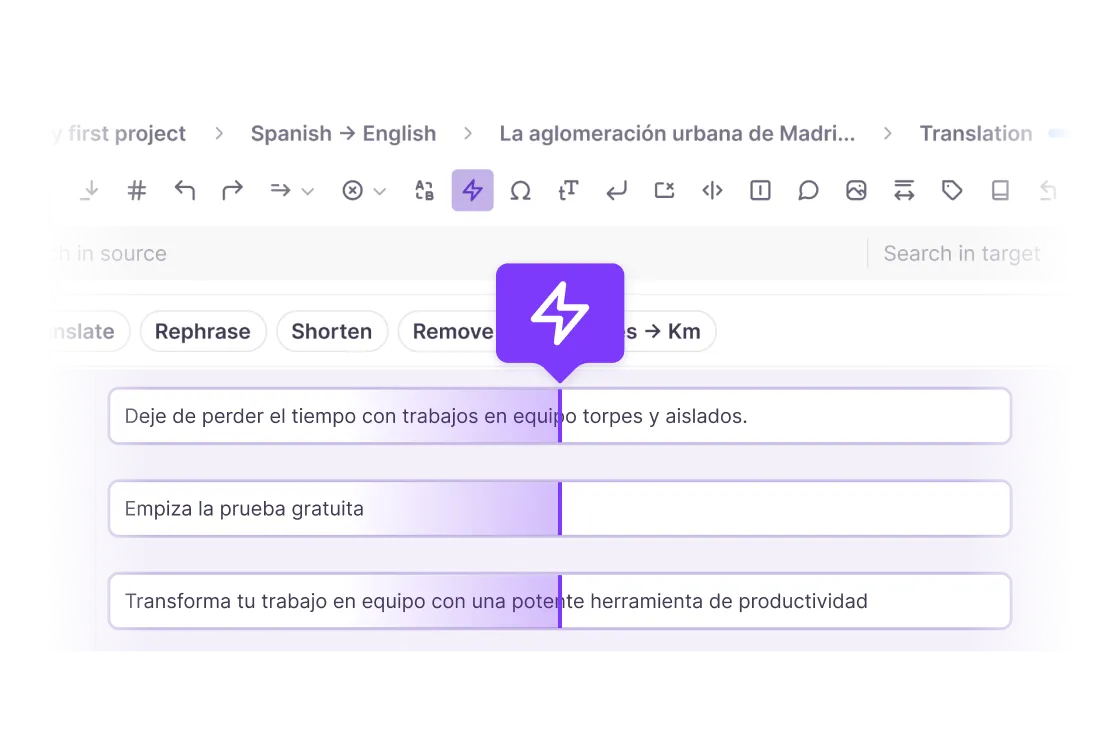
A contract, manual or sales deck goes through the same manual steps for every language. The translation itself is fast. Putting it back into the file is slow, and the work starts again with every new version.
Take the text out of the Word file, PDF or deck.
Paste it into a web translator or a chat tool.
Put the translation back into the original template.
Fix tables, fonts, spacing and images that moved.
Email attachments to reviewers and chase sign-off.
Translating the words is the quick part. Rebuilding the file is what makes translated documents late, inconsistent and expensive.
Translating the file instead of the text removes the rebuild step: the document goes in unchanged and comes back in the same format, ready for review.
Text leaves the file without its tables, styles and images.
Word, PDF, Excel, PowerPoint and 80+ other formats go in unchanged.
Someone pastes the translation back and repairs what moved.
Text boxes, columns, tables and images come back in place in every language.
Reviewers mark up attachments, round after round.
Reviewers edit the translated document in a visual editor, in the browser.
Each update is a new copy-and-paste job.
Translation memory and your glossary carry approved text into the next file.
A badly translated file rarely shows up as a translation problem. It shows up in deals, operations, budgets and brand.
Contracts and policies
A deal or a policy launch waits while the translated version is reformatted and checked again.
Manuals and procedures
Teams in other countries keep working from the previous version of a manual or SOP.
Sales and marketing decks
Regional teams pitch from an older deck because the translated one isn’t ready.
Rework costs
Designers and coordinators get paid to rebuild layouts that already existed in the source.
Inconsistent wording
Defined terms and product names change from vendor to vendor and from one file to the next.
Files in the wrong places
Confidential documents get pasted into free tools because there is no approved way to translate them.
A document translator translates the file itself, not text copied out of it. Smartcat returns the file in its original format, keeps your approved wording for next time and lets the right people approve each language.
Upload the file as it is and download the same file type in every target language. Text boxes, columns, tables and images stay in place, so nobody pastes translated text back into a template. Scanned PDFs go through OCR first. See what survives, format by format: translate documents and keep formatting.
Word, PDF, Excel, PowerPoint, InDesign packages, Google Docs and images go into the same kind of project, with the same glossary and the same reviewers. Smartcat translates 80+ file formats, so a contract, its annex and the deck that presents it can be translated together. Full list: supported file formats.
Reviewers open the translation in Smartcat’s visual editor next to the source, comment and fix wording in the browser, with no software to install. Your own colleagues can review, or you can add Smartcat Marketplace linguists for contracts and other high-stakes files. The Reviewer Coworker pre-reviews each language first.
Approved translations go into your translation memory and agreed terms into your glossary. The next contract, manual or new version starts from that wording, so defined terms, product names and boilerplate stay consistent and you only translate what is new. More on how translation memory works.
Your own reviewers or Smartcat Marketplace linguists review each language in a visual editor, and you approve it before download. AI translates first and your reviewers approve, so they check a strong draft instead of rewriting it.
Routine work moves without a queue.
Translates the document with your glossary and translation memory.
Pre-reviews each language for fluency, tone and terminology.
Checks terminology, formatting and accuracy before people see it.
Expert judgment where it matters.
Legal, product or regional colleagues check meaning in the visual editor.
Add professional review for contracts, regulated or customer-facing files.
Nothing goes out without sign-off.
Approves each language, then downloads the finished file.
Keeps every approved edit for the next document.
92%of words translated by Smartcat AI are accepted without a single human edit.
Every team that sends files across borders. Each one works on the real document, and every edit grows the shared translation memory and glossary.
Contracts, policies and NDAs keep defined terms and clause wording consistent, because the glossary applies to every file.
Typical files
Brochures, InDesign packages and campaign decks come back in their own format, ready for a final design check.
Typical files
Handbooks and announcements in Word or Google Docs reach every office in its language at the same time.
Typical files
Pitch decks and product sheets return as PowerPoint and PDF files that regional teams can present without reformatting.
Typical files
Manuals, specifications and safety documents keep part names and warnings consistent across every language.
Typical files
Job aids, handouts and training decks are translated next to the courses they support, with one glossary.
Typical files
Most teams start with one document: the file that is late in another language today. As volume grows, Smartcat takes on more of the loop: reusing approved wording, routing review and translating only what changed.
A contract, a manual or a deck needs several languages this week.
Which document is late in another language right now?
Volume grows, and the same terms appear in file after file.
Where do your source documents live today?
Reviewers become the bottleneck as languages multiply.
Who reviews translations today, and how long do files wait?
Each update reuses approved wording, so only new text is translated.
How long until every language reflects the latest version?
Use document translation software for speed, consistency and volume, and add professional linguists where a document carries legal or financial risk. Below: technical, business and financial documents, certified translation and how document translation prices work.
Document translation software translates files with AI, translation memory and your glossary; a translation service assigns human linguists per project. Most teams combine the two: software for speed and consistency, professional linguists for documents that carry legal or financial risk.
| Translation agency | Translation software | Smartcat | |
|---|---|---|---|
| Who translates | Agency linguists | Your team, with machine translation | AI translation, plus your reviewers or Marketplace linguists where needed |
| Files | The agency prepares files per project | Depends on the tool’s file support | 80+ formats, returned in their original format |
| New versions | A new quote and project per change | Re-run the changed files | Approved wording reused from translation memory |
| Review | Agency QA | Your team | Your reviewers approve in the browser |
| Pricing | Per word, per language | License or seats | Smartwords, one usage unit for every file type |
Technical document translation covers manuals, specifications and safety documents, where one drifting term can confuse a technician. A glossary keeps part names and warnings identical in every language, and an engineer or linguist approves each file.
Business document translation covers contracts, reports, proposals and policies that must say the same thing in every market. Your glossary holds defined terms, a named reviewer approves each language, and the file comes back ready to sign or send.
Financial document translation covers annual reports, statements and budgets, which usually arrive as Excel or PDF files. In Excel you choose which columns, rows or sheets to translate, and PDF tables keep their structure. Add human review for any figure that carries risk.
Document translation prices depend on who translates. Agencies usually charge per word and per language. Smartcat uses Smartwords, one usage unit for every file type: one per source word for text documents, and a flat 1,000 per image or scanned page.
Certified or sworn translation is a legal status, not a file format: whether a translation is accepted depends on the authority that receives it. Smartcat translates and reviews the document; certification comes from a sworn translator or the authority’s own process.
Check the receiving authority’s rules before you order. For contracts, filings and regulated documents, add professional review in the same Smartcat project.
Free translators are fine for a paragraph. For a file you have to send to someone, what matters is what comes back.
| Smartcat | Google Translate | ChatGPT | |
|---|---|---|---|
| What you get back | The same file type in every language, ready to send | A translated file for some formats, or text to copy | Mostly translated text; rebuilding the document is up to you |
| Layout, tables and images | Kept in place on export; complex layouts may need a light touch-up | Partly kept; complex layouts often shift | Usually lost, because the answer is text rather than your file |
| Scanned documents | OCR, then the translation goes back into the layout | Limited | Can read many scans, but returns text |
| Long documents | Whole manuals and contract sets in one project, with no documented page limit | Per-file size and page limits apply | Long files usually need splitting into parts |
| Terminology across files | Glossary and translation memory, stored and reused | Not stored | Paste a glossary into each prompt; nothing is stored |
| Human review | Your reviewers or Smartcat Marketplace linguists, in a visual editor | Not included | You arrange review yourself |
Comparison based on each tool’s publicly documented features. Google Translate and ChatGPT are trademarks of their respective owners; see the trademark notice below.
From upload to a translated file in six steps. The same steps work for Word, PDF, Excel, PowerPoint and InDesign files.
Drag the file into a new project: Word, PDF, Excel, PowerPoint, InDesign package, TXT or any of 80+ formats. For a scanned PDF, choose the image workflow so OCR reads the text.
Pick one source language and every target language you need, from 280+, in the same project.
The Content Translator Coworker translates the file with your glossary and translation memory applied.
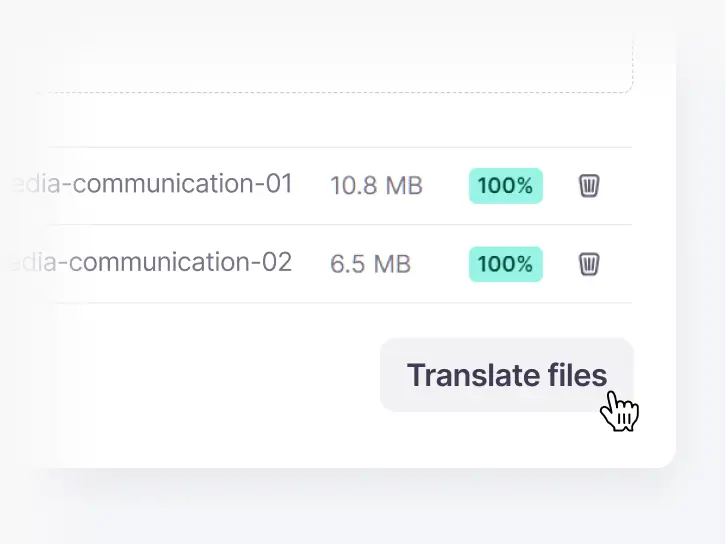
One click for every file and language
Every file in the project is translated into each target language you chose, with your glossary and translation memory applied. Then the review starts.
Open the editor to check the translation with your team, or add Smartcat Marketplace linguists for high-stakes files.
Mark each language as approved when it is ready, so nothing goes out unchecked.
Export the translated document in its original format, one file per language, or every file in one ZIP.
Upload the original file and Smartcat returns the same format in every language. Each file type has its own details: what is translated, what is optional and where the limits are.
Every file translator below runs on the same Smartcat workflow. If you translate one format most of the time, start from its own page.
PDF translator
Translate PDFs, including scanned ones, and keep the layout.
Large PDF translator
Translate PDFs of hundreds of pages as one document.
Translate documents and keep formatting
What survives translation, format by format.
Google Docs translator
Translate Google Docs from a Drive folder.
TXT file translator
Translate plain-text files of any length.
Excel translator
Translate workbooks sheet by sheet.
AI PowerPoint translator
Translate business decks with your glossary.
Presentation translator
Translate PPT, PPTX, PPS and ODP decks.
Free PowerPoint translator
Translate a PowerPoint file online.
Image translator
Translate text inside images and keep the design.
Smartcat translates Word, PDF, InDesign and Google Docs files, the tracked changes, charts and hidden content inside them, right-to-left languages and whole batches of documents. Each card states the limits.
Word (DOC, DOCX, RTF), OpenDocument (ODT), TXT and Markdown files translate directly, with no conversion step. Each comes back in its own format with styles, tables and images in place. Very complex formatting, such as nested tables or text boxes, may need a quick check after export.
A PDF with selectable text goes through the PDF workflow and comes back as a translated PDF with its columns and tables. An image-only scan uses OCR in the image workflow, which you choose at upload. Clear, high-resolution scans give the best results.
InDesign files translate as .indd, as IDML or as a whole package uploaded in a ZIP. Smartcat converts an .indd to IDML, translates it and returns an .indd; in a package, text in linked images is translated and media stays linked. Tag settings let you simplify segments first.
Google Docs translate through a connected Drive folder: every document in it syncs into a Smartcat project on a schedule. Previous translations import into translation memory, finished ones land in _translations folders, and incomplete translations are held back by default.
A native DOCX with tracked changes and inline comments translates when you enable “Upload document comments”. A PDF of the same file loses that structure. The translation doesn’t come back as live tracked changes: to see edits in the target language, translate an accept-all and a reject-all version.
Images inside Word files (DOC, DOCX, RTF, ODT) translate when Rich Document Image Translation is enabled for your workspace; Support switches it on. Images in PowerPoint decks are a separate step: translate them as images, at 1,000 Smartwords each, then re-insert them.
Table cells and editable chart text are translated as document text, at one Smartword per word. A chart saved as a picture goes through image translation instead. SmartArt and embedded Excel charts in decks can cause processing failures, so convert them first.
Hidden Excel sheets and cells, cell comments and text in shapes are included only when you switch them on at upload. In presentations, image alt text is translated when “Import alt text for images” is enabled. Nothing hidden is translated by default.
Opt in at upload
Right-to-left languages such as Arabic, Hebrew, Persian and Urdu are supported targets. Most documents translate as usual, but complex right-to-left layouts may need a manual adjustment after export, so plan a layout check for those languages.
InDesign files: Smartcat does not switch paragraph direction, so RTL layouts need a step in InDesign.
One file can go into many languages at once: choose one source and every target you need, from 280+, in the same project. Each language is translated and reviewed in parallel and exports as its own file, or every file downloads in one ZIP.
languages to choose from in one project
Batches of documents go into one project, so one glossary, one translation memory and one review flow cover them all, with progress tracked per file and per language. For very large batches, Smartcat recommends about 1,000 files per project for stable performance.
Very large files go into one project with no documented page limit. A PDF with a text layer above its size limit can be split into parts and translated in the same project, so the glossary and memory still apply. Splitting very large files also speeds up processing.
Each coworker takes one part of getting a document into every language. Your team approves every version.
Chief of Staff
Tell your Chief of Staff which documents need which languages, and it coordinates the coworkers that translate, review and check them.
Content Translator Coworker
Translates Word files, PDFs, spreadsheets and decks into 280+ languages with your glossary and translation memory.
Content Update Coworker
Helps find what changed in a new version of a document and re-translates only the new or changed text.
Reviewer Coworker
Pre-reviews every language for fluency, tone and terminology, so your reviewers approve a strong draft instead of rewriting it.
Quality Assurance Coworker
Checks each translated document for terminology, formatting and accuracy issues before it goes out.
Translate files where your teams already keep and share them, from Google Drive folders to Teams chats. See all integrations
Google Drive
Translate the documents, decks and sheets your teams keep in Drive.
Google Docs
Send Google Docs for translation and get them back in every language.
Google Sheets
Translate spreadsheets in place, or send them for a reviewed project.
Microsoft Teams
Attach a document in a chat, name the target languages and get the translated file back there.
Figma
Translate the text in Figma designs without copying it out.
Lower outsourcing and translation costs and fewer vendors, in figures from each customer’s own case study.
50%
lower outsourcing costs
expondo replaced manual file handling for its website and product catalog with one Smartcat workflow, with 50% lower outsourcing costs and 50% higher productivity.
70%
lower translation costs
Stanley Black & Decker translates training PDFs, Word documents, PowerPoint decks and InDesign books in Smartcat, with up to 70% lower translation costs: $1.20 instead of $200–$300 per 1,000 words.
298
translation projects
Topcon delivered 298 translation projects in two years, across 29 countries and 31 languages.
8 → 1
translation vendors consolidated into one platform
“We discovered there were about eight translation companies in use across the organization. Now we’ve consolidated to Smartcat, so everyone is working from the same platform and process.”
Topcon consolidated its translation vendors into one Smartcat platform, so every team follows the same process, across 31 languages.
Read the Topcon case study
Four questions come up most: free tools, confidentiality, existing agencies and layout. The short answers include what Smartcat doesn’t handle.
For a quick read, it does. For a file you send to a client or a regulator, you also need the layout, your terminology and a reviewer.
What Smartcat adds
Smartcat is ISO 27001 certified and SOC 2 Type II compliant, encrypts content and never uses it to train public AI models.
Keep them for the files that need them. Agency or Marketplace linguists can work inside Smartcat, next to your reviewers.
“It was going to be 5x the cost from an agency as it was from Smartcat, even accounting for use of one of your linguists.” Sarah Payne, Director, Leadership Development, Ecolab
Not always, and we’d rather say so. Most documents need no rework, but some elements need a check or a different route.
Known limits
Contracts, financial reports and HR files are confidential. Smartcat protects them at every step; see how on the Smartcat security page.
Role-based access controls
Set who can view, translate, review and approve documents by team, role or region on enterprise plans.
Single sign-on (SSO)
Sign in through your existing identity provider on enterprise plans.
SOC 2 Type II and ISO 27001
Smartcat is SOC 2 Type II compliant, ISO 27001 certified and isolates every workspace.
Never used to train public AI models
Your documents are never used to train public AI models.
Audit trails
See who changed what and when across translation and review on enterprise plans.
Encryption and deletion on request
Content is encrypted in transit and at rest, and deleted or returned within 30 days of a written request.
Three guides that go deeper: document translation by type and industry, PDF tools and PowerPoint.
Document translation turns a complete file, such as a contract, manual, report or slide deck, into another language and returns it as a usable document. With Smartcat, the file goes in as it is and comes back in the same format, with its layout in place, after AI translation and the human review you choose. That is the difference from translating text you copy out of a file.
The best document translator returns the same file type, supports the formats you use, keeps terminology consistent and lets people review before anything is sent. Smartcat meets all four criteria across 80+ file formats. For a single paragraph you only need to understand, a free web translator is often enough.
Yes. Smartcat’s online doc translator is free to try: a 15-day trial with 15,000 Smartwords rather than a free plan, with full access to translation capabilities and no credit card required. That is enough to translate several real documents into a few languages and review them with your team before you choose a plan.
To translate document files online, create a Smartcat project, upload the file, choose the source and target languages and run the translation. Review the result in the browser-based editor, alone or with colleagues, then download the translated file in its original format. For a scanned PDF, choose the image workflow at upload so OCR reads the text first.
Upload the original file to Smartcat rather than a PDF export or copied text. A .docx, .xlsx or .pptx keeps its editable structure, so tables, styles and tracked changes survive; a PDF of the same file loses them. Pick the target languages, translate, review, then download one file per language.
Yes, for most business documents. With Smartcat’s AI document translator, 92% of words translated by Smartcat AI are accepted without a single human edit. Accuracy improves as your glossary, translation memory and reviewer corrections build up. For contracts and regulated documents, add a human review step before you download the file.
Upload the document to Smartcat, choose English as the source language and Spanish as the target, and run the translation. Smartcat applies your glossary, a reviewer can check the Spanish in the browser, and you download the file in its original format. Add more target languages to the same project and they are translated at the same time.
Yes. Smartcat reads scanned PDFs and image files such as PNG, JPG and TIFF with OCR. Choose the image workflow at upload so the translation goes back into the page layout. Each scanned page uses 1,000 Smartwords per target language, and handwriting or low-resolution faxes need a closer review.
Paste it into Smartcat’s large text translator, which has no paste limit, or save it as a TXT or Word file and upload it as a document. Either way your glossary and translation memory apply, and the text stays in one piece. Many free web translators cap how much text you can paste, which forces you to split long texts.
Yes. Smartcat’s API accepts documents, returns translated output and syncs translation memories, so document translation can run inside your own systems. API access is included in the free trial: generate a key in Settings and call the same endpoints a paid account uses. After the trial, the API is available on the Anticipate and Autonomous plans.
Smartcat translates 80+ file formats, including Word (DOC, DOCX, RTF, ODT), PDF, Excel (XLS, XLSX, XLSM, CSV), PowerPoint (PPT, PPTX, ODP), InDesign (INDD, IDML), TXT and Markdown, images, subtitles and localization files such as XLIFF. Keynote files are not supported; export them to PPTX first.
Nothing is deleted. Your Smartcat workspace, files and translation memories stay in your account when the 15-day trial ends, and you can continue by choosing a plan. Text already in your translation memory is not charged again, so re-translating a document after a small edit uses Smartwords only for what changed.
Yes. Smartcat accepts .indd files directly: it converts them to IDML, translates the text and returns an .indd in every target language. You can also upload IDML, or the whole InDesign package as a ZIP so text in linked images is translated. Right-to-left layouts still need a paragraph-direction step in InDesign.
No. Smartcat is an independent platform and is not affiliated with, endorsed by or sponsored by Google LLC or OpenAI. Google Translate and ChatGPT are named on this page only to compare publicly documented features. All product names and trademarks belong to their respective owners.
Didn’t find your answer? Talk to a document translation specialist
Trademark notice. Smartcat is an independent platform and is not affiliated with, endorsed by, sponsored by, or otherwise associated with Google LLC or OpenAI. Google Translate is a trademark of Google LLC, and ChatGPT is a trademark of OpenAI. All product names, logos and trademarks referenced on this page are the property of their respective owners and are used for identification and descriptive purposes only.
Upload the file, choose the languages, approve each one and download a finished document. No copy and paste, no rebuilding.
Free for 15 days with 15,000 Smartwords and full access to translation capabilities, no credit card required.