Translate PowerPoint online for free and keep every slide in place

Translate PowerPoint files in your browser with Smartcat’s online PowerPoint translator: upload a .pptx or .ppt, pick one or more of 280+ languages and download the same deck back, with every slide, text box and table where you left it.

Translate any file. In seconds.
Images, docs, video, audio, courses — pick a format and drop your file.
Drop documents here
or browse files · Supports .docx, .pdf, .pptx, .xlsx and more
From
To

Translate

More than 80 of the world’s largest companies have chosen Smartcat

What is an online PowerPoint translator?

An online PowerPoint translator is a web tool that translates the text inside a PowerPoint file and gives you a translated deck back, not a list of sentences to paste in. With Smartcat you upload the .pptx or .ppt file in your browser, choose your languages and download one presentation per language, with its slides, text boxes and tables in place.

Is Smartcat’s PowerPoint translator free? Yes, for the first 15 days: the trial includes 15,000 Smartwords and needs no credit card. Each word translated into each language uses about one Smartword, so a 3,000-word deck in five languages uses the whole allowance. There is no free plan; after the trial you choose a paid one.

15K

Smartwords in the free trial

Smartwords included in the trial, for any of the 280+ languages.

280+

languages

Translate one PowerPoint into 280+ languages, several of them from one upload.

92%

accepted without edits

92% of words translated by Smartcat AI are accepted without a single human edit.

Interactive demo: opening a translated PowerPoint file in a Smartcat project.

What do free PowerPoint translators leave you to do?

Free tools get the words across, but the work around them stays with you. PowerPoint’s built-in Translator returns text you place box by box, Google Translate takes one .pptx of up to 10 MB per language, and neither applies your glossary or a review step.

With free tools

one languageno review

With Smartcat

every languagereviewed

Insert translations by hand

PowerPoint’s built-in Translator translates a selection; you paste it into each box yourself.

Upload the whole .pptx

Smartcat reads the editable text on every slide and translates the entire PowerPoint presentation in one pass.

One language per upload

A free document translator returns one target language per file, so five languages mean five rounds.

Every language in one project

Pick all your target languages at once and download a deck for each one.

No glossary, no memory

Product names can come out differently in each deck, and next quarter’s update starts from zero.

Your terms in every deck

A glossary and translation memory apply to every deck and every update.

No review before it ships

The translated deck goes out without anyone checking the slides.

Review in the browser

You or a colleague check each segment in the editor before you download.

Which free PowerPoint translator keeps your slides intact?

Smartcat and Google Translate both return a translated .pptx file. Smartcat also translates into several languages per upload, applies your glossary and lets a reviewer check the slides first. PowerPoint’s built-in Translator handles selected text only, and ChatGPT mostly returns text.

What you needSmartcatPowerPoint’s TranslatorGoogle TranslateChatGPT
What you upload✓ PPT, PPTX, PPS, PPSX, POT, POTX and ODP files~ Nothing: you select text inside the open deck✓ .pptx files up to 10 MB~ A .pptx attachment, within your plan’s file limits
What you get back✓ The same file type for each language~ Translated text that you insert box by box✓ A translated .pptx file~ Translated text in the chat, or a new file it generates
Slide layout✓ Text goes back into the same boxes, tables and slide order~ Kept, but you place every translation yourself~ Basic formatting kept; check each slide~ Rarely rebuilds the original layout
Several languages✓ Choose many target languages in one upload✗ One selection and one language at a time✗ One target language per upload~ One prompt or file per language
Terminology✓ Glossary and translation memory applied to every deck✗ No glossary✗ No reusable glossary in the free web tool~ You can paste a glossary into each prompt; nothing enforces it
Review before you present✓ Editor, comments and invited reviewers in one project✗ No✗ No✗ No: you arrange review yourself
Cost to start~ Free for 15 days (15,000 Smartwords, no card), then a paid plan✓ Comes with PowerPoint for Microsoft 365✓ Free~ Free tier with usage limits

Comparison as of October 2026, based on each product’s public features for PowerPoint files. PowerPoint is a trademark of Microsoft Corporation, Google Translate of Google LLC and ChatGPT of OpenAI; Smartcat is not affiliated with any of them.

How to translate a PowerPoint online in five steps

To translate a PowerPoint presentation online, upload the .pptx or .ppt file, choose your languages, let Smartcat AI translate every slide, review the result and download one deck per language. Smartcat’s online PowerPoint translator needs nothing installed.

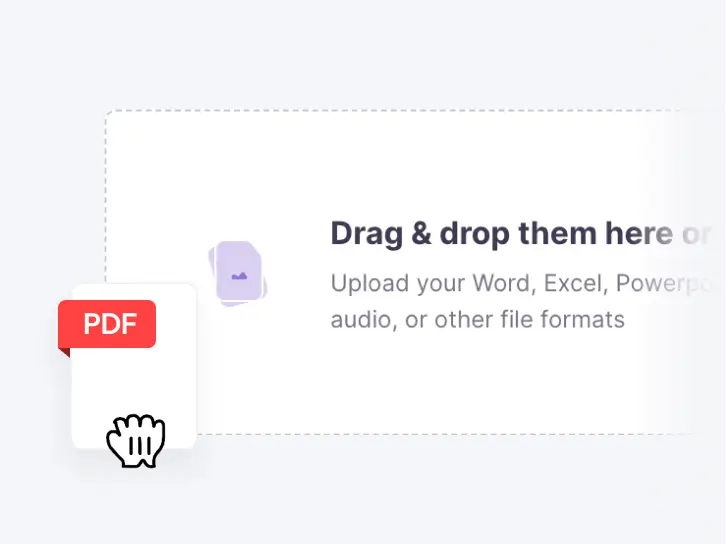
  1. Upload your PowerPoint

    Start a free trial or sign in, then drag the .pptx or .ppt file into your browser. Upload several decks at once if you have them.

    Drag-and-drop area to upload and translate PowerPoint files in Smartcat
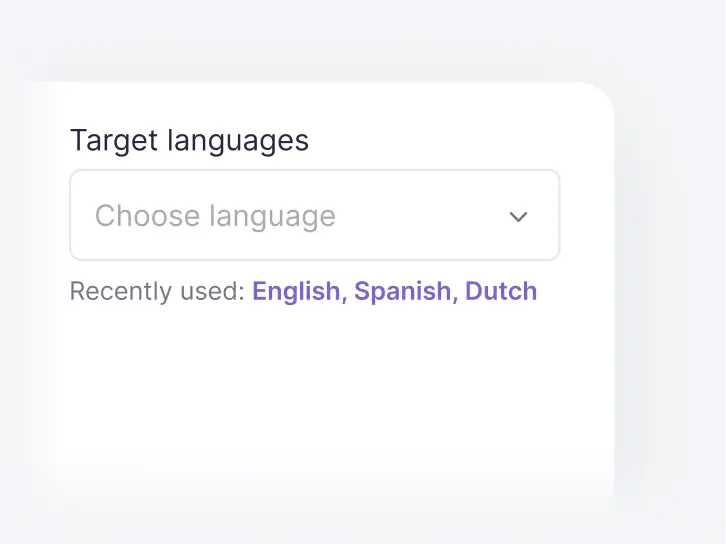
  2. Choose your target languages

    Pick the source language and every language you need. Translate a PowerPoint to English, Spanish, Japanese or any of 280+ languages from the same upload.

    Target languages field with recently used languages in Smartcat
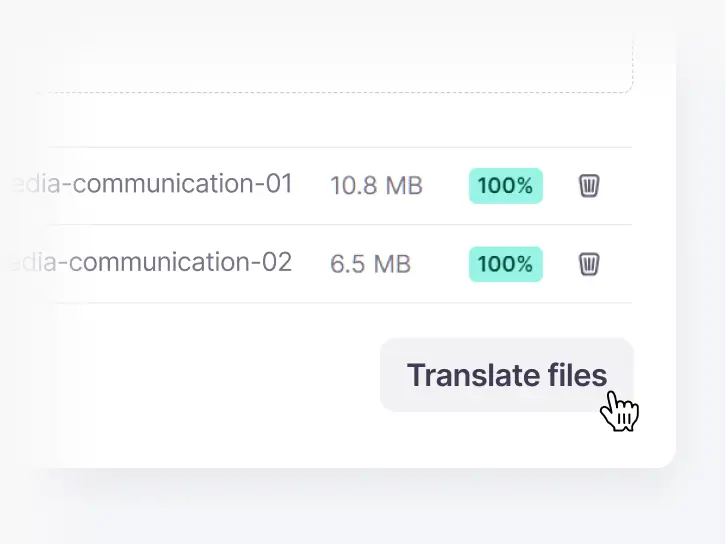
  3. Translate the files

    Smartcat AI translates the text on every slide with your glossary and translation memory, and shows the progress of each file.

    Two files translated to 100% next to the Translate files button
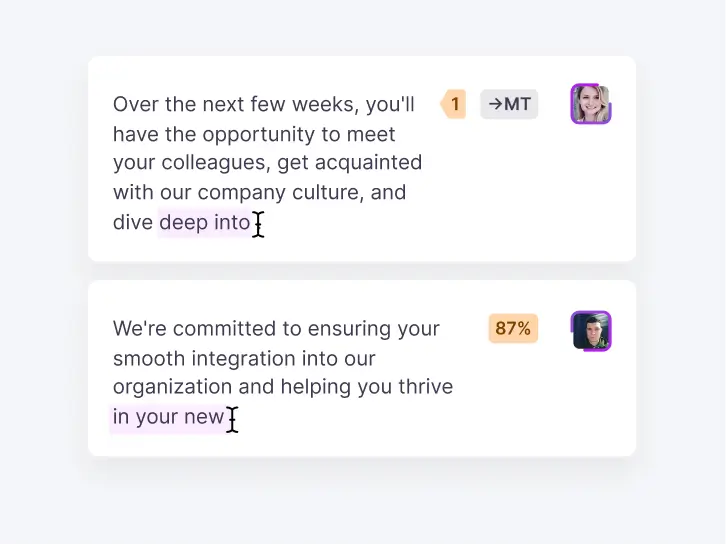
  4. Review the translation

    Open the Smartcat Editor to check each segment, or invite a colleague or reviewer to edit and comment.

    Translated segments being edited in the Smartcat Editor
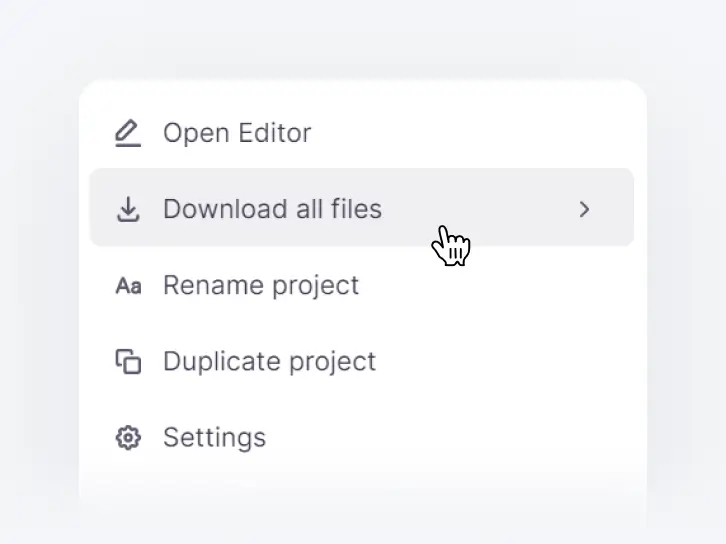
  5. Download your translated decks

    Download one file per language in the format you uploaded. Open each deck and check text boxes where the translation runs longer.

    Download all files option in a Smartcat project menu

See one of your own decks translated, slide by slide

Which PowerPoint translation features matter for decks you present?

Four features matter when you translate PowerPoint slides for an audience: browser upload for every PowerPoint format, review by your team, a glossary with translation memory, and quality checks before download.

See how your team would translate and review its decks

How do you translate PowerPoint into another language?

Upload the deck, pick the target language and check three things: the language pair, where you do the work and what the slides contain. PowerPoint translation into any of 280+ languages follows the same steps; each card covers one case and its limits.

Languages

Which way the deck is going.

Translate PowerPoint to English

To translate PowerPoint to English, upload the deck, keep its current language as the source and choose English as the target. Smartcat AI translates every slide from Spanish, French, German, Chinese, Japanese or any other supported language, and you download an English .pptx in the same slide order. Check product names and any text inside images, which needs a separate step.

From English into several languages

Translating a PowerPoint from English into several languages takes one upload: choose every target language at once and Smartcat returns a separate deck for each. One glossary applies to all of them, so product names match in every deck. Each language counts its own Smartwords, so five languages use five times the words of one.

One upload, every target

SpanishFrenchGermanJapaneseArabicHindi

Right-to-left and non-Latin scripts

Right-to-left and non-Latin scripts, such as Arabic, Hebrew, Chinese, Japanese and Hindi, are among the 280+ languages Smartcat translates. Two checks matter after download: the deck’s fonts must cover the script, or text falls back to another font, and right-to-left slides may need a manual pass on alignment, because complex layouts aren’t always mirrored.

Check after download

  • Fonts that cover the target script
  • Right-to-left alignment and slide flow
  • Text boxes where the translation runs longer

Where you translate

Browser, PowerPoint or chat.

In your browser

Smartcat is an online PowerPoint translator, so you can translate PPTX files from any computer without installing an add-in or desktop app. Upload, review and download all happen in the browser, and the translated deck opens in PowerPoint like the original. You need PowerPoint, or another app that opens .pptx files, only to present the result.

  1. Upload.pptx or .ppt
  2. Translateand review
  3. Downloada deck per language

Inside PowerPoint

PowerPoint’s built-in Translator (Review, Translate) translates the text you select and lets you insert it, one selection and one language at a time. That suits a slide or two. To translate an entire PowerPoint presentation, upload the file to Smartcat instead: every slide is translated in one pass, into as many languages as you choose.

PowerPoint’s Translator
  • Selected text
  • One language at a time
Smartcat
  • The whole deck file
  • Many languages per upload

From a Microsoft Teams chat

In Microsoft Teams, the Smartcat app translates a deck you attach in chat: name your target languages and the translation comes back in the same conversation. The app is free to install, but file translation needs a Smartcat business account.

  1. Attacha deck in chat
  2. Nameyour languages
  3. Get it backin the same chat

What’s in the deck

What is translated with the file, and what takes a separate step.

Text boxes, tables and charts

Text boxes, tables and editable charts are translated in place: titles, body text, table cells and chart labels go back where they were, at one Smartword per word. A chart pasted as a picture is an image, so it needs image translation. Check tight text boxes, because translations often run longer than the source.

  • Titles and body text
  • Table cells
  • Editable chart text

Speaker notes

Speaker notes typed in the Speaker Notes pane can be translated with the deck, so check that notes are included when you upload. Notes typed only in Notes Page view aren’t picked up. If presenters read from their notes, open one translated deck and confirm the notes came through before you send the rest.

Text inside images

Text inside images, such as screenshots, infographics or logos with taglines, isn’t translated with the deck. Translate those pictures separately with the image translator, at 1,000 Smartwords per image, then put them back into the slides. Alt text is different: it’s translated when “Import alt text for images” is turned on.

SmartArt and embedded Excel

SmartArt graphics and embedded Excel charts are a known limit: they can make a PowerPoint file fail to process. Flatten SmartArt into shapes or a picture, or remove the embedded workbook, before you upload. If a deck still fails, converting it via PDF is the documented workaround, though you then get a PDF back, not an editable deck.

The AI coworkers behind the work

Each coworker handles one step of PowerPoint translation, from the first draft to the final check. You or your reviewers approve every language before you download it.

Which tools can you connect to translate presentations?

Smartcat connects to Microsoft Teams, Google Drive, Google Docs, Google Sheets and Figma, so you can translate decks and the files around them where your team already keeps them. See all integrations

How much faster and cheaper is translation with Smartcat?

Smith+Nephew cut translation turnaround from a 10-day agency SLA to 2–3 days, and Stanley Black & Decker cut translation costs by up to 70%. Each figure comes from that customer’s own case study.

“With Smartcat, I appreciate the ease with which I can process high-volume texts. The software is built to prioritize translation, freeing the user from concerns about style or formatting.”
Mónica DomínguezTranslation Specialist, Documento Xpress (G2 review)

4x

faster turnaround

Smith+Nephew cut turnaround for translated training courses from a 10-day agency SLA to 2–3 days.

70%

lower translation costs

Stanley Black & Decker cut translation costs by up to 70% for L&D content such as online courses, quizzes and PDFs.

See your next deck translated, slides intact

What teams that translate presentations say on G2

What people ask before they translate a PowerPoint with Smartcat

Most questions are about cost, layout, screenshots and setup. In short: the trial is free for 15 days, slides keep their layout, text inside images takes a separate step, and there is nothing to install.

“Is the PowerPoint translator free?”

Only during the trial. Smartcat has no free plan: after 15 days, or once the 15,000 trial Smartwords are used, you choose a paid plan to keep translating. No card is needed to start, so nothing is charged when the trial ends.

“Will the text in my screenshots be translated?”

Not with the deck. Text that is part of a picture needs a separate image translation step, at 1,000 Smartwords per image, and then goes back into the slide.

“Will the layout survive the round trip?”

Yes for the editable text: each translation goes back into its own box, table and slide. Leave room in tight boxes, because German or French often run longer, and open each downloaded deck before you present.

“Do I need to install anything?”

No. Smartcat runs in the browser, so you upload, review and download from any computer. You only need PowerPoint to open and present the translated deck.

How does Smartcat protect the decks you upload?

Smartcat is SOC 2 Type II compliant and ISO 27001 certified, encrypts content in transit and at rest, and never uses the presentations you upload for PowerPoint translation to train public AI models. Before you upload a confidential deck to any free online PowerPoint translator, check the same points; Smartcat’s answers are on the Smartcat security page.

Role-based access controls

Set who can view, translate, review and approve files by team, role or region on enterprise plans.

Single sign-on (SSO)

Sign in through your existing identity provider on enterprise plans.

SOC 2 Type II and ISO 27001

Smartcat is SOC 2 Type II compliant and ISO 27001 certified, and isolates every workspace.

Never used to train public AI models

Your presentations are never used to train public AI models.

Audit trails

See who changed what and when across translation and review on enterprise plans.

Encryption and deletion on request

Content is encrypted in transit and at rest, and deleted or returned within 30 days of a written request.

More ways to translate presentations

Last updated: 30 October 2026

Free PowerPoint translator FAQ

Is there a free PowerPoint translator?

Yes. Smartcat works as a free PowerPoint translator during its 15-day trial, which includes 15,000 Smartwords and needs no credit card. You upload the .pptx or .ppt file, pick your languages and download the translated deck.

Smartcat has no free plan, so after the trial you choose a paid plan. PowerPoint’s own Translator and Google Translate are free too, with the limits shown in the comparison table.

How do I translate a PowerPoint presentation online?

Open Smartcat’s online PowerPoint translator in your browser and upload the file. Choose the source language and one or more target languages, and Smartcat AI translates every slide with your glossary applied. Review the translation in the Smartcat Editor or invite a colleague, then download one deck per language. Open each one and check text boxes where the translation runs longer.

What is the best free online PowerPoint translator?

The best free online PowerPoint translator is the one that gives you a usable deck back. Smartcat suits decks you will present: it returns the same file type with slides in place, translates into several languages at once and lets someone review first. Judge any tool on those three points, plus the file size it accepts and whether a glossary carries across decks.

Can I translate a PowerPoint to English online for free?

Yes, during Smartcat’s 15-day trial. Open Smartcat in your browser, upload the deck, keep its language as the source and choose English as the target. The English .pptx comes back with the original slides, and a 3,000-word deck uses about 3,000 of the trial’s 15,000 Smartwords. For language-specific tips, see the guide to translating PowerPoint to English.

How accurate is an online PowerPoint translator?

Smartcat reports that 92% of words translated by Smartcat AI are accepted without a single human edit. Accuracy still varies by language pair and subject, so product names, legal wording and slogans deserve a review in the Smartcat Editor before you present. A glossary keeps your own terms fixed in every deck, and text inside images needs a separate image step.

Is PowerPoint’s built-in Translator enough, or do I need an online translator?

For a slide or two, PowerPoint’s built-in Translator (Review, Translate) is enough: it translates the text you select, and you insert it yourself. For a whole deck, Smartcat’s online translator is faster: you upload the file once, choose several languages and download a translated copy of every slide for each one, with your glossary applied.

What happens when the free trial ends?

When Smartcat’s 15-day trial ends, or its 15,000 Smartwords are used up, you choose a paid plan to keep translating. Smartcat has no free plan to fall back to. Because the trial needs no credit card, nothing is charged when it ends. Plans and their Smartword allowances are listed on the Smartcat pricing page.

Can I translate all slides of a PowerPoint online in one go?

Yes. Upload the whole .pptx or .ppt file to Smartcat in your browser, and Smartcat AI translates every slide, table and editable chart in one pass, into as many languages as you choose. Hidden slides and slide masters can be excluded at upload. For more on decks with many slides, see how to translate an entire PowerPoint.

How many languages can I translate a PowerPoint into?

Smartcat translates PowerPoint files into 280+ languages, including English, Spanish, French, German, Arabic, Chinese, Japanese and Hindi. You can choose several target languages in one upload and download a separate deck for each. Each language counts its own Smartwords, so a 2,000-word deck in seven languages uses about 14,000.

Can my team review the translation before I download it?

Yes. Every PowerPoint translation project in Smartcat has a review step: invite colleagues to review and edit the translation in the Smartcat Editor, segment by segment, with comments. For high-stakes decks, you can also hire a professional reviewer from the Smartcat Marketplace. Quality checks flag terminology, consistency and formatting issues before you download the final files.

Is it safe to upload a confidential deck to an online translator?

With Smartcat, yes. Smartcat is SOC 2 Type II compliant and ISO 27001 certified, encrypts your content in transit and at rest, and never uses it to train public AI models. Free online tools vary, so check any tool’s data policy before uploading unreleased products, pricing or strategy. The Smartcat security page covers access control and deletion.

Is Smartcat affiliated with Microsoft, Google or OpenAI?

No. Smartcat is an independent platform and is not affiliated with, endorsed by, sponsored by or otherwise associated with Microsoft Corporation, Google LLC or OpenAI. PowerPoint, Google Translate and ChatGPT are trademarks of their respective owners and are named on this page only to describe file compatibility and to compare features.

Trademark notice. Smartcat is an independent platform and is not affiliated with, endorsed by, sponsored by, or otherwise associated with Microsoft Corporation, Google LLC or OpenAI. PowerPoint®, Google Translate™ and ChatGPT™ are trademarks of their respective owners. All product names on this page are used only for identification and descriptive purposes.

Ready to translate your PowerPoint into every language your audience speaks?

Book a demo to see how your team would review and reuse translations, or start with one deck: upload it in your browser during the 15-day free trial and download it in every language you need.