Presenter and training videos
Trainers, product experts and executives speaking to camera are the core use. Learners see the person speak their language, and course previews switch to the lip-synced file.
GDPR-compliant organization
ISO 27001 certified organization
SOC II compliant organization
Smartcat’s lip sync AI is built for video translation with lip sync: for videos you translate and dub. Translate the script, voice it with an AI voice, then re-animate the speaker’s mouth so it matches the translated speech.
One run covers every target language, the price shows before you start, and failed runs cost nothing.
More than 80 of the world’s largest companies have chosen Smartcat

AI lip sync re-animates a speaker’s mouth so it matches new speech. In video translation, it runs after AI dubbing: the voice is already in the target language, and the model redraws the lip movements to fit it.
The video length doesn’t change, so nothing in your timeline moves. The result looks as if the presenter said the line in German, Spanish or Japanese, instead of a translated voice over a mouth that is still speaking English. This is what people mean by lip-sync dubbing.
Subtitles: the original voice stays, the translation is on screen
AI dubbing: a translated voice replaces the original, the mouth still moves to the source
Lip-synced dub: the translated voice and the mouth movements match
65
Smartwords per second
Lip sync costs 65 Smartwords per started second of video, for each language.
0
charged for failed runs
If a run fails or times out, Smartcat releases the reserved Smartwords.
280+
languages to translate
Translate the script into 280+ languages before you voice and lip-sync it.
The window adds up 65 Smartwords per started second for each language you keep selected, and nothing runs until you click Start.
Every language of the file that already has an AI voice-over is selected by default. Untick the ones you don’t need.
Smartwords are reserved when a run starts and charged only after the lip-synced video is saved.
A dubbed video looks dubbed when the mouth keeps moving to the original language. Viewers notice it first in close-ups, and trust drops fastest in executive, sales and training video, where a real person speaks straight to camera.
The presenter’s lips close while the translated voice keeps talking.
Lip sync re-animates the mouth to match the AI voice-over in each language.
Matching the mouth used to mean filming the speaker again, or hiring a dubbing studio.
Select the languages in one window and lip-sync them together from the same project.
Per-minute studio quotes arrive after the brief, and change with every revision.
The Lip sync window shows the Smartwords for every selected language before anything runs.
Someone downloads the new version and replaces it in the LMS or video player.
Exports and course previews use the lip-synced video automatically.
Subtitles, an AI voice-over and a lip-synced dub all start from the same translated script in Smartcat. They differ in what viewers see and hear, and in how much they cost per minute of video.
| Option | What viewers get | Best for | Cost driver | In Smartcat |
|---|---|---|---|---|
| Subtitles | Original voice, translated text on screen | Short clips, sound-off social video, quick turnaround | Translated words | Create, translate and burn in subtitles |
| AI dubbing | A translated AI voice; the mouth still follows the source | Narration, screen recordings, voice-over without a visible speaker | 10 Smartwords per dubbed target-language word | AI voices with pronunciation and timing controls |
| Lip-synced dub | A translated voice and matching mouth movements | Presenters, trainers and executives speaking to camera | 65 Smartwords per second of video, per language | The Lip sync stage after the AI voice-over |
| Studio dubbing | Voice actors, often with a re-recorded mix | Drama, performed dialogue, broadcast | Studio day rates per language | Not offered as a Smartcat stage |
Smartcat prices come from the help center (November 2026). The studio row describes typical dubbing studios, not a specific vendor.
To translate a video with lip sync in Smartcat, add the Lip sync stage after the AI voice-over in your project workflow, review the translation, then start lip sync from the editor. The lip sync guide in the help center covers every option.
Create a project, upload the video and choose the target languages. Under Output format, select Video with AI voiceover.

In Workflow stages, add Lip sync after the review stage, so the voice-over exists before lip sync runs.
Check the translation and the AI voice in the editor, then mark the review stage as processed. Smartcat creates the voice-over.
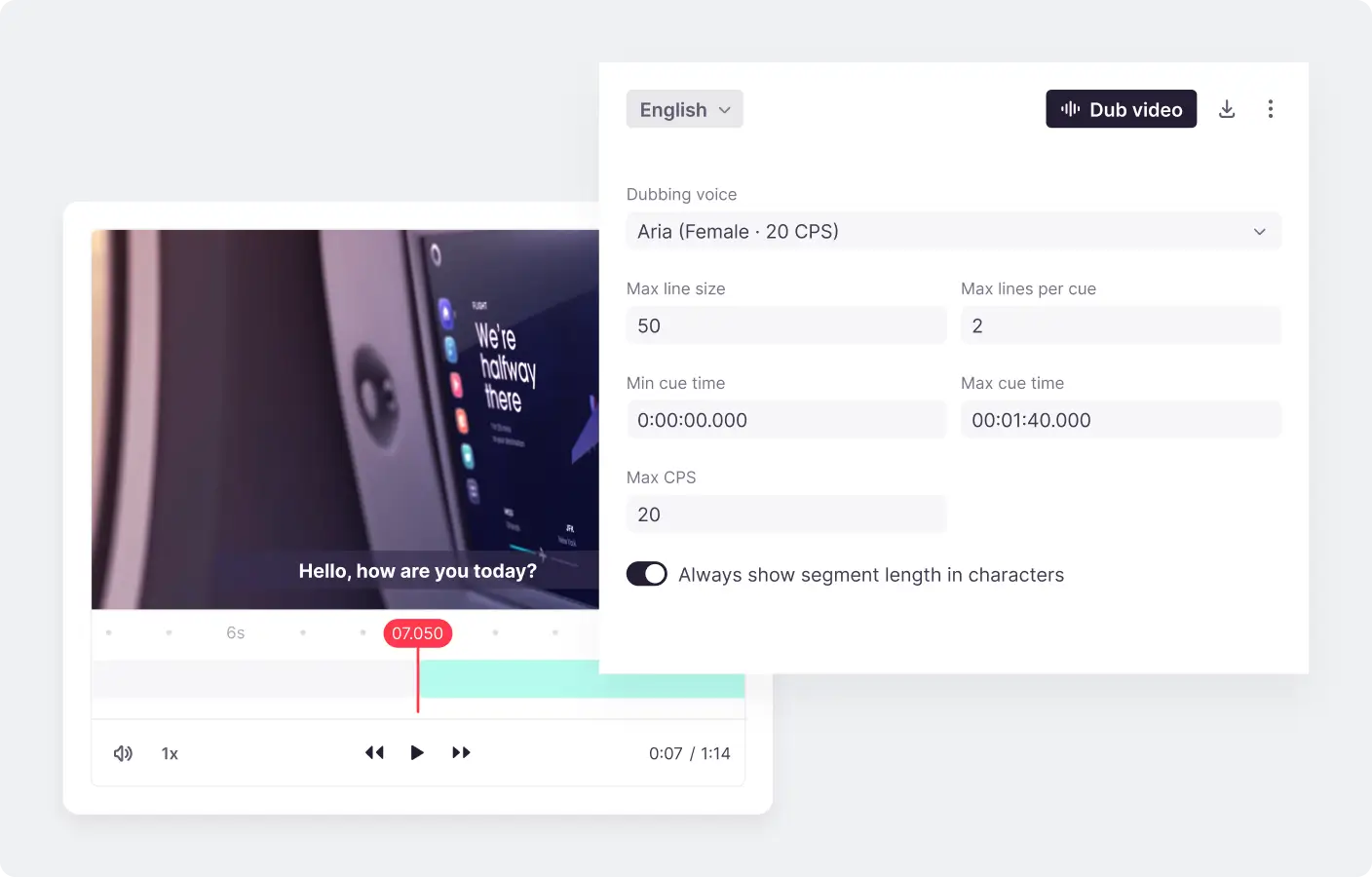
The Lip sync window lists every language ready for lip sync and the total Smartwords. Click Start lip sync.
Play the lip-synced video, regenerate if needed, then mark the stage as processed. Exports and course previews use the lip-synced file.
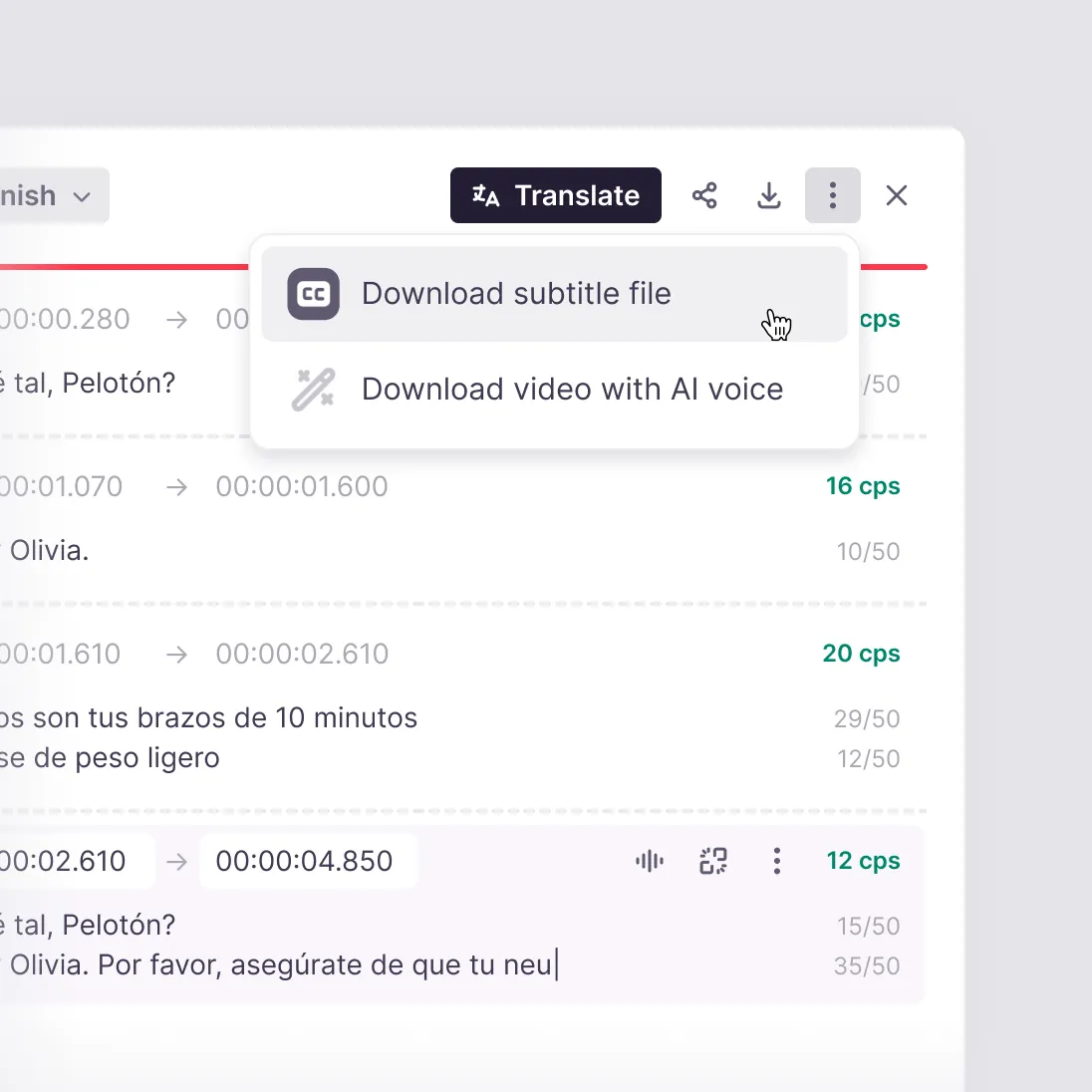
Lip sync is one stage in the same project that translates, voices and reviews your video, so nothing leaves the workflow to be fixed somewhere else.
Where lip sync makes the biggest difference, what it needs from the source video, and how it fits the way your team already works.
Lip sync matters when a face is on screen and close enough to read.
Trainers, product experts and executives speaking to camera are the core use. Learners see the person speak their language, and course previews switch to the lip-synced file.
A small picture-in-picture face still reads as out of sync. Lip sync processes the whole video, so the face in the corner is matched along with everything else.
Two or more people on screen work best when they don’t talk over each other. Clean, one-at-a-time speech gives both the voice-over and the lip sync the clearest input.
If nobody is visible, skip lip sync. An AI voice-over alone is cheaper and sounds the same, so complete the stage with Skip.
Lip sync never starts automatically: you decide per file.
A few properties of the file decide whether lip sync can run.
Larger videos complete the stage without lip sync and keep the AI voice-over. Compress the source or split long recordings before upload.
Audio files and podcasts have no lips to match. The editor tells you when a file is audio, and the AI voice-over is the result.
Lip sync uses the AI voice-over made earlier in the same project. Regenerate the voice-over and the old lip sync no longer applies, so run it again.
Lip sync processes the full file, not a scene. Trim the clip before upload if only part of it shows a speaker.
Lip sync is a workflow stage, so it works with the people and tools already in the project.
For videos inside a course, the course preview switches to the lip-synced version, and course and package exports include it.
Vendor managers can start lip sync in a client’s project. The Smartwords always come from the workspace that owns the file.
The translation is read-only at the Lip sync stage. Fix a line at the review stage, then run lip sync again, so a wrong word is never baked into the picture.
Each run saves a new file next to the voice-over in Drive, with the language in its name.
Lip sync is the last step. Each coworker handles one step before it, and your reviewers approve every language.
Chief of Staff
Tell your Chief of Staff which videos need dubbing and in which languages, and it coordinates the coworkers that translate and check them.
Content Translator Coworker
Translates the script into 280+ languages with your glossary and translation memory, before any voice is generated.
Content Update Coworker
Finds the lines a re-edited video changes and re-translates only what changed.
Reviewer Coworker
Pre-reviews every translated script for fluency and terminology, so the voice reads a strong draft.
Quality Assurance Coworker
Checks translated scripts for terminology and accuracy errors and scores each file before voicing.
Translate the scripts, graphics and pages that go with your videos where your team already works. See all integrations
Google Drive
Bring source videos in from shared Drive folders and keep the dubbed versions in the same place.
Google Docs
Translate the scripts and transcripts behind your videos without copying text out.
Google Sheets
Translate on-screen text lists and pronunciation sheets kept in Google Sheets.
Figma
Translate thumbnails, title cards and on-screen graphics designed in Figma.
Contentful
Localize the pages where your dubbed videos are published, from the same workspace.
Zendesk
Translate help center articles that embed your tutorial videos.
ServiceNow
Translate knowledge base articles that sit next to your how-to videos.
Salesforce Service Cloud
Translate support knowledge that links to your product videos.
WordPress
Translate the site pages and posts that host your videos.
Sitecore
Localize the web pages where your dubbed videos go live.
Smartcat already runs video, audio and subtitle work for large companies such as Cummins, and reviewers check every language in the same editor.
35K+
hours of video and audio
More than 35,000 hours of video and audio have been translated with Smartcat.
92%
accepted without edits
92% of words translated by Smartcat AI are accepted without a single human edit.
80+
of the largest companies
More than 80 of the world’s largest companies have chosen Smartcat.
90%
faster rollout of the global enablement program
“We rolled the program out 90% faster and at a 90% lower cost.”
Cummins used Smartcat to localize its global sales and service enablement program, so employees train in their own language.
Watch the Cummins webinar
It looks most natural on front-facing presenters with clear speech. Performed drama, singing and fast overlapping dialogue are still a job for a dubbing studio.
Lip sync has one quality mode, built for presenters and talking-head video.
Multiply seconds by 65 Smartwords and by the number of languages. A 3-minute video in five languages is 58,500 Smartwords, and the window shows that total before you start.
No. Lip sync processes the whole video. Trim the clip before upload if only part of it shows a speaker.
Yes. Lip-synced exports carry a small watermark in the lower-right corner. Review a sample with your brand team before a large rollout.
Large files over 200 MB complete with the voice-over only.
Internal training and executive messages are often dubbed before anyone outside the company sees them. See how Smartcat protects that content on the Smartcat security page.
Role-based access controls
Set who can view, translate, review and approve courses by team, role or region on enterprise plans.
Single sign-on (SSO)
Sign in through your existing identity provider on enterprise plans.
SOC 2 Type II compliant
Smartcat is SOC 2 Type II compliant and isolates every workspace.
Never used to train public AI models
Your videos, voices, transcripts and translations are never used to train public AI models.
Audit trails
See who changed what and when across translation and review on enterprise plans.
Encryption and deletion on request
Content is encrypted in transit and at rest, and deleted or returned within 30 days of a written request.
Guides on the steps before lip sync, and on choosing the right format for each video.
The best AI video translator with lip sync runs on your own footage, shows the price first and lets you fix the script before the lips are drawn. Smartcat fits teams that also translate, review and export the video in one place. A single-purpose generator fits one-off clips that need no translation workflow.
Smartcat offers a 15-day free trial with 15,000 Smartwords and no credit card, but no free plan. Lip sync costs 65 Smartwords per second per language, so the trial covers a few minutes of lip sync in one language. Lip sync must be turned on for the workspace; contact Smartcat support if you don’t see the stage.
In Smartcat, create a project with Video with AI voiceover as the output and add the Lip sync stage after the review stage. Review the translation and voice, mark the stage as processed, then open the Lip sync window, check the price and click Start lip sync. Export the result when it looks right.
Smartcat lip sync is most convincing on front-facing presenters who speak clearly, one at a time. Profile shots, fast overlapping dialogue and singing are harder for any model. Play the lip-synced video in the editor before you export, and regenerate a language if the result doesn’t look right.
Smartcat lip sync costs 65 Smartwords per started second of video, for each language. A 30-second clip costs 1,950 Smartwords per language, and a 10.2-second clip is billed as 11 seconds. The Lip sync window shows the total before anything runs, and failed runs are not charged.
Yes, with consent from the people on screen. Smartcat keeps your videos in your workspace Drive, and your content is never used to train public AI models. Tell presenters their dubbed and lip-synced versions will be published, especially for executive and customer-facing video.
Smartcat also offers subtitles and an AI voice-over without lip sync. Subtitles suit short and sound-off video, a voice-over suits narration with no visible speaker, and a dubbing studio suits drama and broadcast. Lip sync fits the gap: presenters and trainers speaking to camera.
No. Smartcat lip sync keeps the video length the same and only redraws the mouth movements to match the translated voice-over. Nothing in your timeline or LMS needs to move, and each target language gets its own lip-synced file next to its voice-over in Drive.
Yes. The Smartcat Lip sync window lists every language of the file that has an AI voice-over ready, all selected by default. Untick any you don’t need. A language already lip-synced from its current voice-over is left out, so you don’t pay for it twice.
Smartcat keeps the translation read-only at the Lip sync stage. To change a line, edit it at an earlier stage, regenerate the voice-over and run lip sync again. Until you do, exports use the new voice-over without lip sync, because the old lip sync no longer matches.
No. Smartcat lip sync works only with video files, because there are no lips to match in audio. For audio and podcasts, the AI voice-over is the final result, and you can still translate and voice them in the same Smartcat project.
Smartcat saves each lip-synced video in Drive next to the AI voice-over, with the language in the file name. The editor player switches to it after the run. Single-video, course and package exports deliver the lip-synced version, so there is no separate export option to choose.
Smartcat shows the Lip sync stage only when lip sync is turned on for your workspace, and never in software localization projects. If your workspace should have it, contact Smartcat support or tell us about your video project, and our solutions architects will help you set it up.
Didn’t find your answer? Talk to a video localization specialist
See Smartcat translate, dub and lip-sync one of your own videos, from upload to export, or start a 15-day free trial with no credit card.