Social and short-form video
Feeds often autoplay on mute, and many don’t take caption files. Burned-in subtitles keep the message readable from the first second, in each market’s language.
Muted autoplayNo caption uploadOne MP4 per language
Upload an MP4 with its VTT file and get the video back with the subtitles burned in, in every language your training, product or marketing videos need. No VTT yet? Smartcat creates the subtitles from the video, translates them, lets you style their font and position, and exports separate VTT and SRT files alongside the MP4.
More than 80 of the world’s largest companies have chosen Smartcat
Converting a VTT file to MP4 means burning (hardcoding) its WebVTT subtitles into the frames of an MP4 video. The text becomes part of the picture, so it shows on every player, feed and device without a separate caption track, and nobody can switch it off or lose the file.
A VTT file holds only the subtitle text and the timecodes that decide when each line appears, with no video, so it can’t become an MP4 on its own: you merge it with the video it belongs to.
WebVTT is a W3C standard: the W3C WebVTT specification defines it as the format for marking up external text tracks used with the HTML <track> element, and its main use is captions and subtitles for video.
To add a VTT file to an MP4 in Smartcat, upload it with a video of the same name and Smartcat links the two, so your cues are used as they are; without one, Smartcat creates the subtitle track from the video.
Smartcat then translates the subtitles into the languages you choose and renders an MP4 per language with them burned in. You also keep the VTT and SRT files for players that load captions separately.
3
export options
Download an MP4 with subtitles burned in, a VTT file or an SRT file from the same project.
280+
languages
Translate the subtitles into 280+ languages before you burn them in.
92%
accepted without edits
92% of words translated by Smartcat AI are accepted without a single human edit.
WEBVTT

1
00:00:01.000 --> 00:00:04.200
Welcome to the safety training.

2
00:00:04.400 --> 00:00:07.800
Put on your gloves before you start.Decides when each line appears and disappears on screen.
Translated into each language you choose, then burned into the video frames.
The subtitle font and position you set in Smartcat before export.
Structure of the VTT file itself. You download the VTT alongside the MP4.
You have a video and no subtitles, or a VTT file and a platform that only takes a finished video. Each step means another tool, and every language repeats the chain.
Someone transcribes the video line by line and fixes every timecode by eye.
Upload the VTT with the video and Smartcat links it; without one, it builds the subtitle track from the video.
Cue text goes into a generic translator, then gets pasted back cue by cue.
Every language is translated next to the video, with your glossary and translation memory.
Each VTT file goes into an editing tool and renders one language at a time.
Pick MP4 with burned-in subtitles, set the font and position, and download.
The platform ignores the caption file, and viewers on mute see no text at all.
Burned-in subtitles play on every player, and the VTT and SRT files cover platforms that take them.
Burn subtitles in when the text must show on every player. Keep them soft, as a separate VTT or SRT file, when viewers should switch them off or a web player loads captions through an HTML5 track element. Smartcat exports both from one project, so you can choose per platform.
MDN’s reference for the <track> element describes how that works: the element attaches a timed text track, such as subtitles or closed captions, that plays in parallel with the video, and the track itself is a WebVTT file.
| Burned in (hardcoded) in the MP4 | Soft: a separate VTT or SRT file | |
|---|---|---|
| Where the text lives | In the video frames themselves | In a separate file the player loads |
| Shows on every player | Yes, including feeds that autoplay on mute | Only where the player or platform accepts caption files |
| Viewer can turn it off | No | Yes |
| Languages per video | Usually one per MP4, so you export an MP4 per market | Many: one file per language on the same video |
| Fixing a typo after publishing | Export and upload the MP4 again | Replace the text file |
| Readable by search engines and screen readers | No, the text is part of the image | Yes, where the player exposes the caption track |
| Best for | Social video, presentations, offline playback and platforms without caption upload | Websites, LMS players, accessibility and search |
| In Smartcat | Download “MP4 with burned-in subtitles” | Download VTT or SRT from the same project |
Most teams export both: the MP4 for feeds and players that ignore caption files, and the VTT for everything else.
To add VTT subtitles to an MP4, upload the video and a VTT file with the same name to Smartcat, translate and review the subtitles, set their font and position, and download the MP4 with the subtitles burned in. Converting VTT to MP4 this way takes four steps in one project, for one language or many.
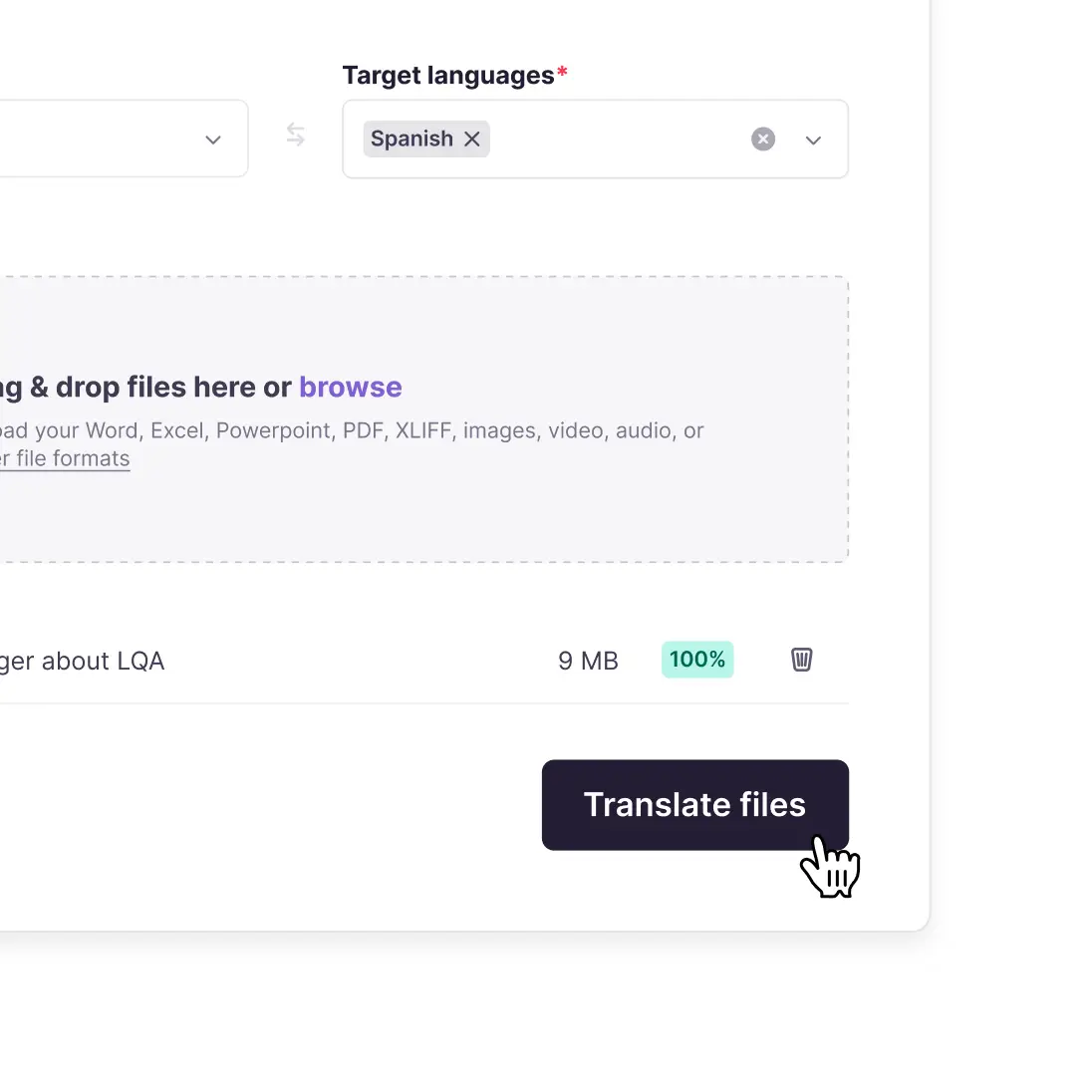
Create a project, pick your languages and drop in the MP4. Add a VTT or SRT file with the same name and Smartcat links it to the video.
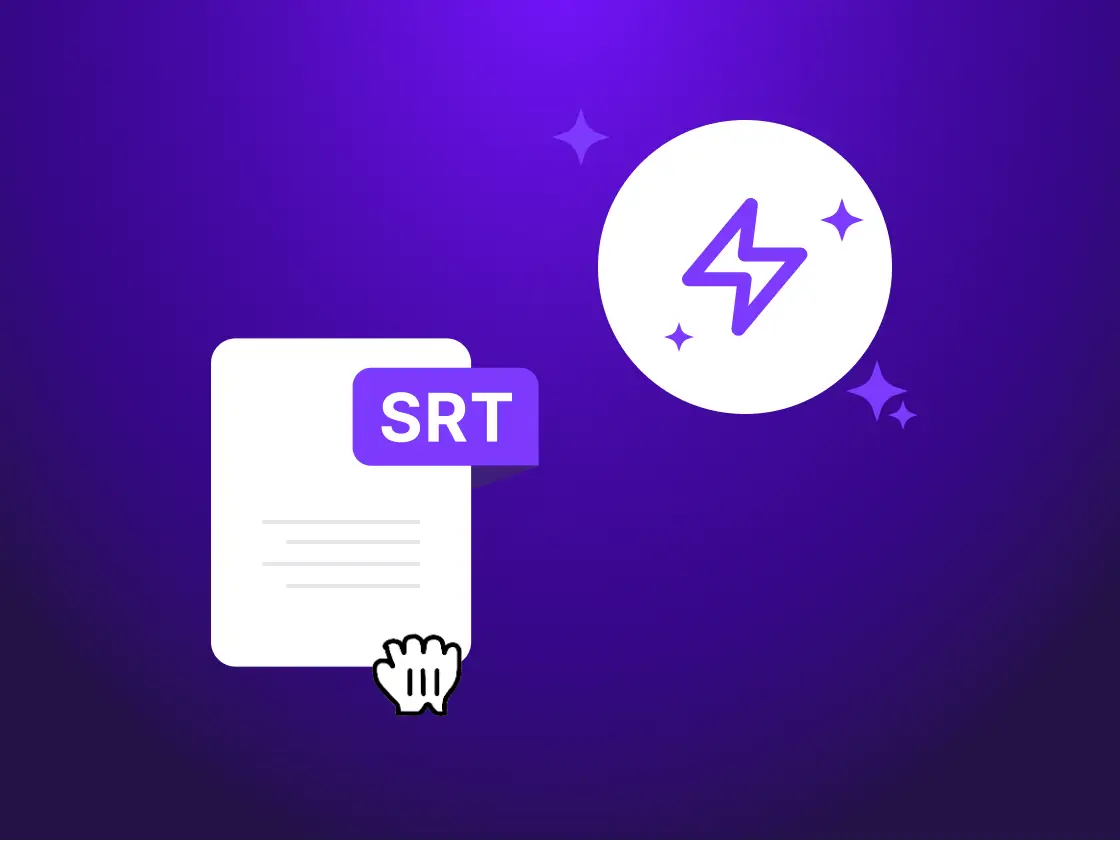
Smartcat translates every line into each target language. With no subtitle file, it first creates the subtitles from the video.
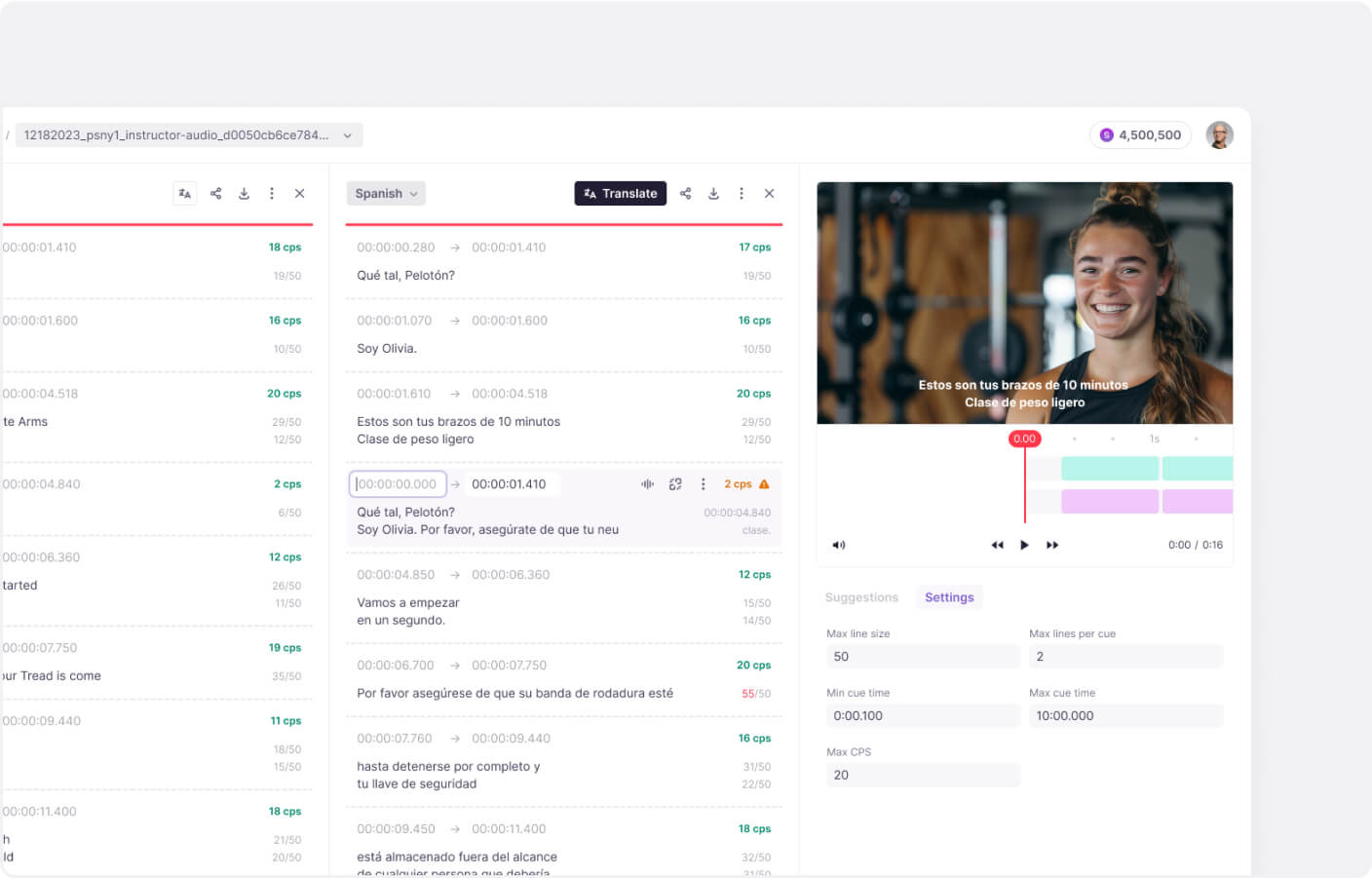
Check each line next to the video preview, fix names and terms, then set the subtitle font and position.
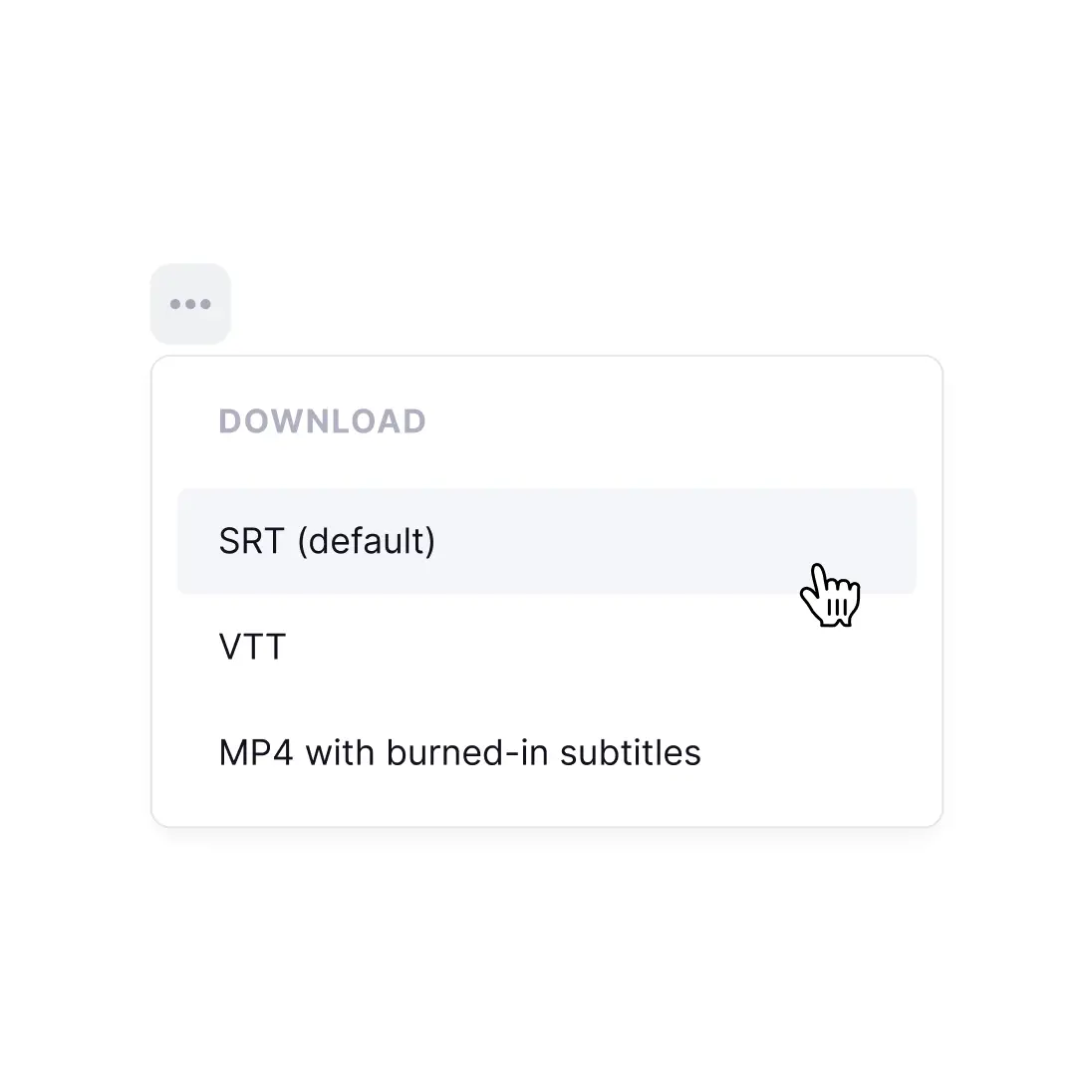
Choose “MP4 with burned-in subtitles” for each language, and download the VTT or SRT file too if your player loads captions separately.
Smartcat is an online VTT to MP4 converter that runs in the browser, with nothing to install. Burning the text into the video is the last step; Smartcat also covers the steps before it: creating the subtitles, translating them and keeping the subtitle files, in the project where your video lives.
Where burned-in subtitles work best, how VTT, SRT and MP4 relate, and what to check before you export.
Burn subtitles in wherever a caption file can get lost, ignored or switched off.
Feeds often autoplay on mute, and many don’t take caption files. Burned-in subtitles keep the message readable from the first second, in each market’s language.
Burn subtitles in when a course must play the same on every device, and keep the VTT for LMS players that support caption tracks.
Recorded demos get shared as files, in sales decks and chats. Text in the frames travels with the video wherever it is forwarded.
Venue screens and offline players rarely load a subtitle file. A burned-in MP4 just plays, with the text where your audience can read it.
What each format carries, and which one to hand to which player.
For burn-in, both carry the same thing: timed lines of text. Choose by what else you need, since Smartcat exports both.
Embedding keeps the VTT as a soft text track that players can switch on and off; burning it in turns the text into pixels in the picture. Smartcat’s MP4 export burns subtitles in, and the separate VTT or SRT file covers switchable captions.
Need only the subtitle file, not a new video? Smartcat creates the subtitles from your video and exports them as a VTT or SRT file.
Set the font and the position of the subtitles before export, so the text matches your brand and stays clear of logos, lower thirds and on-screen graphics.
Four checks that save a second export.
Viewers can’t turn it off, and you can’t edit it inside the MP4. Fix the line in Smartcat and export again, and keep the VTT for platforms that take captions.
Two lines per cue and a comfortable reading speed work on small screens. Smartcat’s subtitle editor has settings for maximum line size, lines per cue, cue duration and characters per second, and flags overlapping cues.
AI-created subtitles can mishear names, product terms and acronyms. Add them to your glossary and review the draft against the video before you burn it in.
Give the subtitle file the same name as the video, for example training.mp4 and training.vtt, so Smartcat links them instead of creating new subtitles.
Each coworker handles one step of subtitling a video, from the first draft to the final check. Your reviewers approve every language before the MP4 is exported.
Chief of Staff
Tell your Chief of Staff which videos and languages you need, and it coordinates the coworkers that create, translate and check the subtitles.
Content Translator Coworker
Translates subtitle text into 280+ languages with your glossary and translation memory, so names and product terms stay consistent.
Content Update Coworker
Helps find the videos a script change affects and re-translates only the new or changed lines.
Reviewer Coworker
Pre-reviews every language for fluency, tone and terminology, so your reviewers approve a strong draft before export.
Quality Assurance Coworker
Checks translated subtitles for terminology and accuracy errors and gives them a quality score before you burn them in.
Translate the scripts, decks and pages that go with your videos where your team already works. See all integrations
Google Drive
Translate the scripts, decks and docs your video team keeps in Drive.
Google Docs
Send video scripts and voiceover notes from Google Docs and get them back in every language.
Google Sheets
Translate term lists and speaker-name glossaries kept in spreadsheets.
Figma
Localize thumbnails and on-screen graphics before the video ships.
Contentful
Keep the pages that host your videos current in every language.
Zendesk
Translate the help-center articles your tutorial videos sit in.
ServiceNow
Keep knowledge-base articles accurate in every language.
Salesforce Service Cloud
Keep service enablement content current in every language.
WordPress
Publish multilingual pages for your subtitled videos.
Sitecore
Keep intranet and portal content aligned across locales.
Video, audio, documents and training content all run through the same Smartcat workspace. The Topcon figures come from the Topcon case study.
35K+
hours of video and audio
More than 35,000 hours of video and audio have been translated with Smartcat.
298
translation projects
Topcon completed 298 translation projects in two years across 29 countries.
80+
of the largest companies
More than 80 of the world’s largest companies have chosen Smartcat.
31
languages, managed by one program manager
“I often get requests asking, ‘Can you and your team do this?’ I have to remind them there is no team. That’s me. Smartcat allows me to manage a volume of work that would normally require an entire team.”
Topcon runs its translation program across 29 countries with Smartcat.
Read the Topcon case study
Keep it for the final cut. Smartcat covers the steps before the render: creating the subtitles, translating them and exporting an MP4 per language, so no timeline gets rebuilt for every market.
Sometimes they will, which is why nothing is burned in before review. Upload your own VTT if you have one, add names and terms to your glossary, and export only what your reviewers approved.
Then skip the burn-in. The same project exports VTT and SRT files in every language, and you can still download a burned-in MP4 for channels that need one.
One project, three exports
Yes. You set the subtitle font and position before export, then check the result in the preview before you download.
Unreleased product demos and internal training videos need the same care as any confidential file. See how Smartcat protects your content on the Smartcat security page.
Role-based access controls
Set who can view, translate, review and approve projects by team, role or region on enterprise plans.
Single sign-on (SSO)
Sign in through your existing identity provider on enterprise plans.
SOC 2 Type II compliant
Smartcat is SOC 2 Type II compliant and isolates every workspace.
Never used to train public AI models
Your videos, subtitles and translations are never used to train public AI models.
Audit trails
See who changed what and when across translation and review on enterprise plans.
Encryption and deletion on request
Content is encrypted in transit and at rest, and deleted or returned within 30 days of a written request.
Guides to the subtitle formats behind VTT to MP4 conversion, and to localizing video for every market.
Converting VTT to MP4 means burning the subtitles from a WebVTT file into an MP4 video, which Smartcat does at export. A VTT file holds only text and timecodes, so it can’t become a video on its own; it is merged with the video it belongs to. Viewers can’t switch burned-in text off, so Smartcat also gives you the VTT and SRT files.
Yes. Smartcat adds a VTT file to an MP4, MOV, AVI, MKV or other video when you upload both with the same name, for example training.mp4 and training.vtt. The files are linked and nothing is transcribed. Translate and review the subtitles next to the video preview, set the font and position, then download the video with the subtitles burned in.
Yes, as a trial. Smartcat’s online VTT to MP4 converter comes with a 15-day free trial with 15,000 Smartwords and no credit card, which is enough to subtitle and export a few videos and test the result. Smartcat has no free plan; after the trial, usage is billed in Smartwords. Basic free converters exist too, but they don’t create or translate subtitles.
To convert VTT to MP4 in Smartcat, upload the video and its VTT file with the same name, translate the subtitles if you need other languages, and review them next to the video. Then set the font and position and download the MP4 with burned-in subtitles. Everything runs in the browser, so there is no video editor to install.
Burned-in subtitles, also called hardcoded or open subtitles, are part of the video image; Smartcat renders them into the MP4 at export, so they always show and can’t be switched off. Soft subtitles, or closed captions, are a separate text track or file that viewers can turn on and off. Smartcat gives you both: the MP4 and separate VTT and SRT files.
Smartcat fits teams that need subtitles in several languages, not just one burned-in file, but the best tool depends on the job. A basic converter is enough to burn in a single finished file. If you also need the subtitles created, translated, reviewed and styled, choose a tool that does all of that in one project.
Yes. Smartcat creates subtitles from a video that has none, so you don’t need a VTT file to start. You review and correct the draft in the subtitle editor, translate it into the languages you need, and then download an MP4 with the subtitles burned in, a VTT file, an SRT file, or all three.
Yes. Smartcat translates the subtitles into 280+ languages before export, with your glossary and translation memory keeping names and terms consistent. Your own reviewers or linguists from the Smartcat Marketplace check each language next to the video, and you download one MP4 per language with the translated subtitles burned in.
Yes. Smartcat lets you style the subtitle font and choose where the subtitles sit on screen before you export the MP4. That keeps the text consistent with your brand and clear of logos, lower thirds and on-screen graphics. Preview the result before you download, and move the subtitles if they cover anything important.
Yes. Smartcat exports separate VTT and SRT files alongside the MP4 with burned-in subtitles. Use the MP4 where a platform needs a finished video, and the VTT or SRT file where a player loads captions, so viewers can switch them on or off and search engines can read the text.
As of October 2026, Smartcat accepts mp4, mov, avi, mkv, wmv and other common video formats, plus audio files such as mp3 and wav, at up to 6 GB per file. Subtitle files come in and go out as VTT or SRT. Upload a subtitle file with the same name as the video and Smartcat links the two automatically.
No, not inside the MP4, because burned-in subtitles are part of the picture. In Smartcat you fix the line in the subtitle editor and export the video again, and the corrected MP4 replaces the old one. Keep the VTT file as well, since a text file is quicker to update on platforms that accept captions.
A VTT file, also called a WebVTT or Web Video Text Tracks file, contains the subtitle text and the timecodes that decide when each line appears. It can also hold styling, positioning and notes. VTT files are plain text, commonly loaded by HTML5 video players, and Smartcat creates and exports one for every language you translate into.
Didn’t find your answer? Talk to a video localization specialist
See Smartcat subtitle one of your own videos, from upload to an MP4 with subtitles burned in, or start a 15-day free trial with no credit card.