PDF translator: translate a PDF, scans included, and keep its layout

The Smartcat AI PDF translator turns your PDF into a translated PDF in any of 280+ languages, with text boxes, columns, tables and images where they were. Scanned PDFs are read with OCR, and your glossary applies on every page.

Translate any file. In seconds.
Images, docs, video, audio, courses — pick a format and drop your file.
Drop documents here
or browse files · Supports .docx, .pdf, .pptx, .xlsx and more
From
To

Translate

More than 80 of the world’s largest companies have chosen Smartcat.

What is a PDF translator?

A PDF translator is an online tool that translates the text in a PDF file and returns a translated PDF in the original layout, instead of plain text you paste into a new document. The Smartcat PDF translator takes PDFs with a text layer up to 100 MB and scanned, image-only PDFs up to 6 GB, which it reads with OCR.

Smartcat keeps text boxes, columns, images and table structure in place and applies your glossary and translation memory, so approved terms repeat in every file. Teams use it to translate PDF manuals, contracts and reports. The same workspace is also a document translator for Word, Excel and PowerPoint files. For manuals of hundreds of pages, see how to translate large PDF files.

8M+

PDF pages translated

More than 8 million PDF pages have been translated with Smartcat.

280+

languages

Translate into 280+ languages, including right-to-left scripts such as Arabic and Hebrew.

80+

file formats

Translate 80+ file formats, from InDesign and PDF to SCORM courses and video.

Interactive walkthrough: how to translate a PDF in Smartcat, from upload to review in the editor.

Why does a translated PDF come back broken?

Tables collapse into run-on lines, two-column pages merge, and an 80-page supplier manual takes days to rebuild in InDesign, once per language. The cause: a PDF stores where each line sits on the page, not how the text flows, and most translators only extract the words.

Text you rebuild

Copy and pasteReflowPer language

The same PDF back

Layout keptOCRGlossary

Text pulled out of the file

Most tools extract the words and return plain paragraphs: tables collapse into run-on lines and two-column pages merge.

The layout comes back with the words

Smartcat keeps text boxes, columns, images and table structure in place, so you download a PDF, not text to reflow.

Scans rejected or returned as text

A scanned PDF is a picture of a page. Many tools refuse it or hand back unformatted text.

OCR reads the scanned pages

Smartcat reads scanned, image-only PDFs with OCR and returns a translated PDF you can check and edit.

Terms that change from file to file

Each file is translated from scratch, so product names and disclaimers drift between versions.

Your glossary on every page

Glossary and translation memory apply to every PDF, so approved wording repeats across files and updates.

Rebuilt by hand, once per language

Someone resets the manual in a layout tool for every language, then checks it again after each edit.

Reviewed in context, then exported

Reviewers check the translation next to the page and export the finished PDF in every language.

How does Smartcat compare with Google Translate and ChatGPT for PDF translation?

Smartcat returns a translated PDF in the original layout. Google Translate and ChatGPT translate the words well, but often return a simplified file or text you place into a document yourself.

What you needSmartcatGoogle TranslateChatGPT
What you get back✓ A translated PDF in the original layout, ready to send~ A translated file or text; layout often simplified~ Translated text in the chat, or a new file it generates
Original layout, tables and images✓ Text boxes, columns, images and table structure kept in place~ Partly: formatting is often lost~ Can build a new document, but rarely rebuilds the original layout
Scanned, image-only PDFs✓ OCR reads scanned pages; the result comes back as a PDF~ Limited~ Reads many scans, but returns text
Long documents✓ Up to 100 MB per PDF with a text layer; scanned PDFs up to 6 GB~ Per-file size and page caps~ Long files may be cut off or need splitting into chunks
Terminology across files✓ Glossary and translation memory applied to every file✗ No reusable glossary in the free web tool~ You can paste a glossary into each prompt; nothing enforces it across files
Human review✓ Your reviewers or Smartcat Marketplace linguists, in the same project✗ No✗ No: you arrange review yourself
Next version of the same file✓ Translation memory reuses approved text✗ Translated from scratch each time~ Re-prompting works, but output varies run to run

Comparison as of October 2026, based on each product’s public features for PDF files. Google Translate is a trademark of Google LLC and ChatGPT is a trademark of OpenAI; Smartcat is not affiliated with either.

How to translate a PDF file in Smartcat

To translate a PDF in Smartcat, upload the file, choose your languages, translate with your glossary, review in context and download the translated PDF. Review takes most of the time, and you decide how much each document needs.

  1. Upload your PDF

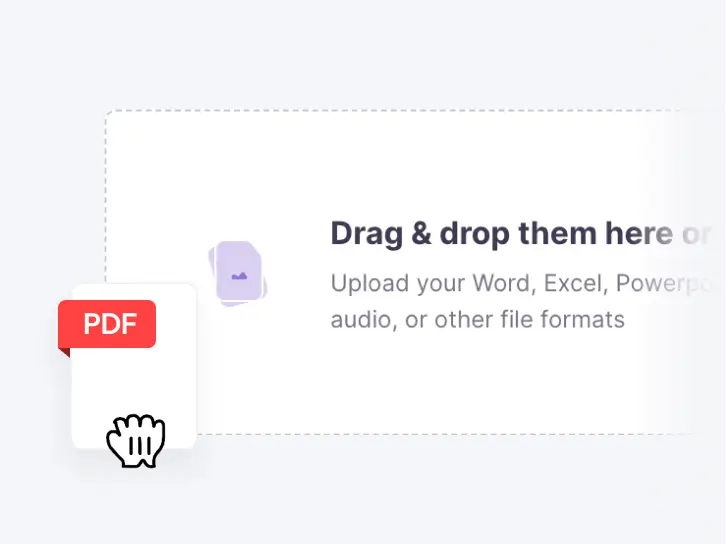
    Drag a PDF into Smartcat. Files with a text layer can be up to 100 MB. For a scanned, image-only PDF, choose the image workflow at upload so the page is rebuilt after OCR.

    Uploading a PDF file to the Smartcat PDF translator
  2. Choose your languages

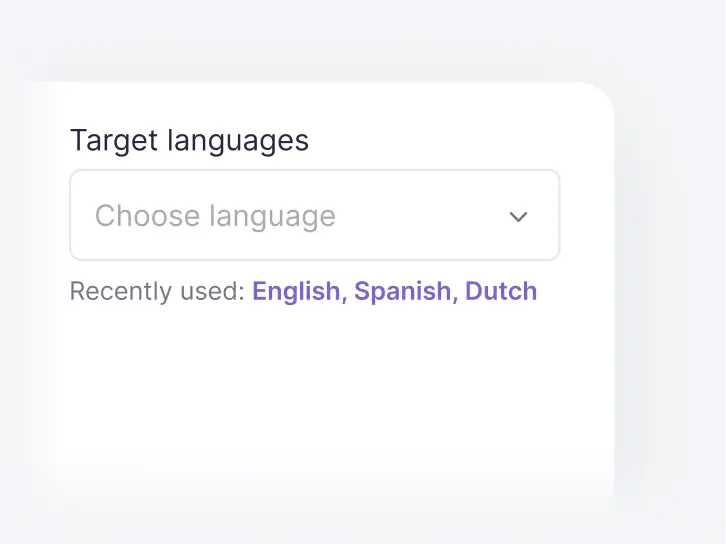
    Pick the source language and as many target languages as you need. Each language becomes its own translated PDF in the same project.

    Choosing target languages for a PDF in Smartcat
  3. Translate with your glossary

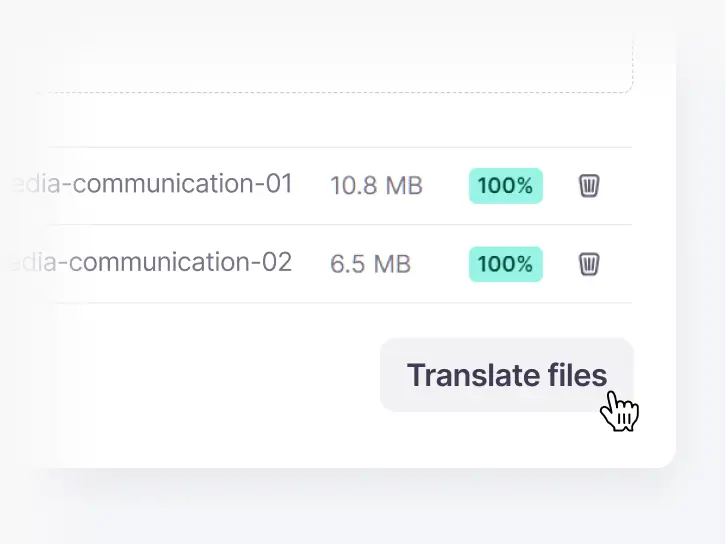
    The Content Translator Coworker translates every page with your glossary and translation memory, so product names and table headings stay consistent.

    Starting the translation of uploaded PDF files in Smartcat
  4. Review in context

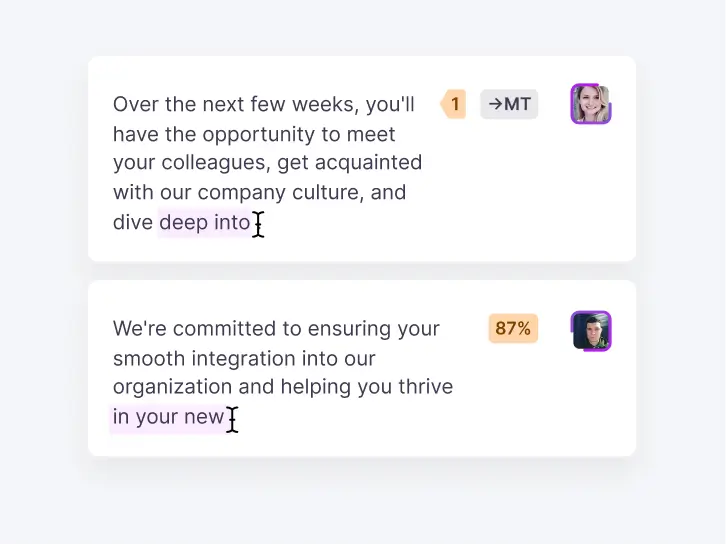
    Open the editor to check each segment next to a preview of the page. Your reviewers, or linguists from the Smartcat Marketplace, confirm the text before export.

    Reviewers editing translated segments in the Smartcat editor
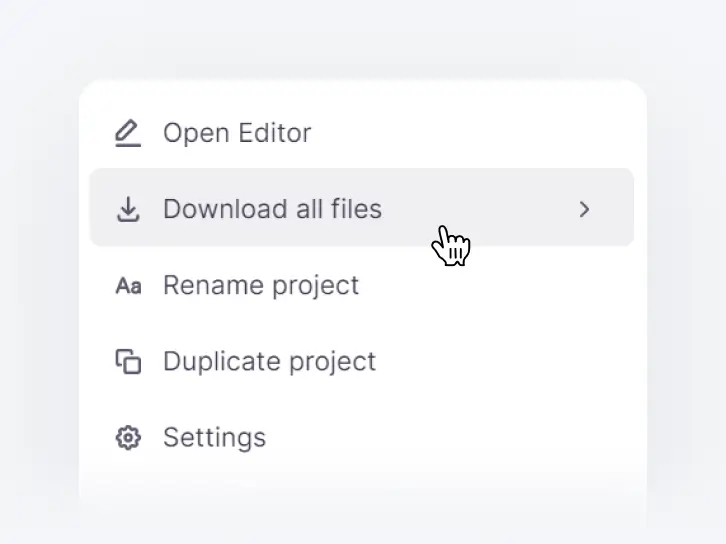
  5. Download the translated PDF

    Export a PDF in the original layout for each language, or download the whole project as one ZIP file.

    Project menu in Smartcat with the Download all files option

See these five steps on one of your own PDFs

What does PDF translation software add for teams?

PDF translation software for teams adds what a free translator lacks: one glossary across every file, a review step before export and a record of what was approved.

Translate one of your own PDFs with your glossary

What kinds of PDFs can Smartcat translate?

Smartcat translates text-based and scanned PDFs, tables and text inside images, right-to-left and non-Latin scripts, and batches of files. Each card states the limits worth knowing before you upload.

PDF types

Text-based PDFs

Text-based PDFs, exported from Word, InDesign or another editor, have a selectable text layer. Smartcat translates them in the original layout and returns a translated PDF, for files up to 100 MB each. Reports, manuals, contracts and brochures fall into this group, and most need only a light review before you send them.

Typical files

ReportsManualsContractsBrochures

Scanned PDFs and image‑only pages

Translate scanned PDFs and image-only pages with OCR. A scanned PDF has no text layer, so Smartcat first reads the text from the page image. Choose the image workflow at upload to get each page rebuilt in its layout after OCR. Clear, high-resolution scans give the best result; low-resolution pages and handwriting need a careful review.

  • Size
    Up to 6 GB per scanned PDF
  • Usage
    1,000 Smartwords per page per target language

Password-protected PDFs

Password-protected PDFs need the password removed before upload. A locked PDF hides its text layer, so Smartcat can only process it as images, page by page, through OCR. Unlock the file in your PDF editor and upload the unlocked copy, and it translates like any other text-based PDF.

Unlock the file in your PDF editor, then upload the unlocked copy.

Elements inside the PDF

Tables and multi-column layouts

Tables and multi-column layouts keep their structure when Smartcat translates a PDF: rows, cells, columns and text boxes stay where they were. Alignment can shift slightly where the translation runs longer than the source text, so check dense tables in the preview before you export.

  • Table structure kept
  • Columns and text boxes kept
  • Tight cells worth a look

Text inside images and diagrams

Text inside images and diagrams in a PDF is translated through image text recognition, so chart labels and diagram callouts change language with the body text. Recognition on images is less certain than on body text, so give those pages a quick review. For standalone pictures, use the image translator.

  1. Detecttext in the image
  2. Translatewith your glossary
  3. Reviewin the preview

Fonts and styling

Fonts and styling mostly carry over: bold and italic are generally preserved in the translated PDF. Specialized fonts may be substituted with a close match, especially when the target script needs glyphs the original font lacks, such as Arabic or Japanese. Check headings and callouts, where a substitution is most visible.

BoldItalicFont substitution possible

Forms and interactive fields

Forms and interactive fields are the main limit of PDF translation. Smartcat translates the text of a form, but form fields, buttons and other interactive elements may not survive. For scanned or complex forms, use the image workflow and check every field before you send the file.

Honest limit: keep a fillable original if people must complete the form.

Languages and scripts

Right-to-left PDFs

Right-to-left PDFs in Arabic, Hebrew, Persian and Urdu translate in both directions, to and from English or any other supported language. Some complex right-to-left layouts may need manual adjustment after export, especially pages that mix text directions in tables or captions, so review those pages in the preview first.

ArabicHebrewPersianUrdu

Non-Latin scripts

Non-Latin scripts, including Chinese, Japanese, Korean and Hindi, are among the 280+ languages Smartcat translates PDFs into. Translated text often runs longer or shorter than the source, so lines near images and in narrow columns can move. Check those pages in the preview before you export the translated PDF.

ChineseJapaneseKoreanHindi

Workflows

Large PDFs and long documents

Large PDFs and long documents have no page limit in Smartcat, only a file size: up to 100 MB for a PDF with a text layer. Over 100 MB, split the file and translate the parts in one project, where one translation memory keeps terms consistent across every part.

Many PDFs at once

Many PDFs at once: to translate PDF files in bulk, upload the batch into one Smartcat project, and every file shares the same glossary and translation memory. Progress is tracked per file, so one difficult document does not hold up the rest, and you download the finished set as one ZIP file.

  • One glossary for the whole set
  • Progress tracked per file
  • One ZIP download

Editable output for simple PDFs

Editable output for simple PDFs comes from the standard workflow: Smartcat converts a simple, text-heavy PDF with OCR into an editable Word document. You translate and edit the Word file, then save it as a PDF. Choose this route when you need to change the text after translation.

  1. PDFtext-heavy
  2. Wordeditable
  3. PDFafter review

Popular PDF translation language pairs

Translate a PDF to English from Spanish, French, German, Chinese or Japanese, or translate English PDFs into any of 280+ languages from the same workspace.

Spanish to English PDF Translator

High volume customer and marketing content

French to English PDF Translator

Brand, legal, and support documents

German to English PDF Translator

Technical, product, and operations files

Chinese to English PDF Translator

Supplier, quality, and compliance content

Japanese to English PDF Translator

Product, training, and localization materials

Which AI coworkers translate and check your PDFs?

Five AI coworkers draft, update, pre-review and check each translated PDF. Your reviewers approve every language before export.

Connect Smartcat to the tools your documents live in

Smartcat connects to Google Drive, Docs and Sheets, Figma and Microsoft Teams. See all integrations

What do teams save when they move document translation to Smartcat?

Customers report up to 70% lower translation costs, 8+ languages added on the same budget and 4x faster turnaround. Stanley Black & Decker’s figure covers PDFs and Word files, Kaseya’s covers product documentation and Smith+Nephew’s covers training content, each from the customer’s own case study.

70%

lower translation costs

Stanley Black & Decker translates PDFs, Word files and courses in Smartcat and cut translation costs by up to 70%.

8+

languages added, same budget

Kaseya’s product documentation team cut localization costs by 70% and reinvested the savings in 8+ additional languages.

4x

faster turnaround

Smith+Nephew turns training content around 4x faster than its previous 10‑day agency SLA and cut reviewers’ editing workload by 70%.

“Our reviewers compared our legacy content done by translation agencies with content produced by my team with Smartcat AI translation. The number of corrections is now much lower and the editing process is faster and less labor-intensive as a result.”
Barbara Fedorowicz
Barbara FedorowiczTranslation department manager, Smith+Nephew

See one of your own PDFs translated in its original layout

What teams say about Smartcat on G2

What teams ask before they switch PDF translation to Smartcat

Five questions come up before teams move PDF translation to Smartcat: free tools, scans, exact layout, existing translation assets and low volume.

“We already use Google Translate for our PDFs.”

For one page you read yourself, a free tool is fine. Smartcat is for PDFs other people receive: it returns the original layout, applies your glossary to every file and adds a review step.

“Most of our PDFs are scans.”

Smartcat reads scanned, image-only PDFs with OCR and returns a translated PDF. Clear, high-resolution scans work best; low-resolution pages and handwriting need a careful review.

“Will the translation look exactly like the original?”

Close, but not always identical. Specialized fonts may be substituted, dense tables can shift slightly, interactive form fields may be lost and complex right-to-left layouts may need manual adjustment.

“We already have translation memories and an agency.”

Bring both. Add your existing translation memories and glossaries to Smartcat, so approved wording carries over from the first file. Invite your agency or freelance linguists into the same project, or hire reviewers from the Smartcat Marketplace.

“We only translate a few PDFs a year.”

Translate your first PDFs free in the 15-day trial: 15,000 Smartwords, no credit card. Move to a plan only when PDF translation becomes a regular part of the work.

Is it safe to translate confidential PDFs with Smartcat?

Yes. Smartcat is SOC 2 Type II compliant and ISO 27001 certified, and the contracts, financial statements and HR files you translate are never used to train public AI models. Details are on the Smartcat security page.

SOC 2 Type II compliant

Smartcat is SOC 2 Type II compliant and isolates every workspace.

ISO 27001 certified

Smartcat is an ISO 27001 certified organization.

Role-based access controls

Set who can view, translate, review and approve documents by team, role or region on enterprise plans.

Never used to train public AI models

Your documents are never used to train public AI models.

Encrypted in transit and at rest

Files are encrypted while they upload, while they are stored and while they are translated.

Deletion on request

Content is deleted or returned within 30 days of a written request.

Guides to translating PDFs

Guides from the Smartcat blog on choosing a PDF translator, translating scans and running document translation across a team.

Page last updated: 30 October 2026.

PDF translator FAQ

What is the best PDF translator?

Smartcat suits teams that need a translated PDF back in its original layout, but the best PDF translator depends on the job. For one page you read yourself, a free tool is enough. For files you send to customers or regulators, compare four things: whether you get a PDF back in the same layout, OCR for scans, a glossary that applies to every file, and a review step before export.

Is there a free PDF translator?

Yes, for 15 days. Smartcat offers a free trial rather than a free plan: 15,000 Smartwords over 15 days, with full access to translation capabilities and no credit card. That is enough to translate several PDFs free and check the layout. Free web translators also handle PDFs, but they rarely keep the layout and offer no glossary or review step.

How do I translate a PDF?

In Smartcat, upload the PDF, choose the source and target languages and start the translation. Your glossary and translation memory are applied automatically. Then review the text in the editor next to a preview of the page and download a translated PDF for each language. For a scanned PDF, choose the image workflow at upload so the page is rebuilt after OCR.

Is there an AI PDF translator?

Yes. Smartcat has an AI PDF translator for text-based PDFs. The AI PDF workflow translates each page with your glossary and translation memory, shows a live page-by-page preview and returns a PDF in the same design, columns and formatting. You can redo a single page through chat. Scanned PDFs and handwriting go through the image workflow instead, which reads them with OCR.

Can I translate a scanned PDF?

Yes. Smartcat reads scanned, image-only PDFs with OCR, translates the recognized text and returns a translated PDF. Choose the image workflow at upload for layout-faithful results. Clear, high-resolution scans give the best output; low-resolution pages and handwriting can be misread, so review those pages before you send the file. Scanned PDFs can be up to 6 GB.

Can I translate a PDF to English?

Yes. Smartcat translates PDFs to English from its 280+ supported languages, including Spanish, French, German, Chinese and Japanese, and from English into any of them. Upload the PDF, set English as the target language and download a translated PDF in the original layout. For a scanned PDF, choose the image workflow at upload so the text is read with OCR first.

Can I translate a PDF without losing the formatting?

Yes, in most cases. Smartcat’s AI PDF workflow keeps the same design, columns and formatting, and the image workflow rebuilds scanned pages in their layout. Formatting is most at risk in three places: specialized fonts, very dense tables and interactive form fields. If you need to rework the text afterwards, choose the standard workflow, which gives you an editable Word file instead.

Which PDF translation workflow should I choose?

Smartcat offers three PDF workflows. Choose AI PDF translation for text-based PDFs where the layout matters most. Choose the image workflow for scanned PDFs, forms, legal documents and handwriting; it reads them with OCR and returns a PDF. Choose the standard workflow for simple, text-heavy PDFs you want back as an editable Word file. You set the workflow when you upload the file.

How long does it take to translate a PDF?

Smartcat’s AI PDF workflow usually finishes a 10–20 page PDF in about 15–45 minutes; longer files of 60 pages or more need noticeably more time. A scanned PDF adds an OCR pass first. Most of the total is review, and you decide how much: an internal memo may go out as the AI draft, while a regulatory filing gets a full human pass.

Can I translate a PDF online?

Yes. Smartcat is an online PDF translator: you upload the file in your browser, translate it, review it in the online editor and download the translated PDF, with nothing to install. Your glossary, translation memory and projects stay in your Smartcat workspace, so colleagues can review the same file and the next PDF reuses approved text.

How much does it cost to translate a PDF?

Smartcat meters translation in Smartwords. In the standard workflow, one source word translated into one language uses one Smartword. Scanned PDFs translated through the image workflow use 1,000 Smartwords per page per target language. Text already in your Smartcat translation memory is reused. Plans and the free trial are on the pricing page.

Can I edit the translated PDF?

Yes. How you edit depends on the Smartcat workflow. The image workflow gives full segment-by-segment editing in the editor before export. The AI PDF workflow lets you review a live page preview and redo single pages through chat, but its final output is less editable. The standard workflow returns an editable Word document that you change and save as a PDF.

Can a PDF language translator handle several languages at once?

Yes. Smartcat translates one PDF into as many of its 280+ languages as you choose in a single project, and each language becomes its own translated PDF. Each language can have its own reviewer, and you download every language as one ZIP file. For a language pair you translate often, the translation memory for that pair grows with every approved file.

Trademark notice. Smartcat is an independent platform and is not affiliated with, endorsed by, sponsored by, or otherwise associated with Google LLC or OpenAI. Google Translate is a trademark of Google LLC, and ChatGPT is a trademark of OpenAI. All product names, logos, and trademarks referenced on this page are the property of their respective owners and are used for identification and descriptive purposes only.

Your PDF, in another language, still looking like your PDF

See Smartcat translate one of your own PDFs, from upload to a finished file in every language, or translate your PDFs free for 15 days with 15,000 Smartwords and no credit card.