Pronunciation Control for AI Voiceover
Pronunciation Control lets users fix how Smartcat's AI voices say brand names, product names, and industry terms without editing the…
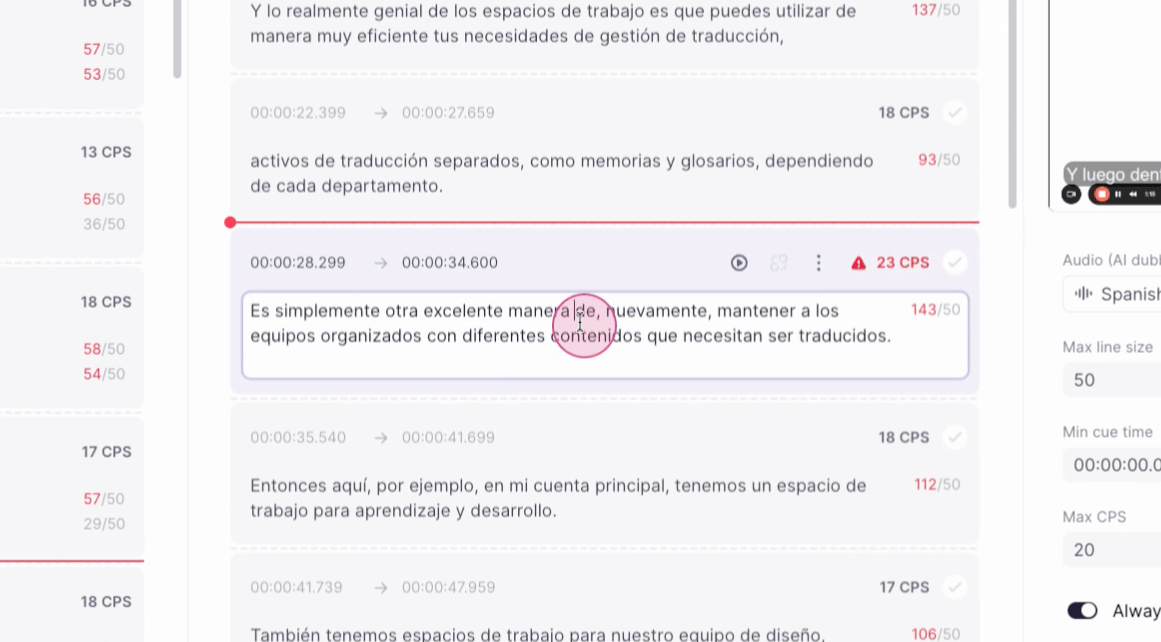
The Subtitle Editor's cue panel lets teams manage subtitle segments directly: delete an unwanted cue, insert a new empty cue before or after an existing one, or merge two adjacent cues into one, all from a three-dot menu on each cue. A quick-insert option adds a new cue by hovering the border between two cues and clicking the floating plus button that appears, faster than the menu for inserting mid-sequence.
To split a cue, add a line break inside it and use the Split by lines button, which turns each line into its own cue. For readability and AI dubbing, Smartcat recommends keeping complete sentences or clauses within a single cue and checking a project's CPS (characters-per-second) limits, configurable in the Settings tab. Deleting a cue is permanent — there's no undo, so it's worth double-checking before confirming.
To learn more in our Managing Cues in the Subtitle Editor help center article.