Smartcat release notes for the new updates, features, and fixes
Keep track of Smartcat updates, new features, issues resolved, and improvements in our product.
SCORM Studio
SCORM Studio is a published Smartcat app, available in every workspace in the Apps section. Teams open it from Apps → SCORM Studio and upload a course package; SCORM Studio automatically detects the authoring tool and opens the course in a sandboxed, in-context player for review before translation.
At launch, SCORM Studio fully supports and has tested Easygenerator, iSpring Suite, and Adobe Captivate Classic on real customer courses. Current-version Adobe Captivate, Cegid Talentsoft, and Absorb Create are supported with more limited testing so far. Articulate Storyline and Rise are handled by a separate tool, the Canvas Editor, rather than SCORM Studio; any other unsupported format shows a clear message and offers to share the package with Smartcat engineers.

To learn more in our SCORM Studio help center article.
Chief of Staff
Chief of Staff is Smartcat's AI coworker and the single entry point to the rest of the agent platform, replacing the need to direct the Translation Agent, Review Agent, and Content Update Agent separately. Users talk to one agent in plain language, and Chief of Staff finds stalled projects, searches Translation Memories and glossaries, and creates and runs reusable Skills for repeatable tasks.
It's reachable from a single chat window across Smartcat, Microsoft Teams, or Slack, and uses SmartcatDrive to search, fetch, and manage files directly, so teams don't have to switch tools to get an update. Chief of Staff connects users to Smartcat's Marketplace of human linguistic experts as well, letting enterprises balance automation with human review from a single interface.
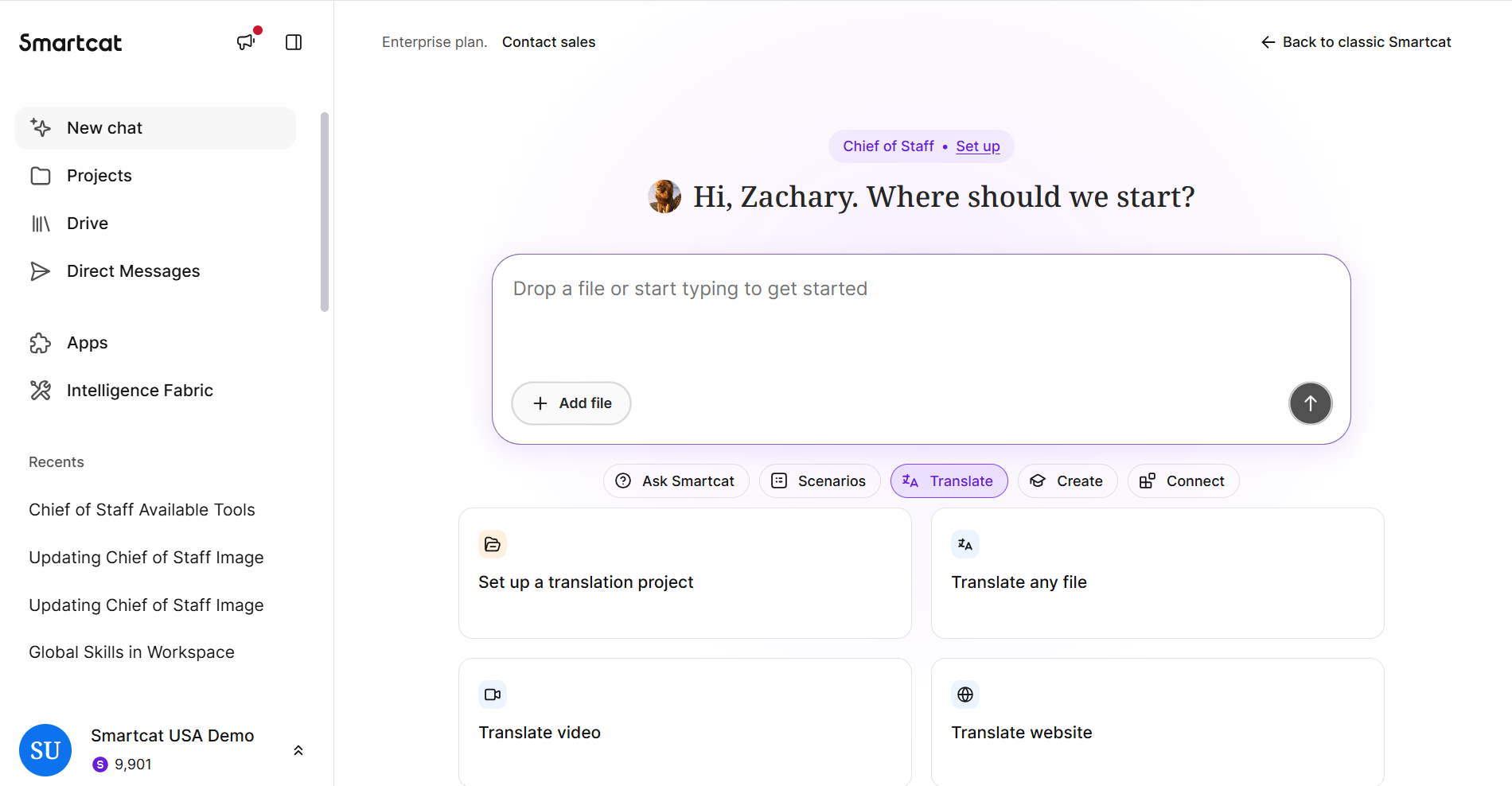
To learn more in our Getting Started with Chief of Staff help center article.
Intelligence Fabric
Intelligence Fabric is Smartcat's central hub for the assets that shape AI translations — reviewed translations (formerly translation memories), terminology (formerly glossaries), and language guidance — all managed in one connected workspace instead of scattered across separate screens.
Intelligence Fabric can also extract these assets automatically. Given a website link or a previously translated document, it detects candidate terminology, translation memory, and tone-of-voice preferences for a customer to review and import, rather than starting from a blank workspace. Intelligence Fabric introduces a new object, Language Insights, which collects the tone, terminology, audience, and style guidance that describes how a customer's content should read.
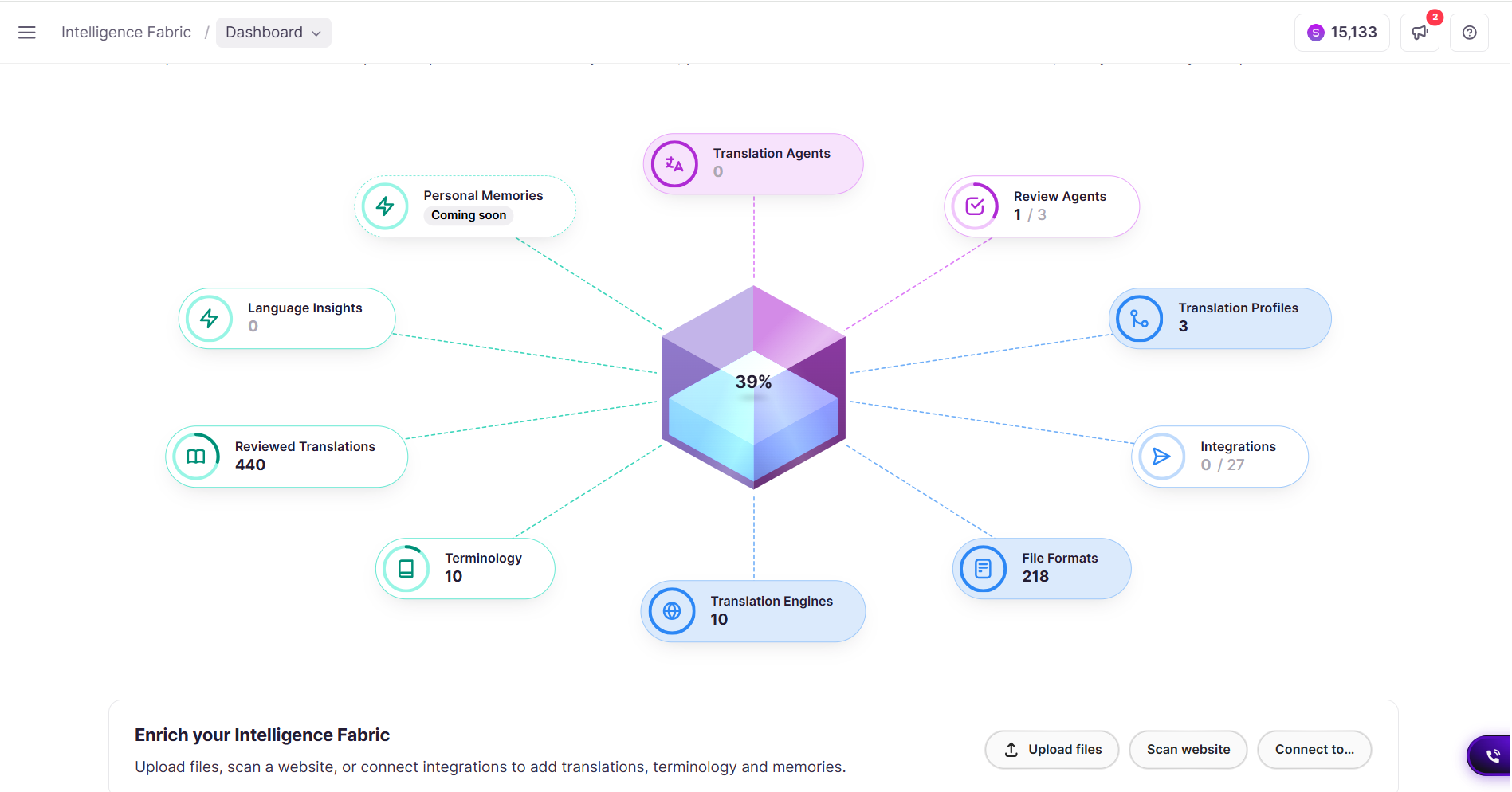
To learn more in our Intelligence Fabric help center article.
Custom Apps
Custom Apps is Smartcat's new extensible app platform, launching in public beta alongside its first two apps. ROI Report compares Smartcat costs against projected vendor costs over a chosen period — a specific month, a quarter, or an entire subscription cycle — with per-project detail available for closer analysis. Quick Translate lets users translate short pieces of text without uploading a file at all, drawing on the same translation memory, glossary, and AI engine settings defined in a workspace's default AI Translation Profile.
Apps live in a dedicated Apps section of the workspace and can be enabled per workspace from the Admin panel. Three more apps — Translation Length Report, Document Edit Report, and Translation Review Report — are in development and expected to follow.
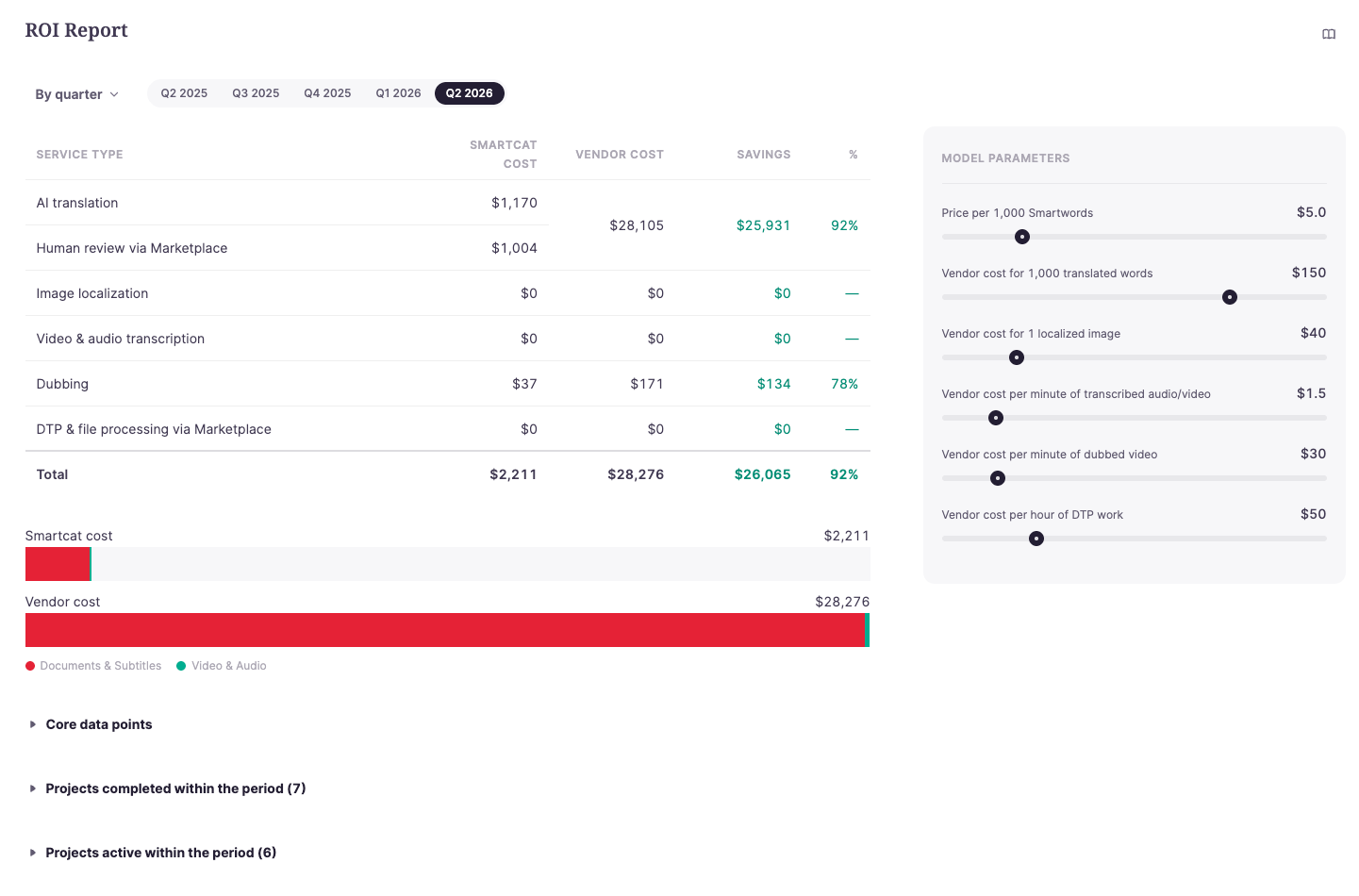
To learn more in our ROI Report help center article.
Pronunciation Control for AI Voiceover
Pronunciation Control lets users fix how Smartcat's AI voices say brand names, product names, and industry terms without editing the visible subtitle text underneath. When a project opens in the Subtitle Editor, Smartcat automatically scans the text, identifies words that typically need pronunciation guidance — proper names, abbreviations, numbers, special characters, and glossary terms — and applies a suggested pronunciation automatically, highlighting each fix in green.
For anything the automatic pass misses, users can select a word and click Fix Pronunciation, adjust its phonetic transliteration or stress, or record their own reference pronunciation with Say Your Way. Corrections can apply to a single instance, every instance of the term in the file, or be saved to a glossary so they're reused automatically in future projects.
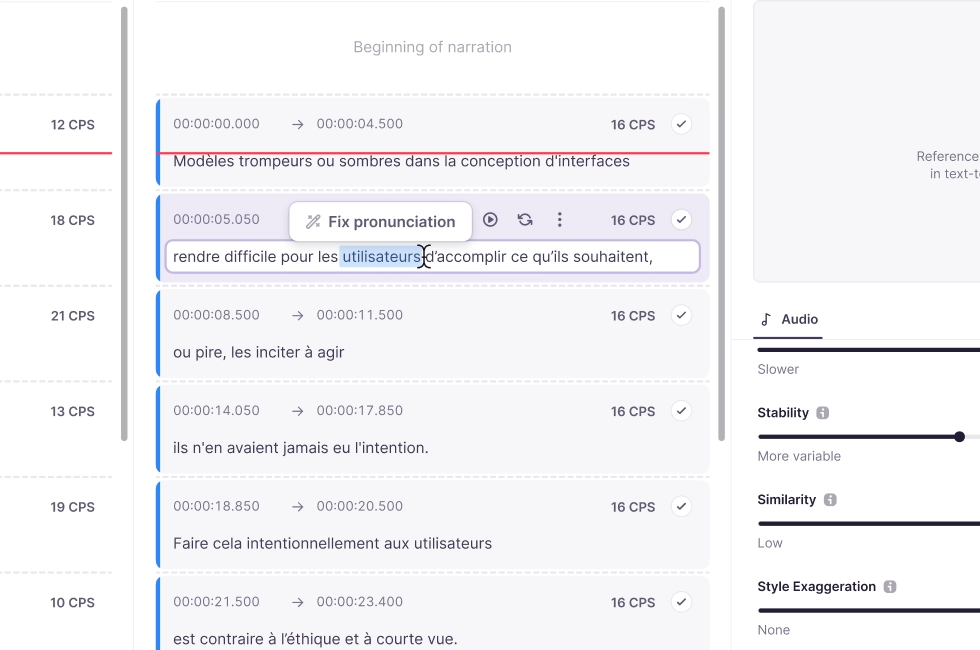
To learn more in our Pronunciation Control help center article.
Linguistic Resources Sharing & Synchronization
Customers on paid plans running multiple Smartcat workspaces can share Translation Memories and Glossaries between workspaces without duplicating data, so every team draws on the same linguistic assets from a single source of truth. Shared resources appear alongside a workspace's own TMs and glossaries, can be attached to projects and AI Translation Profiles, and stay under the original owner's control — changes the owner makes are reflected automatically, and shared users can't delete TM units or change TM settings.
Sharing works within a single region. For organizations that need to share assets across regions — for example between US and EU servers — Smartcat support sets up a synchronization task that syncs the TMs or glossaries roughly once every 10 minutes. Resource sharing is a paid-plan feature; contact your Smartcat representative to enable it between workspaces.
To learn more in our Shared Linguistic Assets help center article.
Website Translation
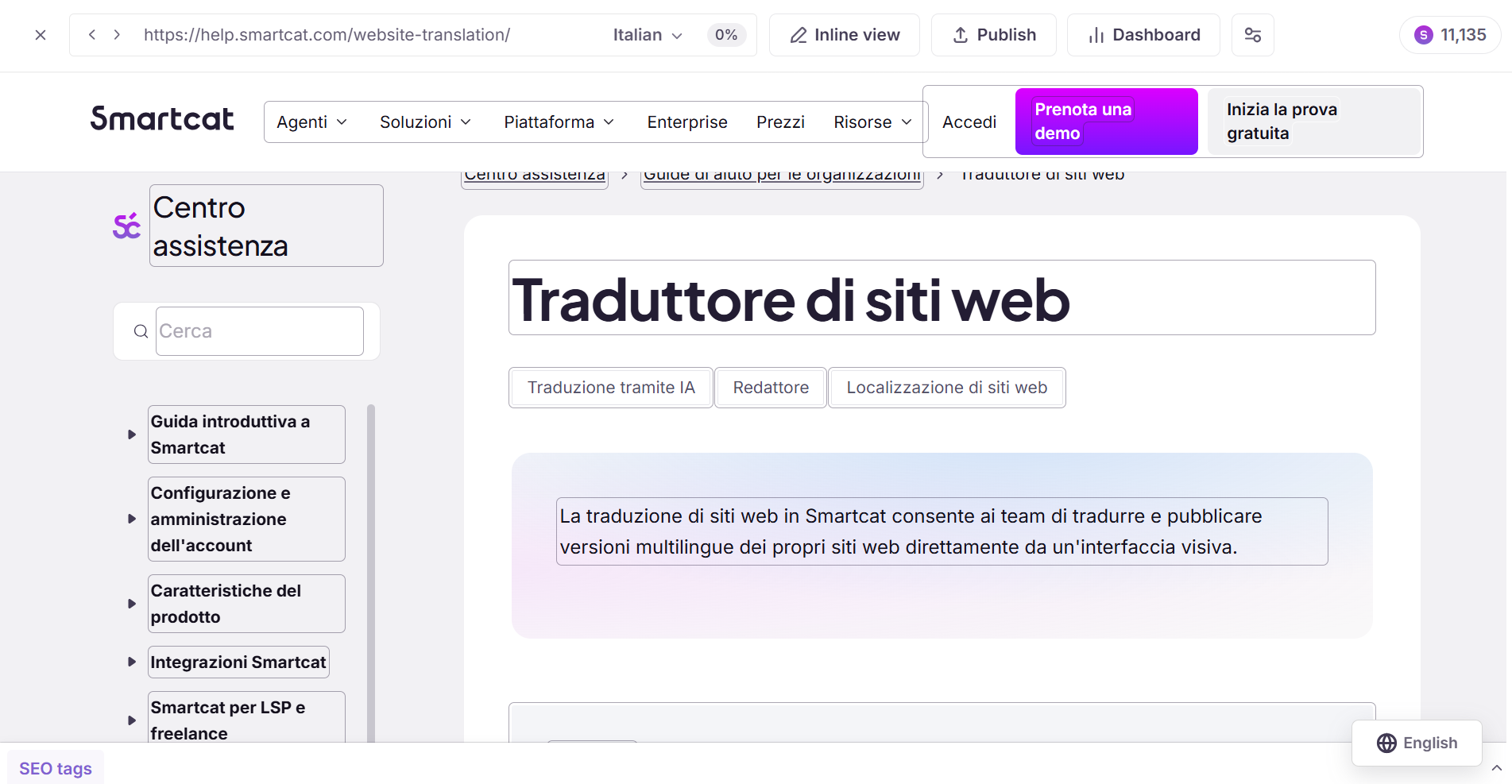
Website Translation lets teams translate and publish multilingual versions of their site directly from a visual interface — no connector required. Paste a URL and the site is translated with AI, and reviewers can see exactly how a translation renders on the live page before it goes out, catching layout issues and formatting errors that a segment-by-segment CAT view would miss.
Translated pages are delivered through a lightweight JavaScript snippet that swaps in translated content client-side and shows a language selector widget, with the original site continuing to be served entirely from the customer's own host. An optional SEO Proxy configuration exposes localized pages through crawlable URLs — via subdomains or subdirectories — so titles, descriptions, and search snippets appear correctly for each market. Translation memory and glossaries apply automatically through AI Translation Profiles, keeping terminology consistent across every language and page.
To learn more in our Website Translation help center article.
AI Voiceover Timing and Regeneration
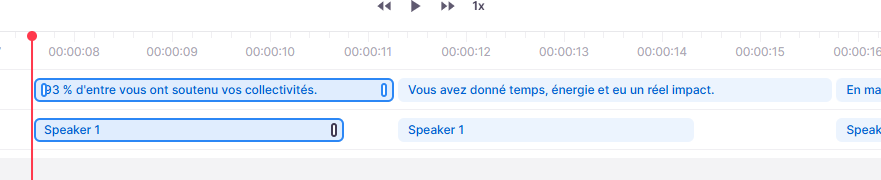
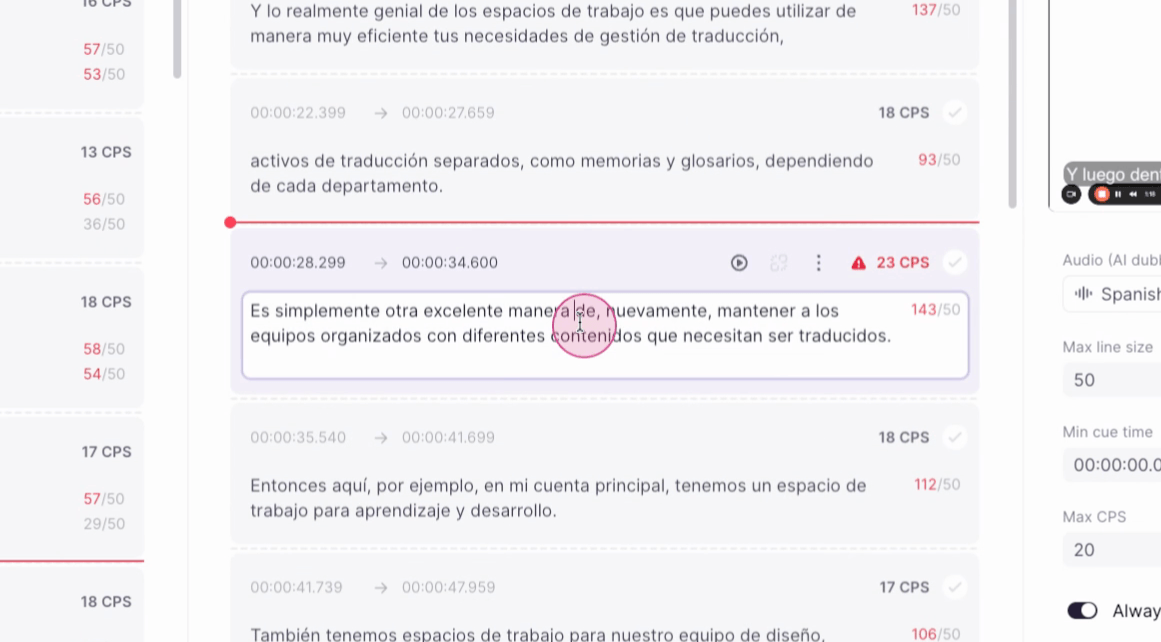
The Subtitle Editor's timeline now shows the actual duration of each generated AI voiceover cue, not just the subtitle's boundaries, so teams can see exactly where spoken audio starts and ends relative to the original subtitle timing. When generated speech doesn't fit the available time, Smartcat automatically adjusts speaking speed within a 0.7x to 1.2x range and regenerates the cue, instead of leaving teams to guess why a dub sounds rushed or slow.
A cue with an unresolved overlap shows a warning and can still be confirmed, but a cue whose speech exceeds the project's maximum CPS is a critical error and cannot be confirmed until it's resolved — by shortening the translation, adjusting voice speed, resizing the cue, or choosing a different voice. If a critical overlap isn't resolved before export, Smartcat plays the audio sequentially instead of cutting it or overlapping voices, which can shift the timing of the cues that follow.
To learn more in our Video Translation and Multilingual AI Dubbing help center article.
AI Voices Recommendation System
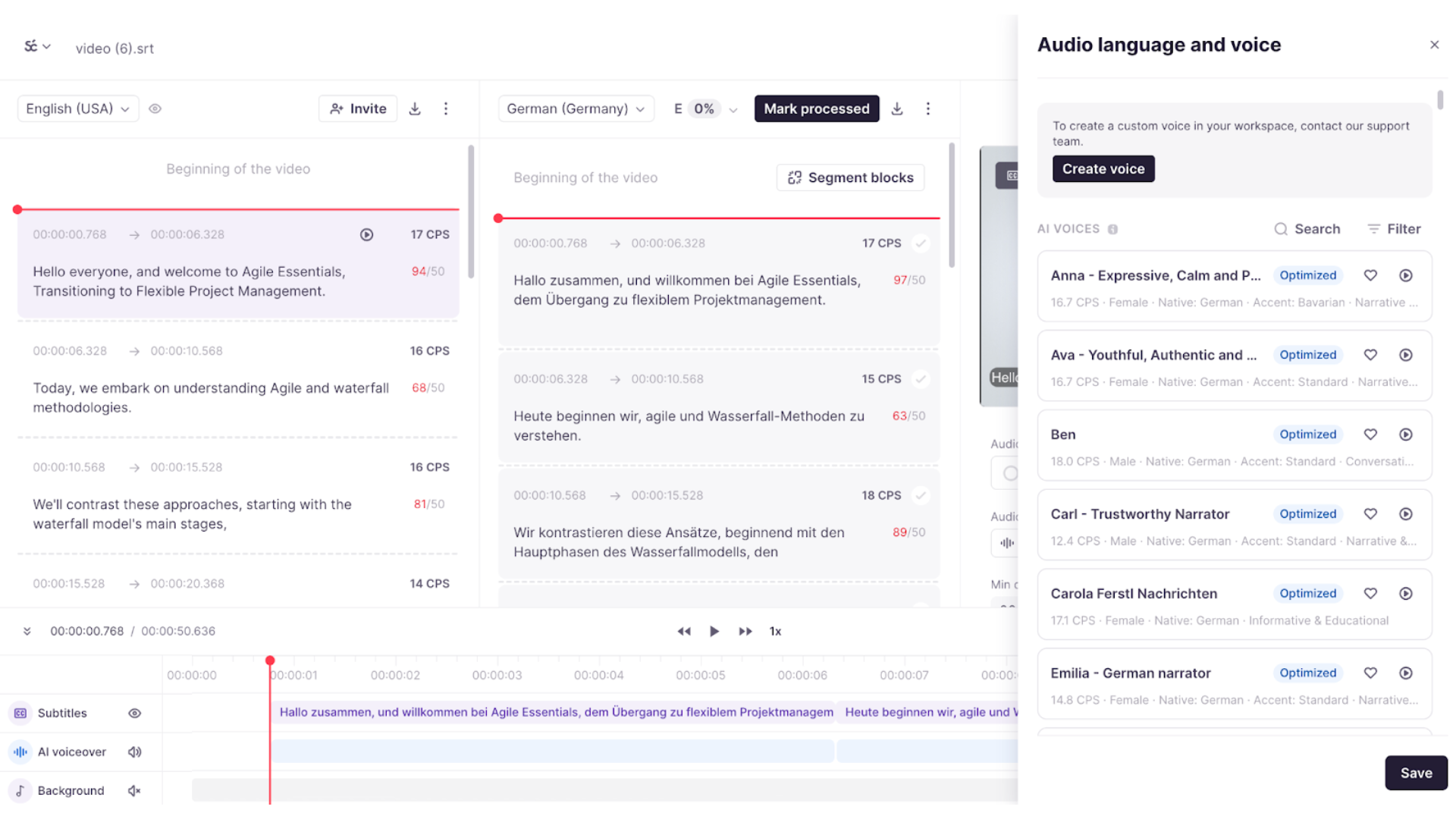
Smartcat replaces the flat AI-dubbing voice list in the Subtitle Editor with a structured voice selection panel that surfaces recommended voices, recently-used voices, and favorites, so users don't have to scroll a long, unsorted list to find a suitable voice.
Admins and Project Managers can manage which voices are marked as favorites for the workspace, and recent voices are shared across the whole team rather than kept per person. Voice cloning for a custom voice is still handled manually through Smartcat Support rather than self-service within the panel.
To learn more in our Recommended voices for AI dubbing help center article.
Organization Admin Role
The Organization Admin Role is a foundational Enterprise capability that introduces organization-level permissioning and governance for managing subscription access and translation consumption across multiple workspaces. It establishes the base layer for how Enterprise customers manage shared resources at scale, and is a prerequisite for future multi-organization and reseller functionality.
Once enabled, Organization Admins can view organization-level translation consumption, allocate or reclaim consumption capacity across workspaces, let workspaces draw from a shared org-level pool, view subscription plan details, and pause or resume shared subscription access for existing workspaces. This capability is available to Enterprise-tier organizations only, is not self-serve, and requires org-level enablement by Smartcat.
AI Translation Profiles
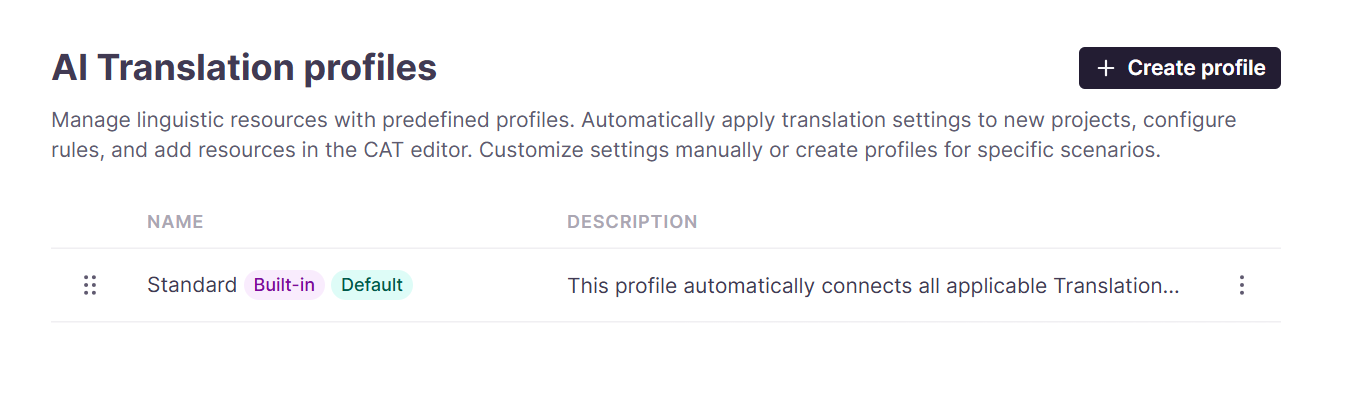
An AI Translation Profile is a pre-configured set of rules — created from Intelligence Fabric → Smartcat Coworkers → Translator → Translation Profiles — that controls which Translation Memories and Glossaries a project draws on, which translation engine is used for each language pair, and whether AI translation is used at all. Profiles can be set up per client, department, brand, or use case, and applied automatically to new projects.
By default, Smartcat links all of a workspace's TMs and glossaries to a profile, and teams can disable auto-linking to keep a profile scoped to just the resources they choose. Profiles also control dialect handling and can disable fallback translation or LLM-based engines entirely for projects that need only TM and glossary matches.
To learn more in our AI Translation Profiles help center article.
Custom Fonts for SCORM
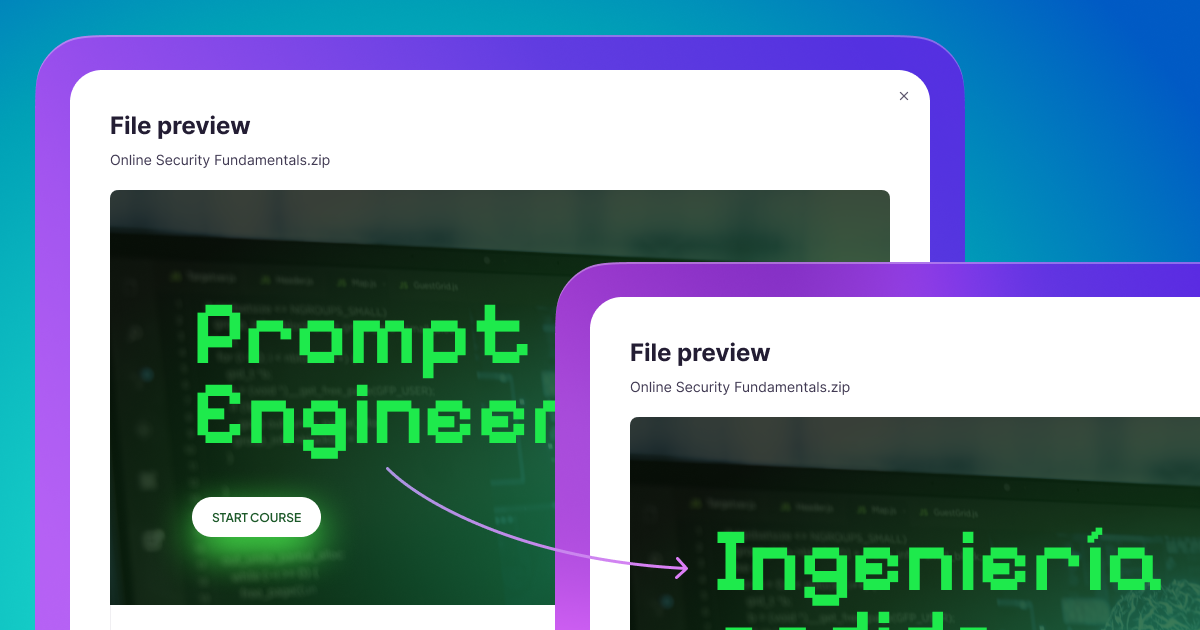
Smartcat preserves existing custom fonts in SCORM packages through editing and export, instead of silently reverting translated courses to a default typeface. Workspaces that don't have an embedded font in their source course can also upload their own brand font directly, so a translated course keeps the same visual presentation customers expect from the original.
The change is particularly relevant for enterprise customers with strict brand guidelines governing how training and marketing content should look across every language. Custom Fonts for SCORM applies specifically to courses built in Articulate Rise, and rolls out to every workspace automatically.
To learn more in our Custom Fonts for SCORM news post.
Cascade Assignments
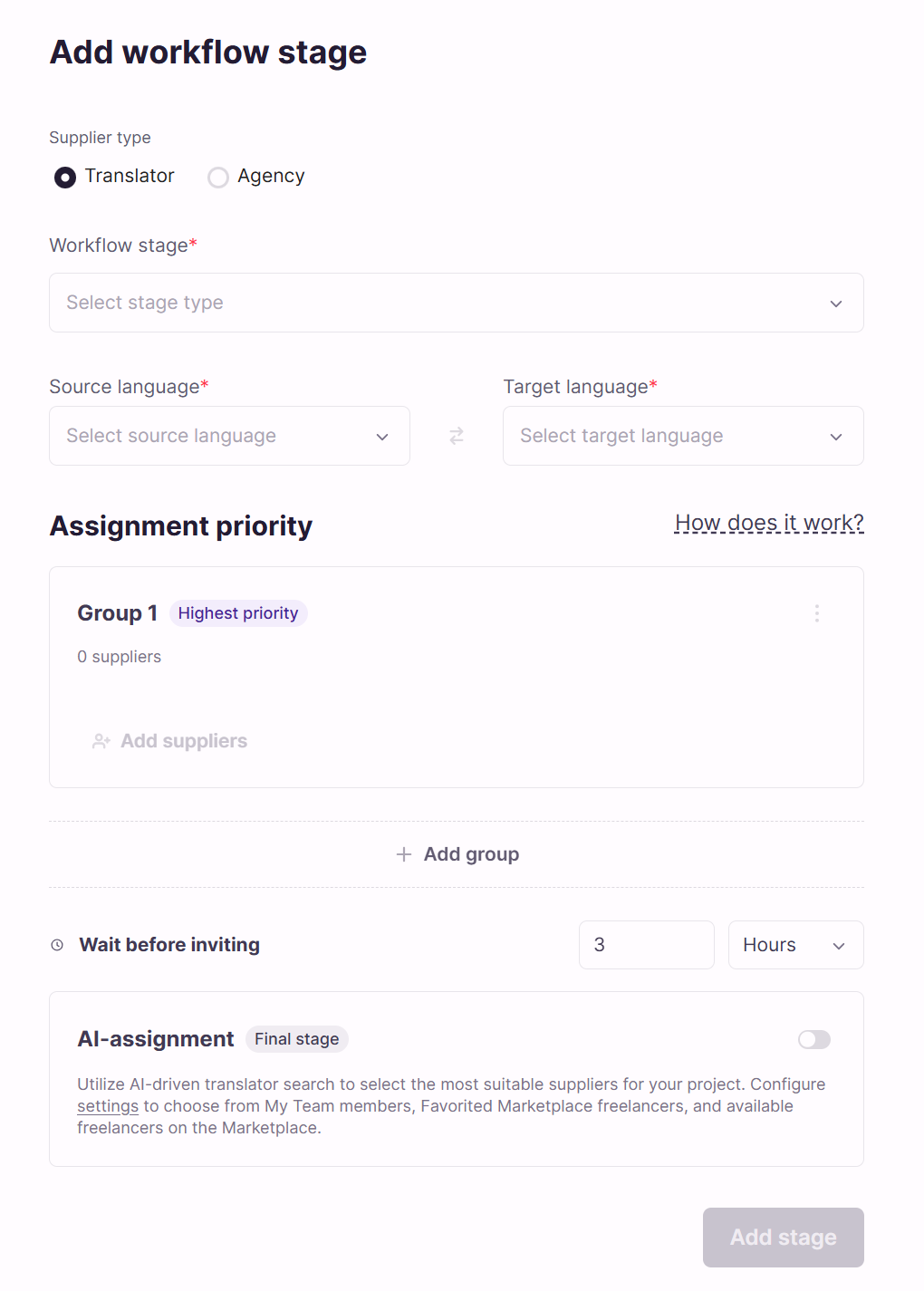
Cascade Assignments upgrades Assignment Templates with priority-ordered supplier groups, replacing a single flat list of suppliers with a defined order of preference. When a supplier group doesn't accept an assignment within a set time window, Smartcat automatically escalates the assignment to the next group in the priority order, instead of leaving a project manager to chase it down manually.
This lets localization teams balance supplier preference, cost, and delivery deadlines automatically, and removes a layer of manual follow-up that previously fell to project managers whenever a first-choice supplier was unavailable or slow to respond.
To learn more in our Translator assignment templates help center article.
End-to-End SCORM Translation
SCORM translation is a skill of the Learning Content Agent that translates entire SCORM courses — currently Rise-based SCORM files — into multiple languages without needing access to the original authoring tools. It translates every course asset: text, images, audio, video, and attachments, across 280+ supported languages.
Smartcat automatically detects and pre-classifies each asset as ready to translate, needing review, or skipped, and teams can override any of those decisions before AI translation runs. Human review is optional, through your own team or professional linguists from Smartcat's Marketplace, and every edit feeds back into translation memory so future projects get faster and more consistent. The finished course exports as an LMS-ready multilingual SCORM package.
To learn more in our SCORM translation help center article.
Cue Management in the Subtitle Editor
The Subtitle Editor's cue panel lets teams manage subtitle segments directly: delete an unwanted cue, insert a new empty cue before or after an existing one, or merge two adjacent cues into one, all from a three-dot menu on each cue. A quick-insert option adds a new cue by hovering the border between two cues and clicking the floating plus button that appears, faster than the menu for inserting mid-sequence.
To split a cue, add a line break inside it and use the Split by lines button, which turns each line into its own cue. For readability and AI dubbing, Smartcat recommends keeping complete sentences or clauses within a single cue and checking a project's CPS (characters-per-second) limits, configurable in the Settings tab. Deleting a cue is permanent — there's no undo, so it's worth double-checking before confirming.
To learn more in our Managing Cues in the Subtitle Editor help center article.