Half the documents in an archive are scans: signed contracts, old manuals, certificates. The rest are full of screenshots, diagrams and infographics. A normal translator sees none of that text, so those pages come back in the original language.
Scanned document translation means recognizing the text in an image or a scanned page with OCR, translating it, and putting it back into the same layout. The short answer: use a tool that runs OCR, handles whole batches and lets you review the result. Smartcat does this for scanned PDFs of up to 6 GB and for batches of images.
This guide covers scanned PDFs, batches of images, images inside Word and PowerPoint files, and how to get accurate results.
Key takeaways
- OCR comes first. Smartcat reads scanned, image-only PDFs of up to 6 GB before translating them.
- Choose the image pipeline. For scans, forms and handwriting, select it at upload; it returns an editable, translated PDF.
- Batches of images. PNG, JPG, BMP, TIFF and GIF images translate together; each comes back in its own format.
- Flat pricing. 1,000 Smartwords per image or scanned page per target language, whatever the amount of text.
- Review the images. Text inside images is less reliable than body text, so plan a review pass.
Can I translate scanned PDFs and the images inside documents at scale?
Yes, with a tool that runs OCR (optical character recognition) before it translates. Smartcat reads scanned, image-only PDFs of up to 6 GB, translates batches of images in one project, and handles images inside Word, PowerPoint and PDF files. Each scanned page or image costs a flat 1,000 Smartwords per target language, however much text it holds.
Scans and images fail in ordinary translators for one reason: there is no text to translate until something recognizes it. Google Translate, for example, leaves text in images and scanned PDF pages untranslated in its document output (Google Translate Help: translate documents). At scale, three things matter:
- OCR quality: clear, high-resolution scans give the best results; handwriting goes through the image pipeline.
- Layout back: the translated text has to sit where the original was, in a font that fits the script.
- Batches: hundreds of scans or product images in one project, with one glossary.
How do you translate a scanned PDF in Smartcat?
Upload the scan, choose the image pipeline, let OCR extract the text, translate and review it in Smartcat’s editor, and download a translated PDF. The image pipeline takes scanned PDFs of up to 6 GB, including forms, legal documents and handwriting.
- Upload the scanned PDF. Remove any password first; a protected PDF is otherwise processed as images only.
- Choose the image pipeline. Select it at upload for scans, forms and handwriting; it isn’t chosen automatically.
- Let OCR read the pages. Smartcat extracts the text from every page for translation.
- Translate and edit. AI translates with your glossary; every segment is editable in the editor.
- Download the PDF. The translated PDF keeps the layout of the original pages.
| Your PDF | Smartcat workflow | Result |
|---|---|---|
| Scanned pages, forms, handwriting | Image pipeline (OCR) | Translated PDF, fully editable in the editor |
| Text-based PDF with images in it | AI PDF translation | Translated PDF; text inside images translated too |
| Simple text-heavy scan | Standard OCR to Word | An editable Word file, then PDF |
Source: Smartcat help center, choosing the right PDF translation workflow (Smartcat Help: choosing the right PDF translation workflow).
For OCR preparation tips, see how to translate a scanned PDF; long scanned manuals are covered in translating PDF technical manuals.
How do you translate multiple images at once?
Select all the images in one Smartcat project and translate them as a batch. Smartcat reads PNG, JPG, BMP, TIFF and GIF files, returns each image in the format you uploaded, and lets you restyle the translated text with 56 fonts, including scripts such as Arabic, Devanagari and CJK.
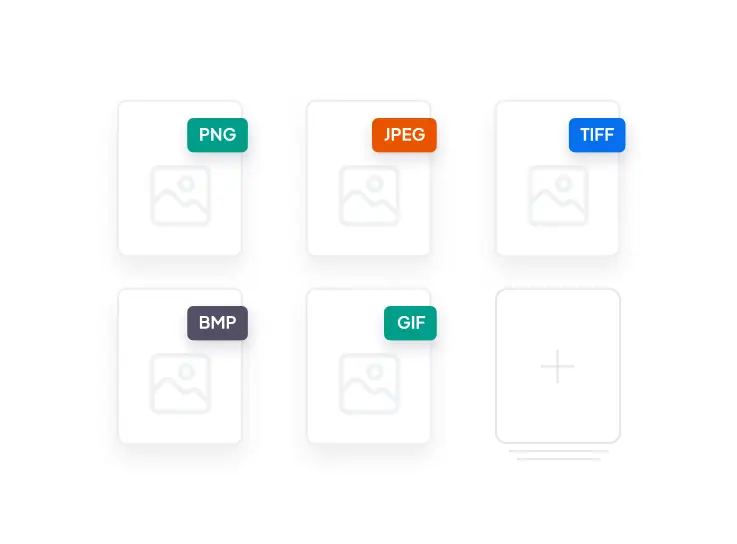
- Formats: PNG, JPG/JPEG/JFIF, BMP, TIF/TIFF, GIF (first frame only for animated GIFs), PCX/DCX and JP2/JPC.
- Size: images over 30 MB can fail OCR, so resize very large files first.
- Logos and brand marks: Hide removes unwanted translated text while keeping the background.
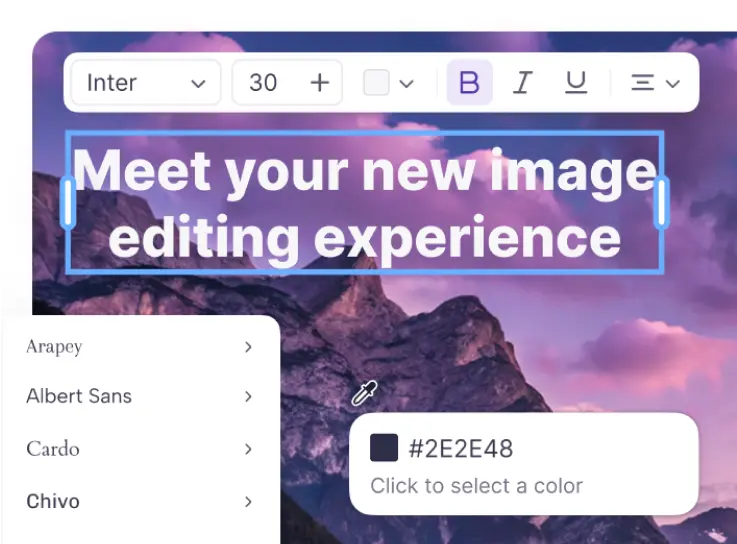
- Styling: change font, size, colour and alignment, and drag text boxes to fit each language.
- Not supported: WebP, SVG and Adobe Illustrator files aren’t on the supported list; convert them first.
Step-by-step instructions for single images are in how to translate images.
How do you translate the images inside Word files and PowerPoint decks?
It depends on the format. In Smartcat, images inside Word files translate with the document once the Rich Document Image Translation setting is on; images in PowerPoint decks are a separate image translation step, at 1,000 Smartwords per image, before you put them back.
| Where the image is | How Smartcat translates it | Source |
|---|---|---|
| Inside a Word file (DOC, DOCX, RTF, ODT) | With the document, when the workspace setting Rich Document Image Translation is on (Smartcat Support enables it) | Help: images in Word |
| Inside a PowerPoint deck | A separate image translation step, then re-insert the translated image | Help: images in PowerPoint |
| Inside a text-based PDF | With the PDF in the AI PDF workflow, via image text recognition; review it | Help: AI PDF translation |
| A scanned page | The whole page goes through OCR in the image pipeline | Help: PDF workflows |
How accurate is OCR translation of scans and images?
As accurate as the scan allows. Smartcat gets its best OCR results from clear, high-resolution scans, and text inside images is less reliable than body text, so plan a review pass; 92% of words translated by Smartcat AI are accepted without a single human edit once the text is recognized.
- Scan quality: rescan blurry or skewed pages rather than fixing the translation.
- Handwriting and stamps: route them through the image pipeline and check them line by line.
- Glossary first: product names and legal terms in a glossary stop OCR noise from turning into wrong terminology.
- Review: your reviewer or a Smartcat Marketplace linguist checks the translated pages in context.
“With Smartcat, I appreciate the ease with which I can process high-volume texts. The software is built to prioritize translation, freeing the user from concerns about style or formatting.”
Mónica Domínguez, Translation Specialist, Documento Xpress (G2 review)
Try it on a scanned document
Upload a scan or a folder of images and check the translated result against the original (image translator, translate scanned PDFs, AI PDF translator).
Frequently asked questions
Can Smartcat translate handwriting?
Yes, through OCR in the image pipeline, which handles scanned PDFs, forms, legal documents and handwriting. Handwriting is harder to recognize than print, so check those pages line by line before you use the translation.
Why didn’t my free translator translate the scanned pages?
Scanned pages are pictures of text, so a translator without OCR has nothing to translate. Smartcat runs OCR on scanned PDFs of up to 6 GB first, then translates the recognized text and returns a translated PDF.
How much does image translation cost in Smartcat?
Smartcat charges a flat 1,000 Smartwords per image, or per scanned page in the image pipeline, for each target language, whatever the amount of text (understanding Smartwords).
Can Smartcat keep a logo in the original language?
Yes. In Smartcat’s image editor, Hide removes unwanted translated text, such as a logo or brand mark, while keeping the background, so the original stays visible.
Can I try Smartcat on my own documents for free?
Yes. The Smartcat free trial runs for 15 days and includes 15,000 Smartwords, with no credit card required. Upload your own files, apply a glossary and download the translated documents to judge the result on real content.
Is Smartcat affiliated with the companies named in this guide?
No. Smartcat is an independent platform and is not affiliated with, endorsed by, sponsored by or otherwise associated with any company or product named in this guide. All product names and trademarks are the property of their respective owners and are used solely for identification and comparison.
Related guides
Sources
- Google Translate Help: translate documents (read 29 Oct 2026)
- Smartcat Help: choosing the right PDF translation workflow
- Smartcat Help: translating PDF documents with AI
- Smartcat Help: translating images in Word files
- Smartcat Help: translating images in PowerPoint files
- Smartcat Help: understanding Smartwords

Maksym Ostapenko · Head of Product Growth, Smartcat
Maksym Ostapenko is Head of Product Growth at Smartcat, where he works on AI translation workflows, document translation and enterprise localization. He writes about translation technology and localization operations from hands-on product experience.
Microsoft®, PowerPoint®, Word® and Excel® are trademarks of Microsoft Corporation. Google Translate is a trademark of Google LLC. DeepL is a trademark of DeepL SE. ChatGPT is a trademark of OpenAI. All other product names are trademarks of their respective owners. Smartcat is not affiliated with, endorsed by or sponsored by any company named in this guide; names are used solely for identification and comparison.