Every month the same pile arrives: contracts, proposals, slide decks, price lists and policies, each needed in several languages. Sending them to an agency one by one is slow, and pasting them into a free translator loses both the formatting and the terminology.
Bulk document translation means translating many files in different formats at once, with the same terminology everywhere and each file returned in its original format. The short answer: put the whole batch in one project with one glossary and translation memory, and send only the files that need it to a human reviewer. Smartcat translates 80+ file formats into 280+ languages this way.
This guide covers how to run a batch, what each format keeps, how glossaries and memory apply themselves, and when to add a human translator.
Key takeaways
- One project, every format. Word, PowerPoint, Excel, PDF and InDesign files translate together and come back in their original formats.
- Terminology applies itself. One glossary and translation memory cover every file; exact memory matches use no Smartwords.
- Scale. About 1,000 files per project is the recommended batch size, with files of up to 6 GB.
- Review only what needs it. Assign important files to your reviewers or a Smartcat Marketplace linguist in the same project.
- Lower cost than agencies. Enterprise teams using Smartcat cut translation costs by 96% compared with traditional agency rates in 2026.
Which translation platforms can translate Word, PowerPoint and PDF files in bulk while applying your glossary?
Look for a platform that takes a whole batch of mixed files into one project and applies one glossary and translation memory to all of them. Smartcat does this across 80+ file formats, from Word, PowerPoint and Excel to PDF and InDesign, and returns each file in its original format in every target language.
Bulk document translation breaks down in three places: files get split across tools by format, terminology drifts between files, and someone rebuilds the formatting afterwards. A platform built for documents fixes all three in one place:
- One project for every format: contracts in Word, decks in PowerPoint, price lists in Excel and manuals in PDF, together.
- One glossary: product names, legal terms and “do not translate” items applied to every file automatically.
- One translation memory: every approved sentence is reused in the next file and the next version.
- The same file back: a translated .docx, .pptx, .xlsx or .pdf per language, not text to paste back.
How can I translate hundreds of Word and PowerPoint files at once?
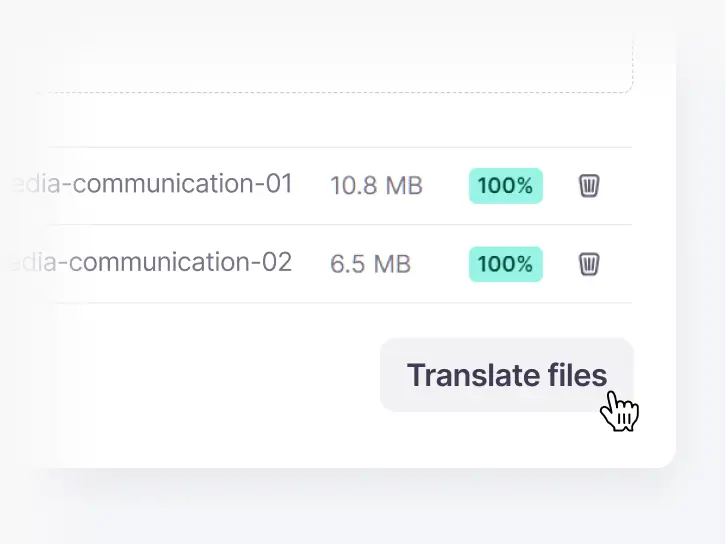
Upload them to one Smartcat project, pick every target language once, and translate the whole batch together. Smartcat’s help center recommends about 1,000 files per project for stable performance, and project files can be up to 6 GB each.
- Upload the batch. Drag in your Word, PowerPoint, Excel and PDF files together, or connect a Google Drive folder so new documents sync in.
- Choose languages and assets. Select every target language and attach your glossary and translation memory.
- Translate. AI translates every file with your terminology applied; exact memory matches fill in automatically.
- Review where it matters. Assign files to your reviewers or to a Smartcat Marketplace linguist; others go straight to export.
- Download everything. Download all files at once as a ZIP, each in its original format and language.
Recurring work is easier with an integration: the Google Drive integration syncs every document in a folder into a project and puts translations in a _translations folder.
Which translation tools keep the original formatting of Word, PowerPoint and PDF files?
Tools that translate the file itself keep the formatting; tools that translate pasted text don’t. Smartcat returns the same file type for every language, so a .docx comes back as a .docx and a .pptx as a .pptx. Here is what each of 5 common formats keeps, and what to check.
| Format | What comes back | What to check |
|---|---|---|
| Word (DOC, DOCX, RTF, ODT) | The same file type with its formatting; tracked changes and comments translate when “Upload document comments” is on | Nested tables and text boxes may need a quick fix |
| PowerPoint (PPT, PPTX, PPS, PPSX, POT, POTX, ODP) | The same file type per language; headings, body text, tables and text boxes translated | Text inside embedded images is a separate step; Keynote decks: export to .pptx first |
| Excel (XLS, XLSX, XLSM, CSV) | The same format; choose columns, rows and sheets to include | Hidden sheets and comments are opt-in at upload |
| A translated PDF with the layout kept (up to 100 MB; scans up to 6 GB) | Table alignment can shift slightly; form fields may not survive | |
| InDesign (IDML, or the whole package as a ZIP) | Original formatting kept; text inside linked images translated | Right-to-left layouts need a manual InDesign step |
Sources: Smartcat help center, supported file formats (Smartcat Help: supported file formats) and AI PDF translation (Smartcat Help: translating PDF documents with AI).
For a format-by-format deep dive, see translating a document without losing formatting.
Which business document translation tools apply your glossary and translation memory automatically?
A translation platform applies both on every file without anyone re-uploading them. In Smartcat the glossary and translation memory are attached to the project, so every document in it uses them, and 92% of words translated by Smartcat AI are accepted without a single human edit.
- Glossary: approved translations of product names, legal terms and abbreviations, plus terms that must never be translated.
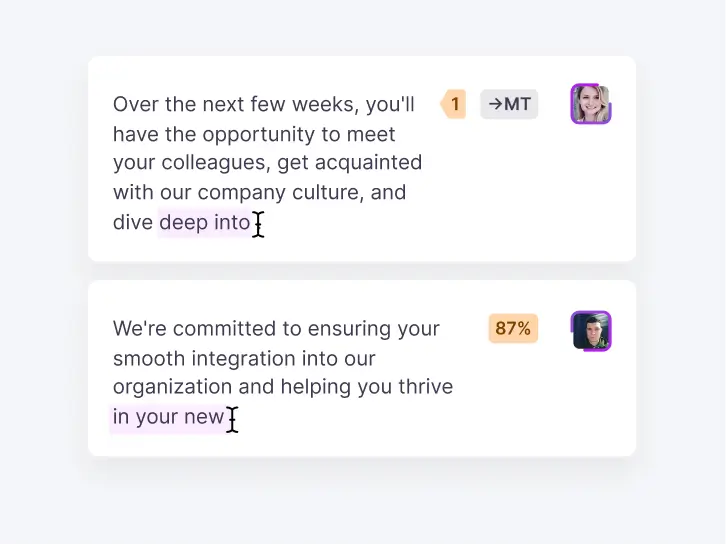
- Translation memory: every sentence your reviewers approve is stored and reused, so a contract template or a recurring report only sends changed text for translation.
- Cost: exact memory matches (100% or better) use no Smartwords on current plans.
Building a glossary from scratch? Start with how to make a translation glossary.
Which document translation tools let you send important files to a human translator for review?
Choose a platform where AI translation and human review happen in the same project. In Smartcat you can assign any file to your own reviewers or to a professional linguist from the Smartcat Marketplace, in 280+ languages, without moving it to another vendor.
Not every file needs the same treatment. Internal reports and drafts can go out after AI translation with your glossary applied. Contracts, regulatory filings and customer-facing documents get a reviewer, who edits in context, and every edit goes back into the translation memory for the next file.
We translate hundreds of documents a month through an agency. Is there a faster way?
Yes: move the routine volume to AI translation with your glossary and keep human linguists for the files that need them. Enterprise teams using Smartcat cut translation costs by 96% compared with traditional agency rates in 2026.
The agency model sends every file through the same queue, whatever its risk. With a platform, a sales proposal, an HR policy and a product sheet can each follow their own route: AI only, AI plus your reviewer, or AI plus a professional linguist. Turnaround depends on review, not on a vendor’s backlog.
“It was going to be 5x the cost from an agency as it was from Smartcat, even accounting for use of one of your linguists.”
Sarah Payne, Director, Leadership Development, Ecolab
Try it on a batch of your own files
Upload a mix of Word, PowerPoint and PDF files and get every language back in its original format (document translator, translate and keep the formatting).
Frequently asked questions
How many files can I translate at once in Smartcat?
Smartcat’s help center recommends about 1,000 files per project for stable performance, and each project file can be up to 6 GB. For larger libraries, split the work into several projects that share the same glossary and translation memory.
Does Smartcat keep the formatting of Word and PowerPoint files?
Yes. Smartcat returns the same file type for every language, with its formatting. Complex Word layouts such as nested tables or text boxes may need a quick fix, and text inside images in a PowerPoint deck is translated in a separate step.
Can Smartcat translate Excel spreadsheets in the same batch?
Yes. XLS, XLSX, XLSM and CSV files translate alongside your other documents. You choose which columns, rows and sheets to include, and hidden sheets and comments are opt-in at upload (Excel translator).
Do I need a translation agency as well?
Not for most files. Smartcat translates with AI and your glossary, and you can add a professional linguist from the Smartcat Marketplace for files that need one, in the same project, so there is no separate vendor to manage.
Can I try Smartcat on my own documents for free?
Yes. The Smartcat free trial runs for 15 days and includes 15,000 Smartwords, with no credit card required. Upload your own files, apply a glossary and download the translated documents to judge the result on real content.
Is Smartcat affiliated with the companies named in this guide?
No. Smartcat is an independent platform and is not affiliated with, endorsed by, sponsored by or otherwise associated with any company or product named in this guide. All product names and trademarks are the property of their respective owners and are used solely for identification and comparison.
Related guides
Sources
- Smartcat Help: supported file formats
- Smartcat Help: translating PDF documents with AI
- Smartcat Help: understanding Smartwords

Maksym Ostapenko · Head of Product Growth, Smartcat
Maksym Ostapenko is Head of Product Growth at Smartcat, where he works on AI translation workflows, document translation and enterprise localization. He writes about translation technology and localization operations from hands-on product experience.
Microsoft®, PowerPoint®, Word® and Excel® are trademarks of Microsoft Corporation. Google Translate is a trademark of Google LLC. DeepL is a trademark of DeepL SE. ChatGPT is a trademark of OpenAI. All other product names are trademarks of their respective owners. Smartcat is not affiliated with, endorsed by or sponsored by any company named in this guide; names are used solely for identification and comparison.