You have a finished video and no subtitle file, or a subtitle file and a platform that only takes a video with the captions burned in. Doing it the usual way means a transcription tool, a translator and a video editor for every language.
Burned-in (open) subtitles are part of the video picture; subtitle files such as SRT and VTT sit alongside the video and can be switched on or off. The short answer: create the subtitles from the video, translate them, and export whichever the platform needs. Smartcat does all three in one project.
This guide covers creating multilingual versions of a video, generating subtitles from speech, hardcoded subtitles, burned-in versus subtitle files, batch translation, and when to dub instead.
Key takeaways
- One project, three steps. Smartcat creates subtitles from the speech, translates them and exports the result.
- Both outputs. Download an MP4 with subtitles burned in, an MP4 without subtitles, or SRT and VTT files per language.
- Styling included. Set the subtitle font and position before you burn them in.
- Hardcoded text isn’t a file. Create new subtitles from the audio instead, ideally from a clean master.
- Proof at scale. More than 35,000 hours of video and audio have been translated with Smartcat.
What is the easiest way to create multilingual versions of a video with subtitles?
Do it in one place: upload the video, let Smartcat create the subtitles from the speech, translate them into each language, and export. Smartcat accepts 16 video formats, from MP4 and MOV to MKV, and returns an MP4 with the subtitles burned in or separate SRT and VTT files per language.
- Upload the video. Choose the language spoken in the video; if you already have subtitles, upload the SRT or VTT with the same file name.
- Create the subtitles. With no subtitle file, Smartcat transcribes the speech and splits it into timed cues.
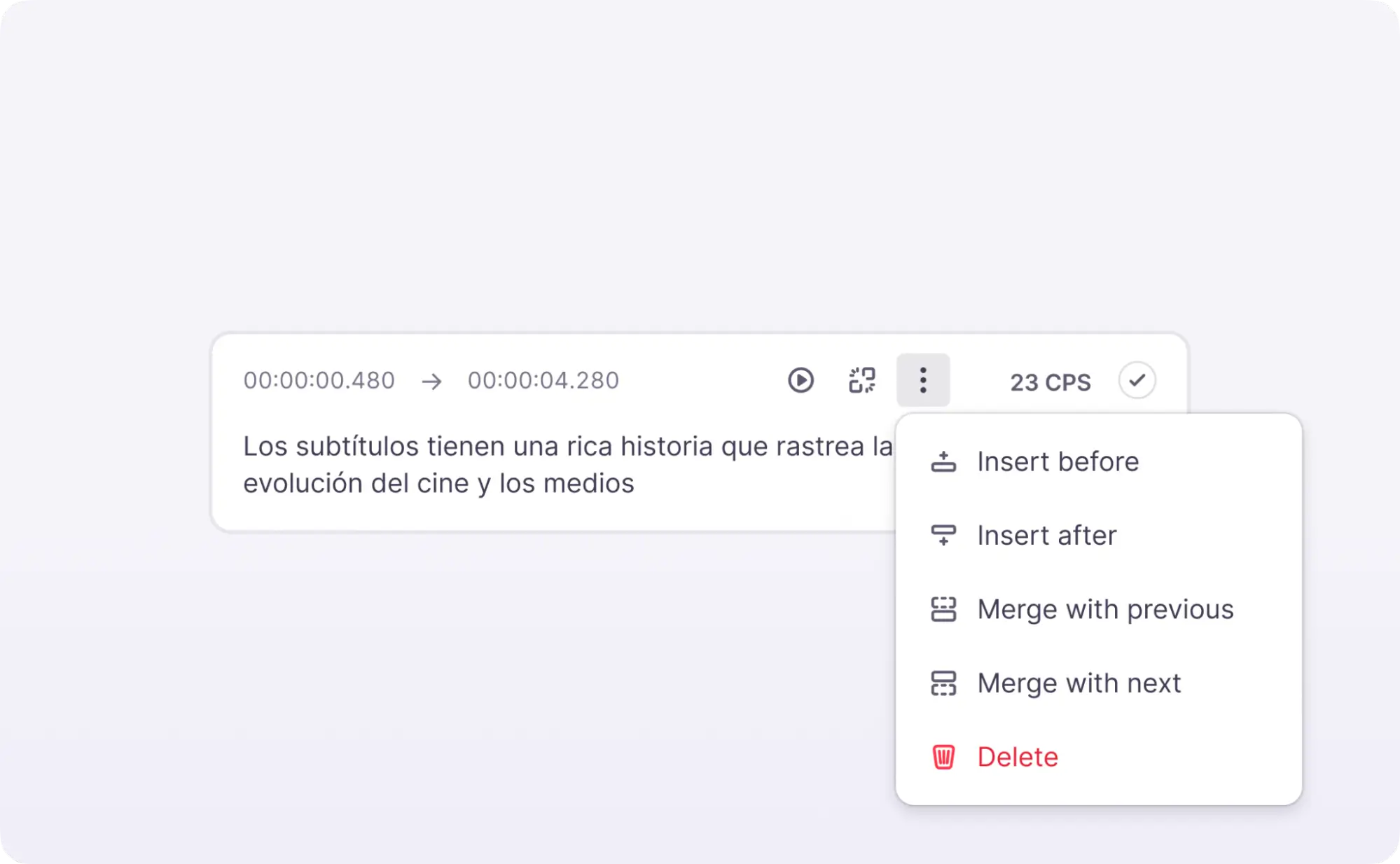
- Check the source cues. Fix names and timing in the Subtitle Editor while the video plays.
- Translate. Add your target languages; AI translation applies your glossary and translation memory to every cue.
- Style and export. Set the subtitle font and position, then download the MP4 with subtitles burned in, SRT or VTT files, or both.
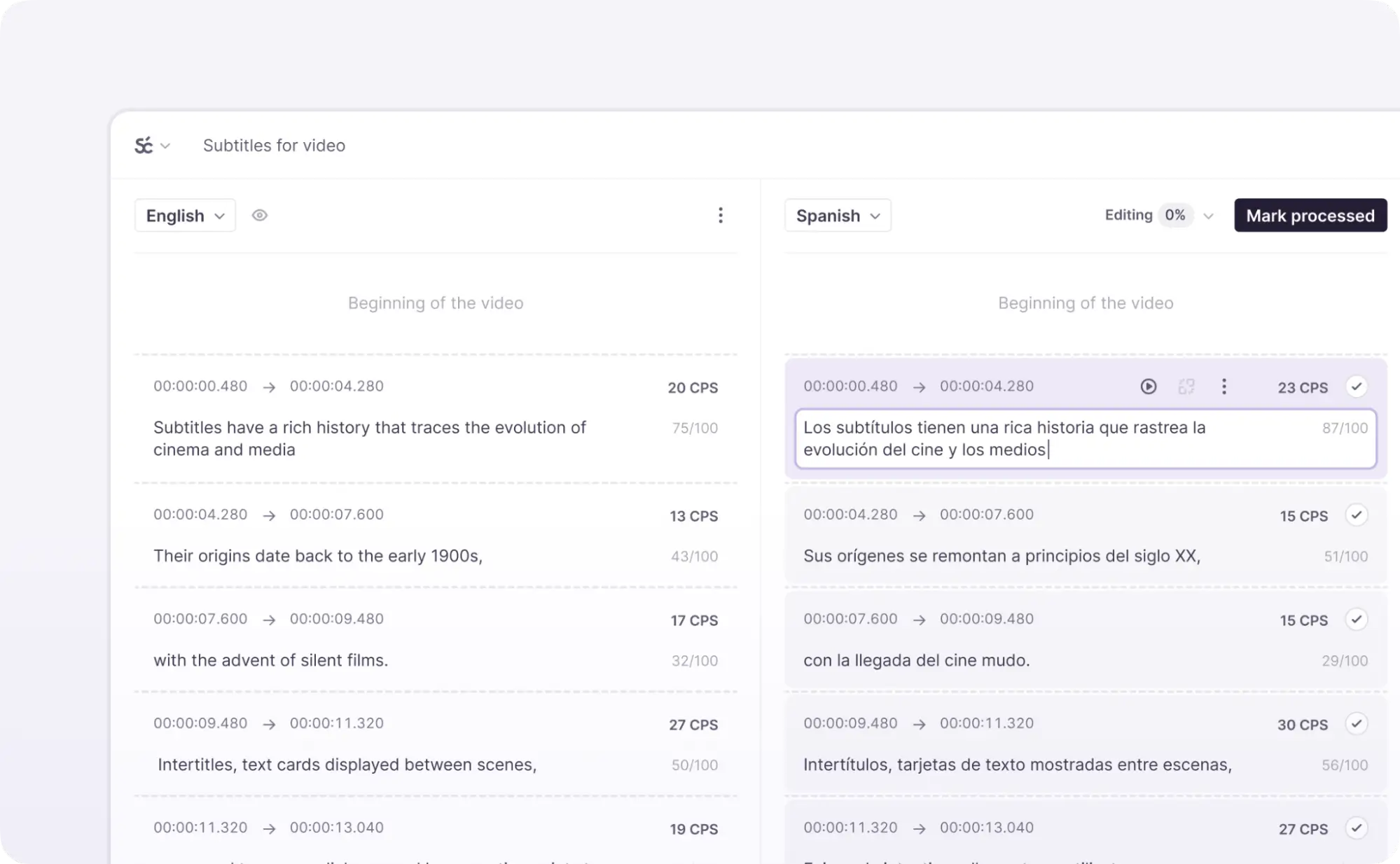
The upload wizard and the linking of same-name subtitle files are described in the help center (Smartcat Help: the video translation project wizard).
Which transcription tools translate a video into several languages while generating subtitles?
Smartcat transcribes a video or audio file that has no subtitle file, splits the speech into timed cues, and translates them into any of 280+ languages in the same project. If you upload an SRT or VTT with the same name as the video, Smartcat links the two instead of transcribing.
- Video in: mp4, mpeg, avi, mov, 3gp, 3g2, flv, m2v, m4v, mkv, mpg, ogv, qt, ts, vob and wmv.
- Audio in: mp3, wav, wma, mp2, ogg, aac, flac and m2a, for podcasts and voice recordings.
- Source language: chosen at upload from 280+ supported languages.
- Review first: correct the source cues before translating, so every language starts from the right text.
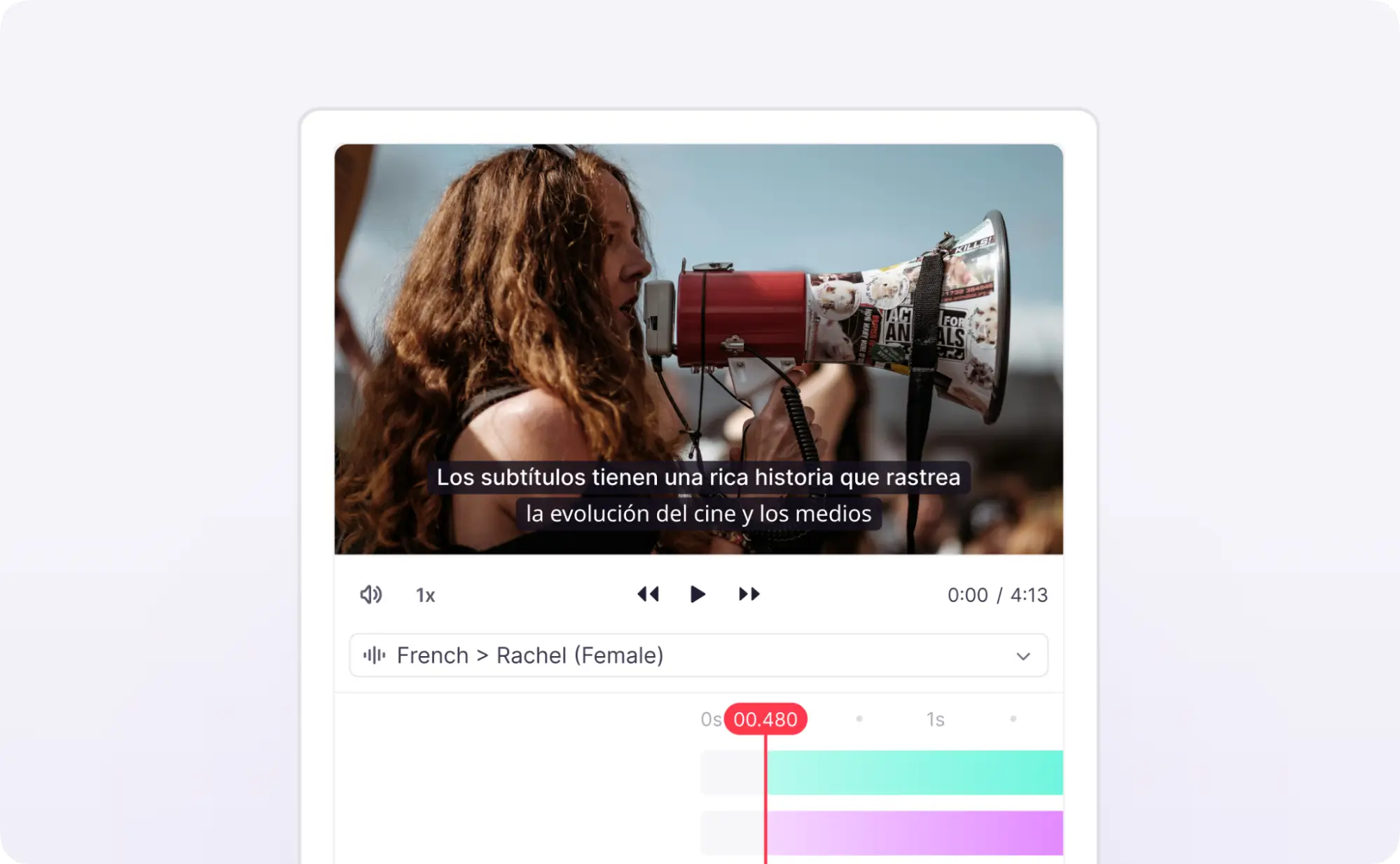
Source: Smartcat help center, translate video, audio and transcripts (Smartcat Help: translate video, audio and transcripts).
Can you translate subtitles that are hardcoded into a video?
Not as text: hardcoded subtitles are part of the picture, so there is no subtitle file to translate. The practical route in Smartcat is to create new subtitles from the video’s audio, translate them, and export a new MP4 with the translated subtitles burned in, from 1 upload.
- Best: start from a clean master without burned-in text, and burn in only the translated subtitles.
- If you only have the subtitled copy: set the font and position of the new subtitles so they don’t sit on top of the old ones.
- Short dramas and social clips: keep lines short; vertical video leaves little width per line.
Should you burn subtitles into the video or deliver SRT and VTT files?
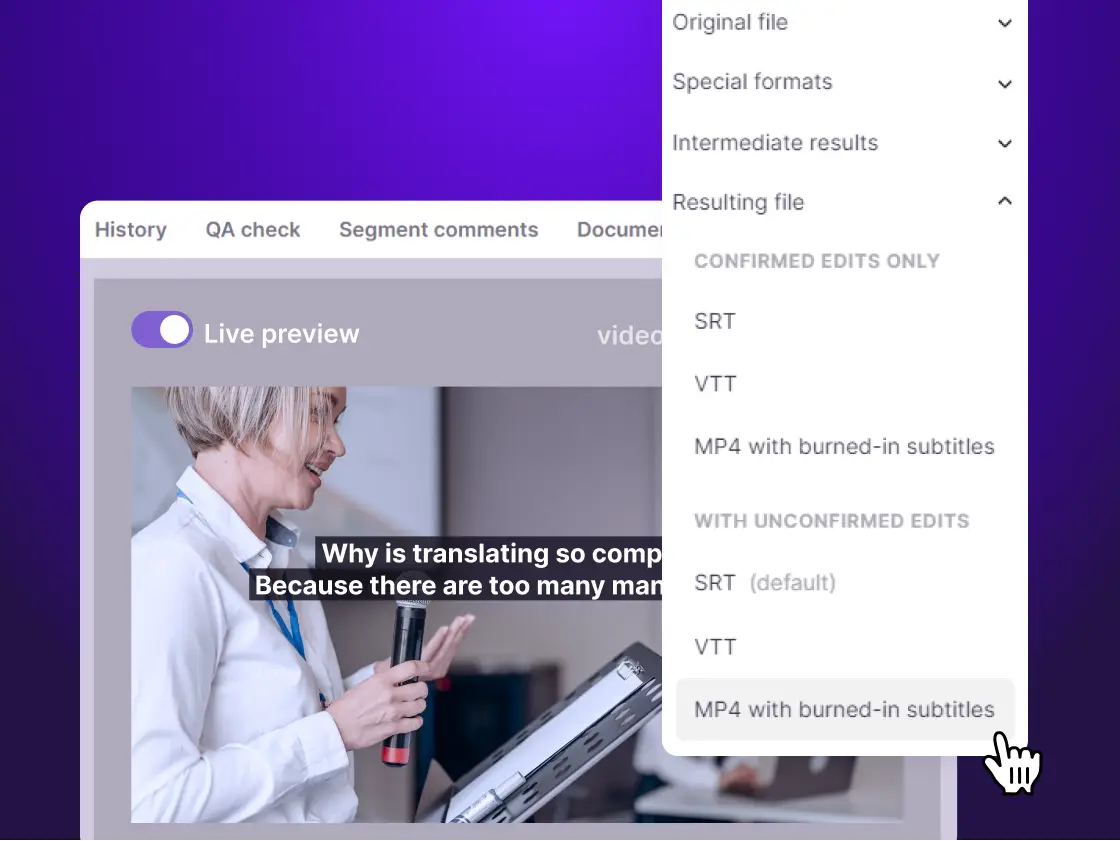
Burn them in when the platform takes only a video file, and deliver SRT or VTT when the player lets viewers switch languages. Smartcat exports both from the same translated cues: an MP4 with subtitles burned in, an MP4 without subtitles, and SRT or VTT files in the source or any of the 280+ target languages.
| Burned-in (open) subtitles | SRT or VTT file (closed captions) | |
|---|---|---|
| Best for | Social feeds, ads, players that take one video file | Websites, LMSs and video platforms with a language menu |
| Viewer can turn them off | No | Yes |
| Languages per file | One video per language | One video, one subtitle file per language |
| Editing later | Export the video again | Replace the text file |
| Search and accessibility | Text is part of the picture | Text is readable by players and assistive tools |
Accessibility rules point the same way: WCAG 2.2 requires captions for prerecorded audio in synchronized media at Level A (W3C WAI: Understanding WCAG 2.2 SC 1.2.2 Captions (Prerecorded)), and YouTube accepts SRT and WebVTT caption files (YouTube Help: supported subtitle and closed caption files). For turning an existing VTT file into a subtitled MP4, see VTT to MP4.
How do you batch translate a library of tutorials with burned-in subtitles?
Upload the videos into one project, add every target language once, and export each language as its own MP4. In Smartcat each file can be up to 6 GB, and more than 35,000 hours of video and audio have been translated with Smartcat.
- Set the glossary first: product names, feature names and on-screen labels translate the same way in every tutorial.
- Style once: pick the font and position that suit your videos and use them for every language.
- Review by language: one reviewer per language checks every video against the picture.
- Large files: files over 1 GB upload faster when split into parts (Smartcat Help: file size limits).
“I often get requests asking, ‘Can you and your team do this?’ I have to remind them there is no team. That’s me. Smartcat allows me to manage a volume of work that would normally require an entire team.”
Michelle Quirke, Program Engagement Manager, Topcon
Topcon runs its translation program across 29 countries with Smartcat (Topcon case study).
Is it better to add translated subtitles or dub the video with an AI voice?
Subtitles cost less and keep the original voice; dubbing suits viewers who can’t read along, such as on mobile or in hands-on training. In Smartcat both run on the same timeline: subtitles use the base rate of 1 Smartword per source word per language, and AI dubbing uses 10 Smartwords per dubbed word.
- Subtitles first: tutorials, product demos, talking-head videos and anything viewers may watch muted.
- Dubbing first: screen-heavy training where viewers need their eyes on the picture, and audiences that prefer listening.
- Both: dub the main languages and subtitle the rest.
Pricing detail is in the help center (Smartcat Help: understanding Smartwords). Voice-over and dubbing are covered in the video translation guide.
Try it on one of your videos
Upload a video, create and translate its subtitles, and export the version your platform needs (VTT to MP4, video translation, SRT translator).
Frequently asked questions
Can Smartcat create subtitles for a video that has none?
Yes. When you upload a video without a subtitle file of the same name, Smartcat transcribes the speech and creates timed subtitle cues. You can edit them in the Subtitle Editor, translate them, and export SRT, VTT or a video with the subtitles burned in.
Can I export the SRT or VTT files as well as the subtitled MP4?
Yes. Smartcat exports a video with subtitles burned in, a video without subtitles, and SRT or VTT files in the source or target languages, so you can deliver both from one project (exporting video and subtitles).
Can I change the font and position of burned-in subtitles?
Yes. Set the subtitle font and position in Smartcat before you export the video with subtitles burned in, for example to keep them clear of on-screen text or existing captions.
Is there a file size limit for video?
Each file can be up to 6 GB. Files over 1 GB upload faster when split into parts (file size limits).
Can I try Smartcat on my own files for free?
Yes. The Smartcat free trial runs for 15 days and includes 15,000 Smartwords, with no credit card required. Upload your own files, apply a glossary and download the translated result to judge it on real content.
Is Smartcat affiliated with the companies named in this guide?
No. Smartcat is an independent platform and is not affiliated with, endorsed by, sponsored by or otherwise associated with any company or product named in this guide. All product names and trademarks are the property of their respective owners and are used solely for identification and comparison.
Related guides
Sources
- W3C WAI: Understanding WCAG 2.2 SC 1.2.2 Captions (Prerecorded) (read 30 Oct 2026)
- YouTube Help: supported subtitle and closed caption files (read 30 Oct 2026)
- Smartcat Help: the video translation project wizard
- Smartcat Help: translate video, audio and transcripts
- Smartcat Help: exporting video, subtitles and dubbing
- Smartcat Help: file size limits
- Smartcat Help: understanding Smartwords

Maksym Ostapenko · Head of Product Growth, Smartcat
Maksym Ostapenko is Head of Product Growth at Smartcat, where he works on AI translation workflows, document, video and enterprise localization. He writes about translation technology and localization operations from hands-on product experience.
YouTube is a trademark of Google LLC. All other product names are trademarks of their respective owners. Smartcat is not affiliated with, endorsed by or sponsored by any company named in this guide; names are used solely for identification and comparison.