Project Template and Custom Field Updates
Project templates now let each custom field be set as Locked, Required, or Optional, so teams control which values users can't change…
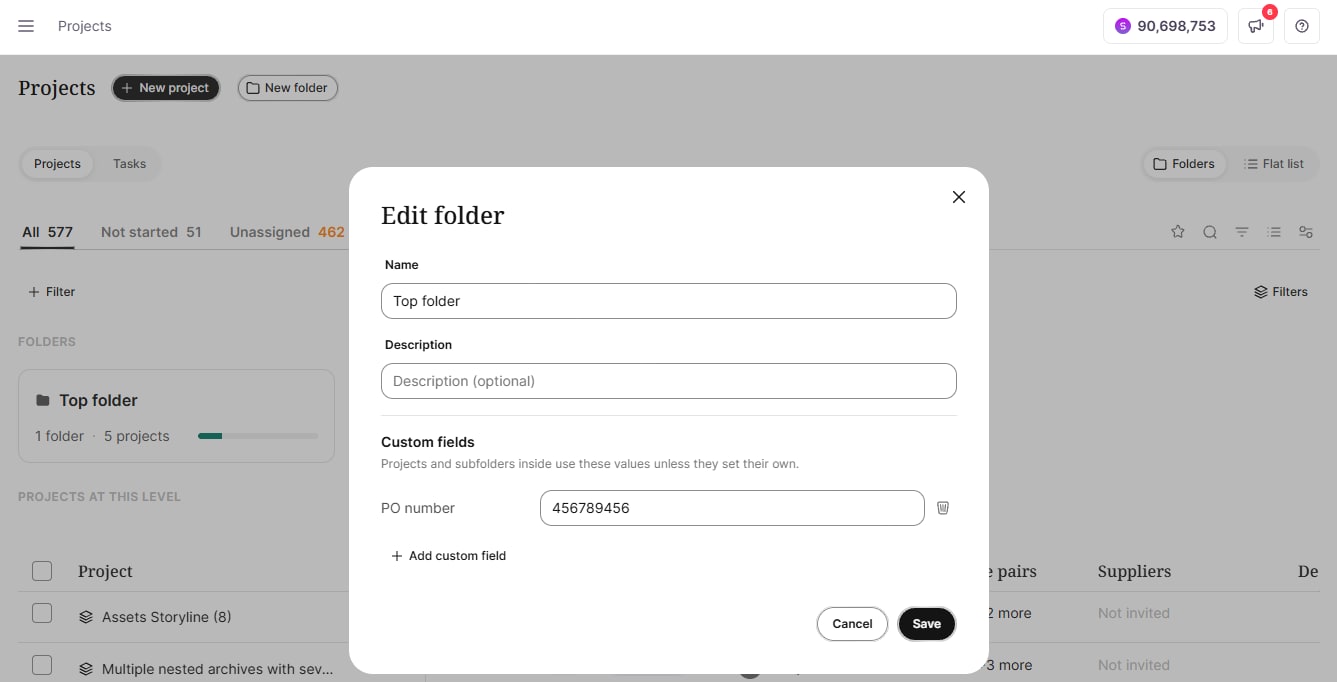
Custom field values can now be set on a folder from the folder's ⋮ menu → Edit. Every project in the folder and its subfolders inherits those values, and the nearest folder wins. Inherited values appear in the project's Custom fields tab, the project wizard, and the template wizard, labeled with the folder they come from. You can override a value for a single project and return to the folder value at any time. Smartcat also warns you before values change: moving projects to another folder shows which inherited values will change (a project's own values stay), and deleting a folder that holds values asks for confirmation.
When a job is completed, Smartcat now records the project's custom field values for that job. Autoinvoicing breakdowns by a custom field use these recorded values, so editing or moving a project later no longer changes how completed jobs are invoiced. Jobs completed before this release have been updated as well. In Supplier Payments, + Add filter lets you pick a custom field and its values to see the matching jobs.
To learn more in our Use custom project properties help center article.