GDPR-compliant organization
ISO 27001 certified organization
SOC II compliant organization
Translate your WordPress.com website with AI
Translate the pages, posts, and menus of your WordPress.com site with AI, review the wording in context, and publish the languages your visitors need.
More than 80 of the world’s largest companies have chosen Smartcat
How to add Smartcat to WordPress.com
Create a Smartcat website project from your published WordPress.com URL and choose the target languages.
Install the generated Smartcat snippet through WPCode's Insert Headers and Footers plugin, Code Snippets → Header & Footer → Header (Personal plan or higher).
Publish the change and open the live site to confirm the snippet is present.
Review the translations in Smartcat’s visual editor and publish the languages that are ready.
Translate a WordPress.com site with supported header code
WordPress.com documents header code on Personal, Premium, Business, and Commerce plans. Install and activate WPCode’s Insert Headers and Footers plugin, open Code Snippets → Header & Footer, add the generated Smartcat snippet to Header, and save.
This provides the website translation route without a direct theme-file edit. Review a page, a post, and the mobile menu in Smartcat before publishing the language. The free WordPress.com plan does not provide the documented header-code capability.
Do not confuse WordPress.com’s hosting plans with self-hosted WordPress. The installation permissions depend on the environment you are using.
What changes for visitors, and what stays in WordPress.com
The website layer shows translated text to visitors without creating localized posts in WordPress.com. When translated articles need to live in WordPress itself, use Smartcat’s WordPress and WPML integration.
Review before a language goes live
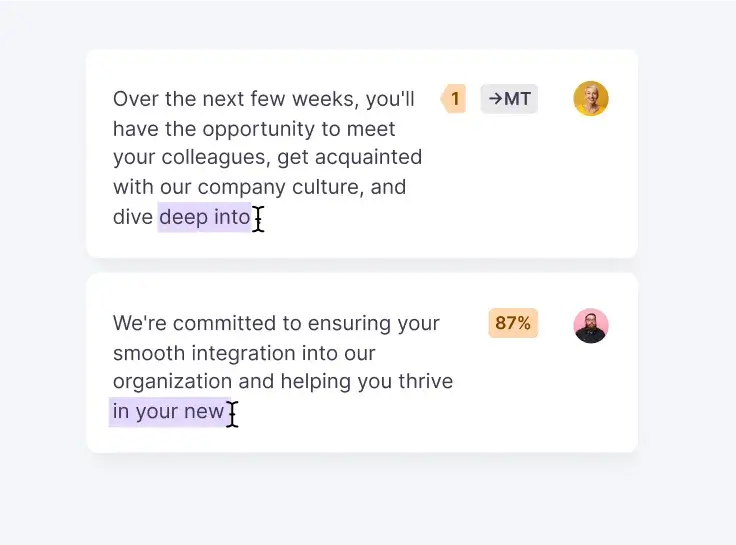
Machine translation gives you a fast first draft. In Smartcat’s visual editor you see each translated string on the page, shorten headings that run long on mobile, and keep product and brand names consistent with a glossary. Assign a reviewer when a page needs approval, and publish only the languages that are ready.
Frequently asked questions
Does WordPress.com still require Business for header code?
The current WordPress.com guide lists Personal and higher, including Premium, Business, and Commerce. Use that current capability statement rather than an outdated Business-only rule.
Can I edit translations before publishing?
Yes. Refine and confirm the wording in Smartcat’s visual editor, then publish the languages that are ready.
What happens when I add a new page in WordPress.com?
New text follows the Smartcat project’s selected translation mode. Choose reviewed translations when every new page requires approval; automatic modes can translate newly encountered text. Neither mode changes your source content in WordPress.com.
Publish your WordPress.com WordPress site in more languages
Install the snippet once, review the translations in context, and publish the languages your audience needs. See all website integrations or read how the Website Translator works.