The translation memories live on one translator’s laptop, client packages arrive by email, and every new linguist needs a desktop licence before they can start. Moving to the cloud fixes that, but only if nothing is lost on the way.
A cloud CAT tool is computer-assisted translation software that runs in the browser, with translation memory, glossary, QA and the files in one shared workspace. The short answer: export memories as TMX and termbases as MultiTerm XML or Excel, import them, and keep accepting clients’ bilingual files. Smartcat imports both and opens SDLXLIFF, MQXLIFF and XLIFF files directly.
This guide covers moving memories and termbases, what to check before you switch, handling files from clients who stay on desktop tools, giving freelancers access, and what changes for translators. The examples use Smartcat.
Key takeaways
- Memories move as TMX. Smartcat imports TMX, XLSX and .sdltm memories of up to 1 GB, and MultiTerm XML or XLSX glossaries.
- Clients can stay on their tools. SDLXLIFF, MQXLIFF, TTX and XLIFF files open in Smartcat and download in their original format.
- Nothing to install. Linguists, reviewers and clients work in the browser; Smartcat takes no commission from freelancer earnings.
- Quality checks travel with the work. Memory, glossary and QA run on every segment; 92% of AI-translated words need no edit.
- Know the limits. Smartcat doesn’t create Trados return packages, doesn’t work offline, and imports only language terms from MultiTerm.
How do I move my translation memories from Trados to a cloud translation platform?
Export each translation memory as TMX and each termbase as MultiTerm XML or Excel, then import them into the cloud platform. Smartcat imports TMX, XLSX and Trados .sdltm memories of up to 1 GB per file, and glossaries of up to 10 MB, so matches from your existing memories apply from the first project.
- Export your memories. In Trados Studio®, export each memory to TMX (RWS Docs: exporting TM data in Trados Studio), or keep the .sdltm file; Smartcat imports both.
- Export your termbases. Export MultiTerm termbases as MultiTerm XML, or keep terms in an Excel sheet with one column per language.
- Create one memory per client or domain. Import each TMX or .sdltm file into its own Smartcat translation memory so client content stays separate.
- Import the glossaries. Smartcat imports the language terms from MultiTerm XML; definitions and custom fields stay behind, so check the ones you rely on.
- Run a pilot project. Translate a recent client file and compare the match rates with what the desktop tool showed for the same file.
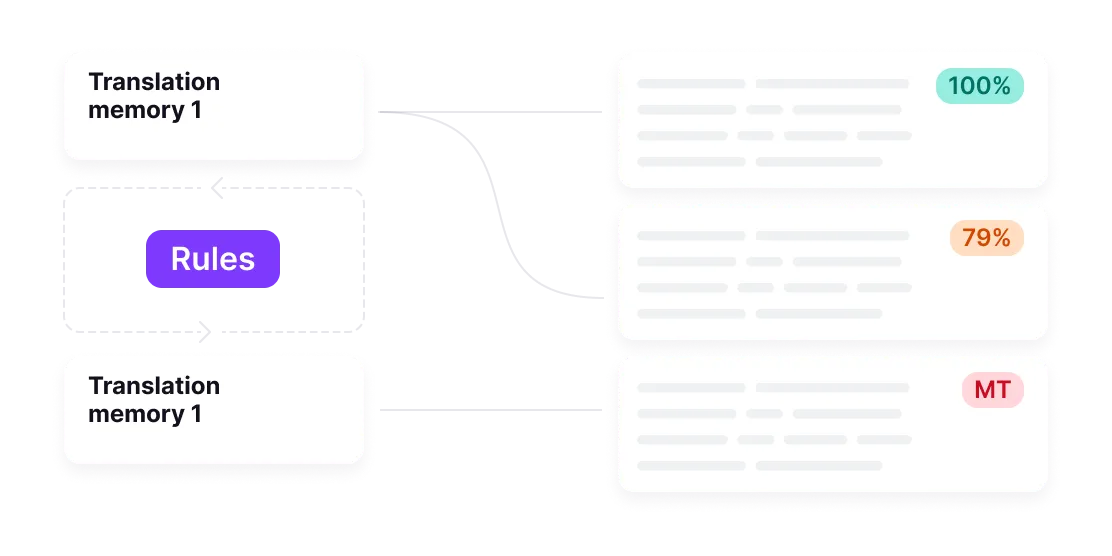
TMX is the open exchange format for translation memories; its current version, TMX 1.4b, was published by LISA (LISA OSCAR standards archive: TMX 1.4b). The memoQ desktop app exports memories to TMX too (memoQ Docs: translation memories in the Resource console). The help center covers memory import in detail (Smartcat Help: translation memory import and export), and glossary import separately (Smartcat Help: glossary management).
What should a cloud alternative to Trados handle before you switch?
Check five things before you switch: memory and termbase import, the client file formats you receive, QA, how linguists get access, and the limits. Smartcat opens SDLXLIFF, MQXLIFF, TTX and XLIFF 1.2 and 2.0 files among 80+ formats, so a team can leave the desktop tool without turning away clients who still use one.
| Requirement | What to check | In Smartcat |
|---|---|---|
| Memories | TMX import, plus your desktop memory format | TMX, XLSX, .sdltm and bilingual documents in; TMX and XLSX out |
| Termbases | Which fields survive the move | MultiTerm XML (language terms) and XLSX in; XLSX out |
| Client bilingual files | The formats your clients actually send | SDLXLIFF, MQXLIFF, TTX, XLIFF 1.2 and 2.0; SDLPPX and SDLRPX accepted as uploads |
| Return files | Does the file go back in its own format? | Downloads in the original format; unconfirmed segments stay in the source language |
| QA | Which checks run and which can’t be skipped | Spelling, punctuation, terminology, formatting and TM consistency; tag and length errors are critical |
| Access | Licences per linguist | Browser-based; nothing to install for translators or reviewers |
| Limits | File and memory sizes | 6 GB per file, 4 GB reference files, 1 GB per TM import, 10 MB per glossary import |
| Offline work | Do linguists work without a connection? | No: Smartcat needs an internet connection; there is no offline desktop app |
Sources: Smartcat help center, supported file formats (Smartcat Help: supported file formats) and file size limits (Smartcat Help: file size limits).
For context, Trados Studio runs on Windows 10 and Windows 11 (Trados: system requirements for Trados Studio). A ranked list of CAT tools lives on the blog: the best translation software tools, and the translation software comparison sets them side by side.
How do LSPs accept Trados and memoQ files from clients without buying both tools?
Upload the client’s SDLXLIFF, MQXLIFF or XLIFF file to Smartcat, translate it with your memory and glossary, and download it in the same format. Tags stay protected, QA flags misplaced ones, and Smartcat also exports any project as XLIFF 1.2 for clients who want a standard file back.
- Packages: In Trados Studio, an SDLPPX project package carries the files for a job and an SDLRPX return package sends finished files back (RWS Docs: package and return package workflows). Smartcat accepts both as uploads. It doesn’t create a Trados return package, so agree the return file with the client on the first job.
- XLIFF round trip: export XLIFF at any point and bring it back with Update translation, choosing to overwrite or skip segments changed in Smartcat (Smartcat Help: translating XLIFF files).
- Language codes: Smartcat’s XLIFF follows the standard; if Trados rejects a file, replace the language codes with the ones Trados expects.
- Bilingual review copies: export a bilingual DOCX for a client reviewer who has no CAT tool (export only, no re-import).
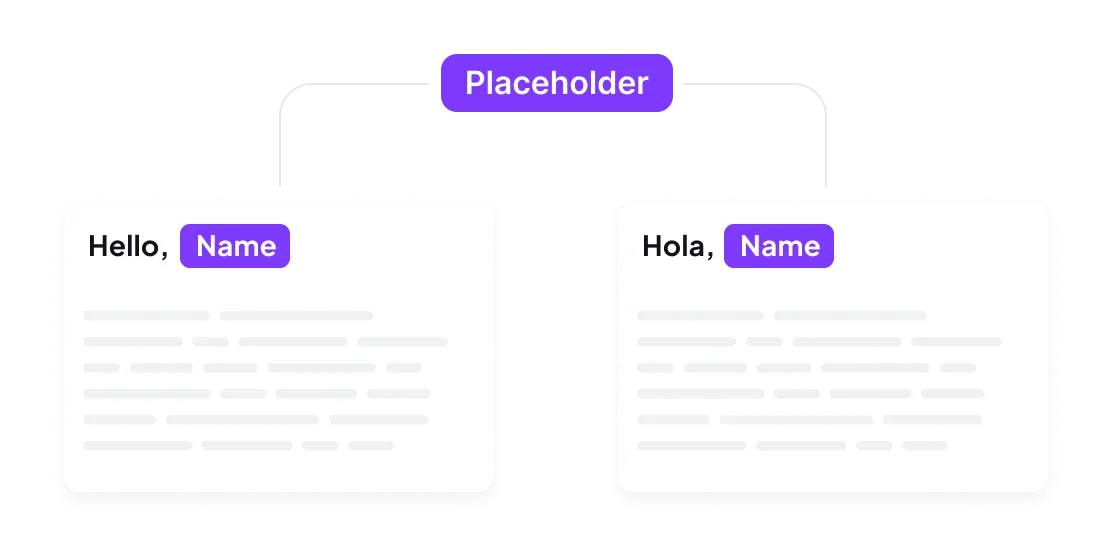
XLIFF is an OASIS standard: version 1.2 was approved in 2008, 2.0 in 2014 and 2.1 in 2018 (OASIS: XLIFF Version 2.1), which is what lets one cloud tool read files produced by several desktop tools. Format detail lives on the SDLXLIFF translator and XLIFF editor pages.
How do you give freelance translators access to projects without a full TMS licence for each?
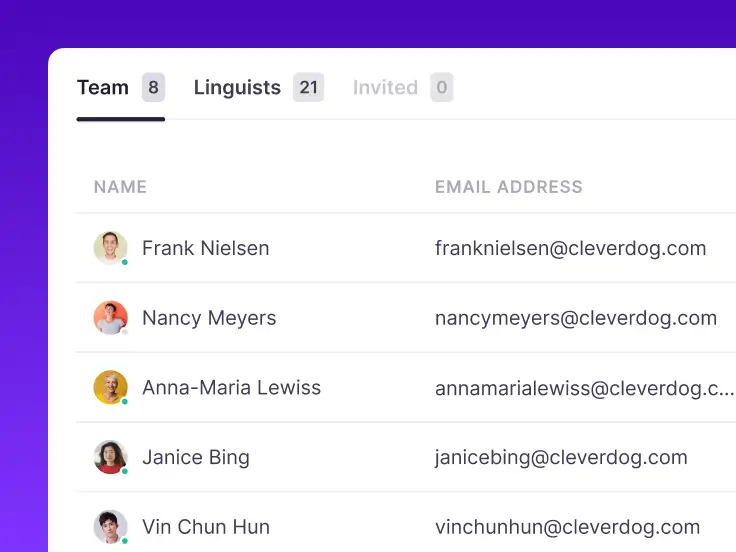
Invite them into the project in the browser. In Smartcat you add your own linguists to My Team, assign a whole document or selected segments to each one, and they translate in the same editor; no desktop licence is needed, and Smartcat takes 0% commission from freelancer earnings.
- Your own linguists: invite them by email, pin the ones you rely on, and keep private notes and negotiated rates in My Team.
- Extra capacity: Smartcat Marketplace lists vetted linguists and agencies with language pairs, rates and competency levels, with AI matching and payments handled in Smartcat. Marketplace isn’t included in the Adapt plan.
- Clients: through the client portal, clients upload files, pick languages and see an estimate based on your rates.
- Control: managers lock segments, and reference files are never billed.
“The real practical lesson is, you don’t have to choose between speed and quality if you use Smartcat. You can pair the AI automation with a dedicated marketplace project manager and certified native linguists.”
Stu Moriens, Learning Solutions Architect, Veeva
That model also answers the “one vendor” problem: work stays in your workspace whoever translates it, so you can add or replace a supplier without moving memories (Smartcat Marketplace, translation management system).
Which platforms combine translation memory, glossaries and automated QA checks?
A cloud CAT tool should run all three on every segment, for every linguist, from one shared copy. Smartcat applies the memory and glossary during AI translation, and 92% of words translated by Smartcat AI for paying customers are accepted without a single human edit, so linguists spend their time on the segments that need judgement.
- Memory: fuzzy matches from 50% and exact 100% matches fill segments; matches of 100% or better use no Smartwords on current plans.
- Glossary: approved terms are highlighted in the source, and QA flags a translation that doesn’t use them.
- QA: checks cover spelling, punctuation, terminology, formatting and consistency with the memory. Tag and character-limit errors are critical and can’t be switched off; managers can mark other checks critical and download a QA report.
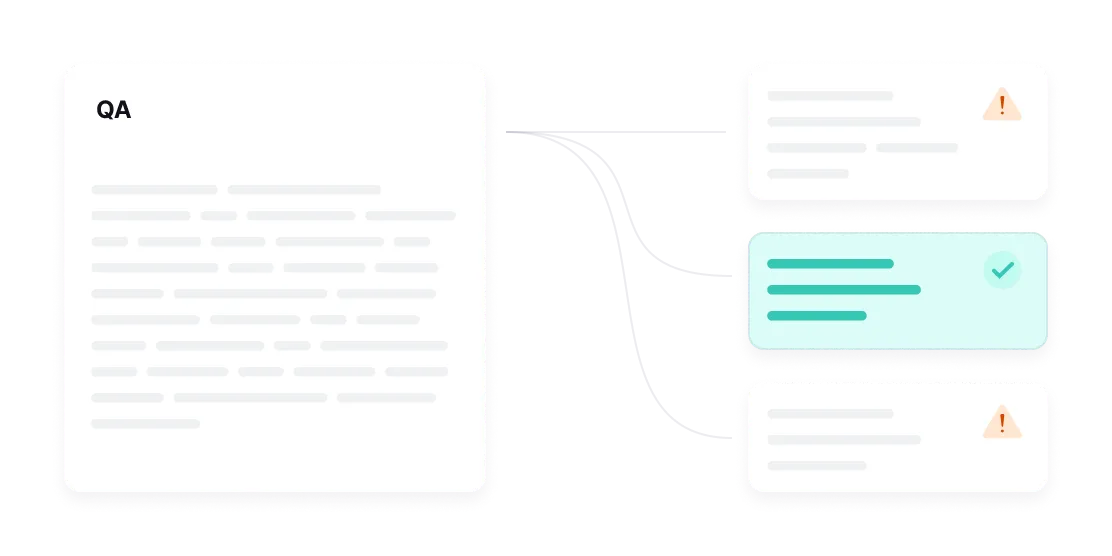
“The integration of translation memory and glossaries ensures consistency across projects… collaboration is smooth, allowing real-time work with translators, reviewers, editors, and project managers.”
Barbarah V., Localization Translator (G2 review, June 9, 2026)
Why memory matters, in more depth: what translation memory is and why you need it.
What changes for translators when they move from a desktop CAT tool, and what stays?
The segment-by-segment work stays: source and target side by side, memory matches, glossary hits and QA. What changes is where it happens: in Smartcat, files, memories and glossaries live in one workspace that takes files of up to 6 GB, so nothing is installed and nothing is emailed.
| Desktop CAT tool | Smartcat | |
|---|---|---|
| Where memories live | A file on each translator’s machine, or a separate server | One shared memory per client in the workspace |
| How files move | Packages sent by email and returned | Assigned in the project; nothing to send |
| Who needs a licence | Every translator and reviewer | Linguists work in the browser |
| Reviewers | Need the tool, or work in an exported copy | Review in the same editor, with comments on segments |
| Offline work | Yes | No; an internet connection is required |
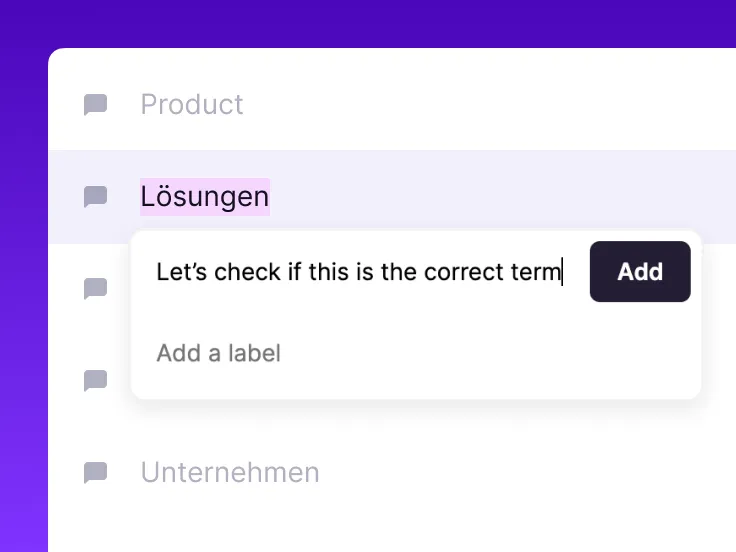
New to the terms? What a CAT tool is explains segments, memory and termbases. Freelance translators have their own account type, described on the CAT tool page.
Try it with one client’s memory and files
Import one memory and glossary, translate a recent client file, and compare the result with your desktop tool (CAT tool, SDLXLIFF translator, XLIFF translation editor).
Frequently asked questions
Can Smartcat import Trados .sdltm translation memories?
Yes. Smartcat imports .sdltm files as well as TMX, XLSX and bilingual documents, up to 1 GB per import. Memories export as TMX or XLSX whenever you need them elsewhere (translation memory import and export).
Can I bring a MultiTerm termbase into Smartcat?
Yes, as MultiTerm XML or as an Excel sheet, up to 10 MB per import. Smartcat imports the language terms; definitions and custom fields aren’t carried over, so keep any notes your linguists need in the glossary itself (glossary management).
Can Smartcat create a Trados return package?
No. Smartcat accepts SDLPPX and SDLRPX packages as uploads and returns each translated file in its original format, but it doesn’t build an SDLRPX return package. Agree the return file with the client and test it on the first job.
Does Smartcat work offline like a desktop CAT tool?
No. Smartcat runs in the browser and needs an internet connection; there is no offline desktop app. In exchange, memories, glossaries and files stay in one workspace, so nobody has to sync or email packages.
What are the file and memory size limits in Smartcat?
Project files can be up to 6 GB, reference files up to 4 GB, translation memory imports up to 1 GB and glossary imports up to 10 MB (file size limits).
Can I try Smartcat on my own files for free?
Yes. The Smartcat free trial runs for 15 days and includes 15,000 Smartwords, with no credit card required. Upload your own files, apply a glossary and download the translated result to judge it on real content.
Is Smartcat affiliated with the companies named in this guide?
No. Smartcat is an independent platform and is not affiliated with, endorsed by, sponsored by or otherwise associated with any company or product named in this guide. All product names and trademarks are the property of their respective owners and are used solely for identification and comparison.
Related guides
Sources
- LISA OSCAR standards archive: TMX 1.4b (read 30 Oct 2026)
- OASIS: XLIFF Version 2.1 (read 30 Oct 2026)
- Trados: system requirements for Trados Studio (read 30 Oct 2026)
- RWS Docs: exporting TM data in Trados Studio (read 30 Oct 2026)
- RWS Docs: package and return package workflows (read 30 Oct 2026)
- memoQ Docs: translation memories in the Resource console (read 30 Oct 2026)
- Smartcat Help: translation memory import and export
- Smartcat Help: glossary management
- Smartcat Help: supported file formats
- Smartcat Help: file size limits
- Smartcat Help: translating XLIFF files

Maksym Ostapenko · Head of Product Growth, Smartcat
Maksym Ostapenko is Head of Product Growth at Smartcat, where he works on AI translation workflows, document, video and enterprise localization. He writes about translation technology and localization operations from hands-on product experience.
Trados®, Trados Studio® and MultiTerm® are trademarks of RWS. memoQ is a trademark of memoQ Ltd. All other product names are trademarks of their respective owners. Smartcat is not affiliated with, endorsed by or sponsored by any company named in this guide; names are used solely for identification and comparison.