GDPR-compliant organization
ISO 27001 certified organization
SOC II compliant organization
Translate your Webstudio website with AI
Translate the pages, navigation, and contact flow of your Webstudio site with AI, review the wording in context, and publish the languages your visitors need.
More than 80 of the world’s largest companies have chosen Smartcat
How to add Smartcat to Webstudio
Create a Smartcat website project from your published Webstudio URL and choose the target languages.
Install the generated Smartcat snippet through project-level Custom Code, then publish.
Publish the change and open the live site to confirm the snippet is present.
Review the translations in Smartcat’s visual editor and publish the languages that are ready.
Translate a Webstudio site through project-level custom code
Use Project → General → Custom Code for the documented global installation point, rather than placing the snippet in a visible canvas embed. Publish or deploy the site through the workflow used by the project, then validate the result in Smartcat.
Review the assembled page with its dynamic content, navigation, and CTA. A translated label should explain the action accurately, while the design remains controlled in Webstudio.
If the site is exported or deployed through a separate frontend pipeline, keep the code in the output that is actually served. A builder setting and a separately maintained deployment can diverge.
What changes for visitors, and what stays in Webstudio
Smartcat translates the text your published Webstudio pages render. Your pages, settings, form recipients, and booking or payment logic stay where they are; embedded widgets and text inside images have their own localization settings.
Review before a language goes live
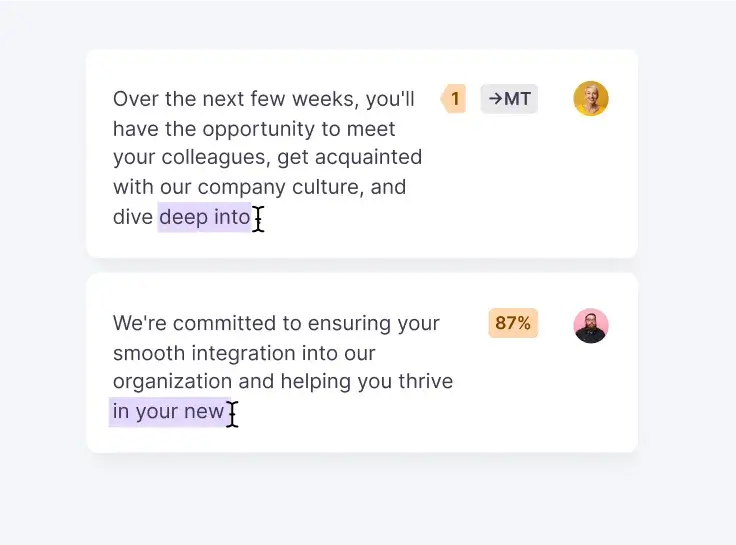
Machine translation gives you a fast first draft. In Smartcat’s visual editor you see each translated string on the page, shorten headings that run long on mobile, and keep product and brand names consistent with a glossary. Assign a reviewer when a page needs approval, and publish only the languages that are ready.
Frequently asked questions
Is a canvas embed equivalent to project-level code?
No. The embed is a content element with its own placement. Use the supported global mechanism when the translator should run across pages.
Can I edit translations before publishing?
Yes. Refine and confirm the wording in Smartcat’s visual editor, then publish the languages that are ready.
What happens when I add a new page in Webstudio?
New text follows the Smartcat project’s selected translation mode. Choose reviewed translations when every new page requires approval; automatic modes can translate newly encountered text. Neither mode changes your source content in Webstudio.
Publish your Webstudio website in more languages
Install the snippet once, review the translations in context, and publish the languages your audience needs. See all website integrations or read how the Website Translator works.