GDPR-compliant organization
ISO 27001 certified organization
SOC II compliant organization
Translate your Webnode website with AI
Translate the pages, navigation, and contact flow of your Webnode site with AI, review the wording in context, and publish the languages your visitors need.
More than 80 of the world’s largest companies have chosen Smartcat
How to add Smartcat to Webnode
Create a Smartcat website project from your published Webnode URL and choose the target languages.
Install the generated Smartcat snippet through website Header code, where your account provides it.
Publish the change and open the live site to confirm the snippet is present.
Review the translations in Smartcat’s visual editor and publish the languages that are ready.
Translate Webnode content without confusing native language versions and a script
Webnode’s native multilingual pages are an option when editors want to maintain language versions within the builder. A Smartcat website layer is a different workflow for translated display and review.
Where the account provides website Header code, use that supported site-level installation and validate the published pages. Review navigation, service descriptions, and contact guidance in the same language so visitors can complete their task.
The script does not create Webnode’s native language-page records. Choose that native structure when separate editorial versions are part of the requirement.
What changes for visitors, and what stays in Webnode
Smartcat translates the text your published Webnode pages render. Your pages, settings, form recipients, and booking or payment logic stay where they are; embedded widgets and text inside images have their own localization settings.
Review before a language goes live
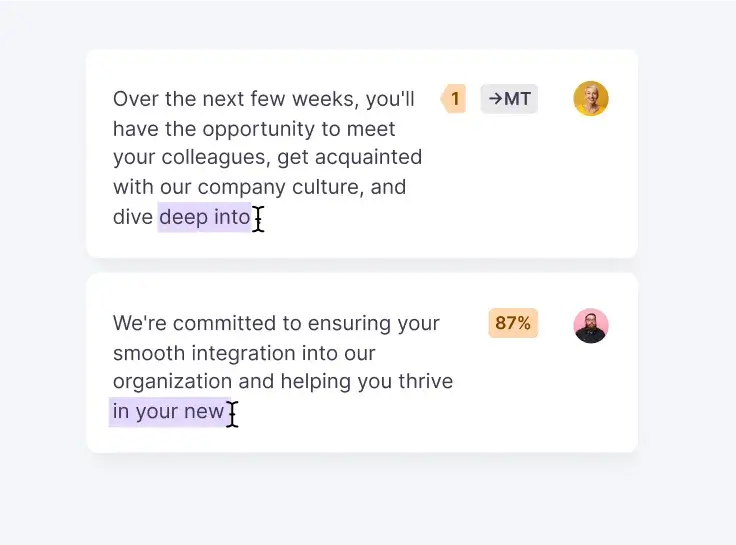
Machine translation gives you a fast first draft. In Smartcat’s visual editor you see each translated string on the page, shorten headings that run long on mobile, and keep product and brand names consistent with a glossary. Assign a reviewer when a page needs approval, and publish only the languages that are ready.
Frequently asked questions
Should I create Webnode language versions or use a translation layer?
Use native versions for localized content managed in Webnode. Use the script approach when a separately managed translated display meets the need and the installation is supported.
Can I edit translations before publishing?
Yes. Refine and confirm the wording in Smartcat’s visual editor, then publish the languages that are ready.
What happens when I add a new page in Webnode?
New text follows the Smartcat project’s selected translation mode. Choose reviewed translations when every new page requires approval; automatic modes can translate newly encountered text. Neither mode changes your source content in Webnode.
Publish your Webnode website in more languages
Install the snippet once, review the translations in context, and publish the languages your audience needs. See all website integrations or read how the Website Translator works.