GDPR-compliant organization
ISO 27001 certified organization
SOC II compliant organization
Translate your Pixpa portfolio with AI
Help prospective clients understand your practice, your projects, and how to work with you. Smartcat translates the text on your Pixpa site, and you review it in context before publishing.
More than 80 of the world’s largest companies have chosen Smartcat
How to add Smartcat to Pixpa
Create a Smartcat website project from your published Pixpa URL and choose the target languages.
Install the generated Smartcat snippet through Studio → External Scripts → Head.
Publish the change and open the live site to confirm the snippet is present.
Review the translations in Smartcat’s visual editor and publish the languages that are ready.
Translate your Pixpa portfolio’s descriptions and client guidance
Use Studio → External Scripts → Head for the documented website code route. Publish the change and validate the site in Smartcat, then review project descriptions, service pages, and the contact flow.
A creative portfolio should explain the work without altering authorship or client credits. For a photographer’s booking page, keep deliverables, turnaround wording, and usage rights clear. Text inside images is separate from captions and page copy.
Client galleries can have their own behavior and access boundaries. A translated public portfolio does not establish full translation of private gallery tools, downloads, or checkout.
What changes for visitors, and what stays in Pixpa
Client names, credits, and artwork titles stay deliberate. Text embedded in images remains part of those assets in Pixpa and needs separate localization.
Review before a language goes live
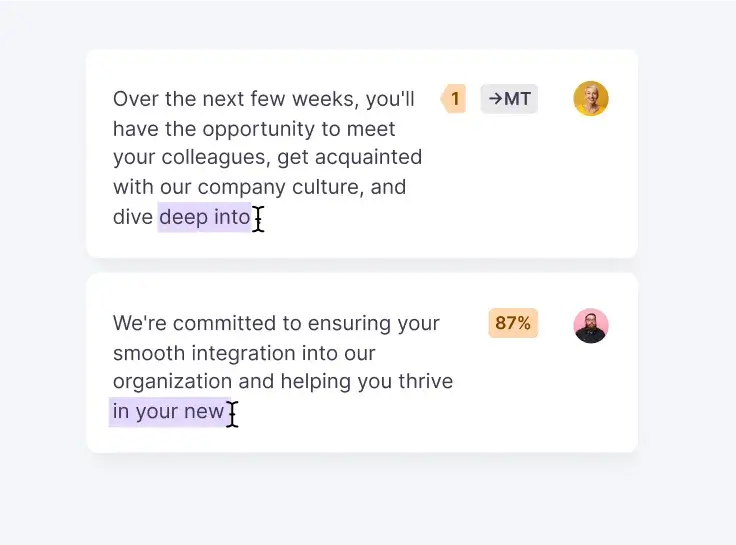
Machine translation gives you a fast first draft. In Smartcat’s visual editor you see each translated string on the page, shorten headings that run long on mobile, and keep product and brand names consistent with a glossary. Assign a reviewer when a page needs approval, and publish only the languages that are ready.
Frequently asked questions
Does the public-site installation cover every client gallery?
That coverage must be checked separately. Public pages and private gallery experiences may not render the same code or expose the same content.
Can I edit translations before publishing?
Yes. Refine and confirm the wording in Smartcat’s visual editor, then publish the languages that are ready.
What happens when I add a new page in Pixpa?
New text follows the Smartcat project’s selected translation mode. Choose reviewed translations when every new page requires approval; automatic modes can translate newly encountered text. Neither mode changes your source content in Pixpa.
Publish your Pixpa portfolio in more languages
Install the snippet once, review the translations in context, and publish the languages your audience needs. See all website integrations or read how the Website Translator works.