GDPR-compliant organization
ISO 27001 certified organization
SOC II compliant organization
Translate your Netlify site with AI
Add the Smartcat website snippet to your Netlify project once, deploy it through your normal pipeline, and review translations in Smartcat before you publish a language.
More than 80 of the world’s largest companies have chosen Smartcat
How to add Smartcat to Netlify
Create a Smartcat website project from your published Netlify URL and choose the target languages.
Install the generated Smartcat snippet through Snippet Injection before the closing head tag, for static HTML routes.
Deploy the change and open the published site to confirm the snippet is present.
Review the translations in Smartcat’s visual editor and publish the languages that are ready.
Use Netlify snippet injection only for static HTML routes
For a static site, Netlify provides Project configuration → Developer settings → Post processing → Snippet Injection. Add the generated snippet and choose placement before the closing head tag. Netlify applies supported injection when serving the page; a new build is not required simply to save that setting.
This method does not cover proxy routes or pages served by functions. In particular, server-rendered routes need the frontend or function to produce the required markup itself. A site mixing static and server-rendered pages can therefore have partial coverage if you rely only on dashboard injection.
What changes for visitors, and what stays in Netlify
Website translation changes the published reading experience. It does not create translated source files, message catalogs, or locale builds in your Netlify repository.
Review before a language goes live
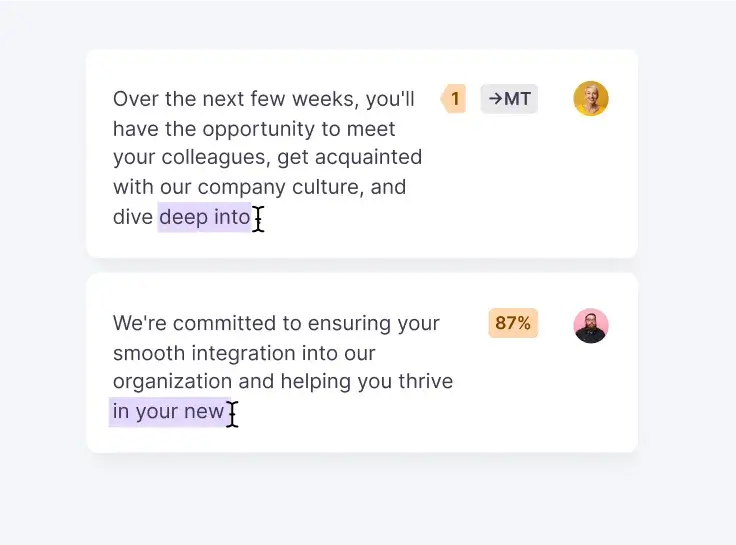
Machine translation gives you a fast first draft. In Smartcat’s visual editor you see each translated string on the page, shorten headings that run long on mobile, and keep product and brand names consistent with a glossary. Assign a reviewer when a page needs approval, and publish only the languages that are ready.
Frequently asked questions
Why is the snippet present on the homepage but absent on another route?
The second route may be handled by a function or proxy. Netlify’s supported snippet injection targets static HTML, so install through the application for non-static responses.
Can I edit translations before publishing?
Yes. Refine and confirm the wording in Smartcat’s visual editor, then publish the languages that are ready.
What happens when I add a new page in Netlify?
New text follows the Smartcat project’s selected translation mode. Choose reviewed translations when every new page requires approval; automatic modes can translate newly encountered text. Neither mode changes your source content in Netlify.
Publish your Netlify site in more languages
Install the snippet once, review the translations in context, and publish the languages your audience needs. See all website integrations or read how the Website Translator works.