GDPR-compliant organization
ISO 27001 certified organization
SOC II compliant organization
Translate your Kirby website with AI
Translate the pages, navigation, and contact flow of your Kirby site with AI, review the wording in context, and publish the languages your visitors need.
More than 80 of the world’s largest companies have chosen Smartcat
How to add Smartcat to Kirby
Create a Smartcat website project from your published Kirby URL and choose the target languages.
Install the generated Smartcat snippet through the shared head snippet your templates render.
Deploy the change and open the published site to confirm the snippet is present.
Review the translations in Smartcat’s visual editor and publish the languages that are ready.
Translate a Kirby site at the rendered-page layer
A Kirby project commonly shares its head markup through a PHP snippet such as site/snippets/header.php. Add the generated Smartcat code to the actual shared head output, rather than changing individual content text files simply to install the integration.
For a portfolio or studio site, review project names, descriptions of the work, and the contact invitation together. Keep client names and credited collaborators intact while adapting the explanatory language. Text inside project images remains part of those assets.
Kirby’s own multilingual content files are a different approach. Use them when localized content needs to live in the project; the website script manages translated display without writing those files.
What changes for visitors, and what stays in Kirby
The script translates the text Kirby renders on the published site. It does not create Kirby language variants or write translated values back into the back office; use the native multilingual model when translated content must be stored in Kirby.
Review before a language goes live
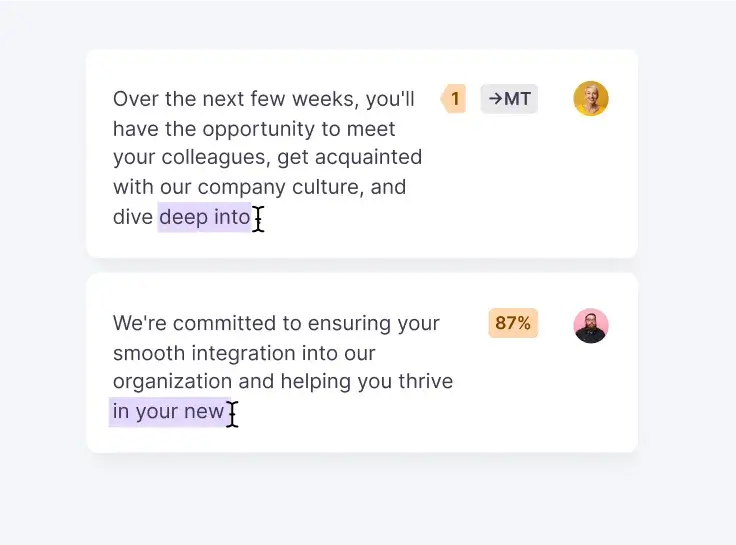
Machine translation gives you a fast first draft. In Smartcat’s visual editor you see each translated string on the page, shorten headings that run long on mobile, and keep product and brand names consistent with a glossary. Assign a reviewer when a page needs approval, and publish only the languages that are ready.
Frequently asked questions
Does the script create Kirby language content files?
No. It does not generate or update the language-specific files used by Kirby’s native multilingual model.
Can I edit translations before publishing?
Yes. Refine and confirm the wording in Smartcat’s visual editor, then publish the languages that are ready.
What happens when I add a new page in Kirby?
New text follows the Smartcat project’s selected translation mode. Choose reviewed translations when every new page requires approval; automatic modes can translate newly encountered text. Neither mode changes your source content in Kirby.
Publish your Kirby website in more languages
Install the snippet once, review the translations in context, and publish the languages your audience needs. See all website integrations or read how the Website Translator works.